
emgmafalda
Participant
May 23, 2017
Answered

Help creating an Action to Liquify

  • May 23, 2017
  • 2 replies
  • 1167 views

I use the Liquify tool all the time in my images so I was hoping to create a simple Liquify Action. The problem is that when I try to Record a New Action and I go to "Filter/Liquify..."  this is when I need to finish the Action by pressing the Stop button but I no longer have access to the stop button as the Liquify screen is up.  So is there a way of doing this?  The only thing I want is to hit the Liquify Action and for it to open the Panel. I can take it from there. Note:  I know there is a shortcut to Liquify but I prefer the button of an action.

Thanks,

Estela
This topic has been closed for replies.
Correct answer c.pfaffenbichler

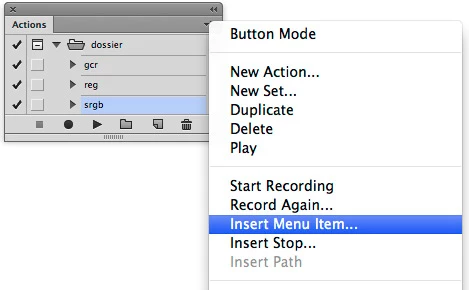
Use »Insert Menu Item« from the Action Panel’s fly-out menu to include Liquify in the Action.

[Message edited and combined by Moderator for convenience of the OP]

2 replies

c.pfaffenbichler
Community Expert
c.pfaffenbichlerCommunity ExpertCorrect answer
Community Expert
May 23, 2017

Use »Insert Menu Item« from the Action Panel’s fly-out menu to include Liquify in the Action.

[Message edited and combined by Moderator for convenience of the OP]

Eternal Warrior
Inspiring
May 23, 2017

+1 to this.

I hope it's OK c.pfaffenbichler but I combined then deleted the other post as a Moderator... as I thought it looked better to have the screenshot you provided in the same post.

c.pfaffenbichler
Community Expert
Community Expert
May 23, 2017

Of course, doing it in two posts was somewhat sloppy …

Akash Sharma
Legend
May 23, 2017

Hi Estela,

Which version of Photoshop are you using?

Would you be able to record a video to illustrate the issue?

Thanks,

Akash

emgmafalda
Participant
May 23, 2017

I have Photoshop CC. Thank you so much for all the help!!!