Participant
February 28, 2020
Answered

Help fading shape to centre

  • February 28, 2020
  • 2 replies
  • 1893 views

I have this square and I want it to slowly turn transparent towards the middle and in the middle it would be 100% transparent, any help would be appreciated thanks.


This topic has been closed for replies.
Correct answer mglush

Hi!

Here is another option:

You can use a Gradient overlay on your shape with teh following settings:
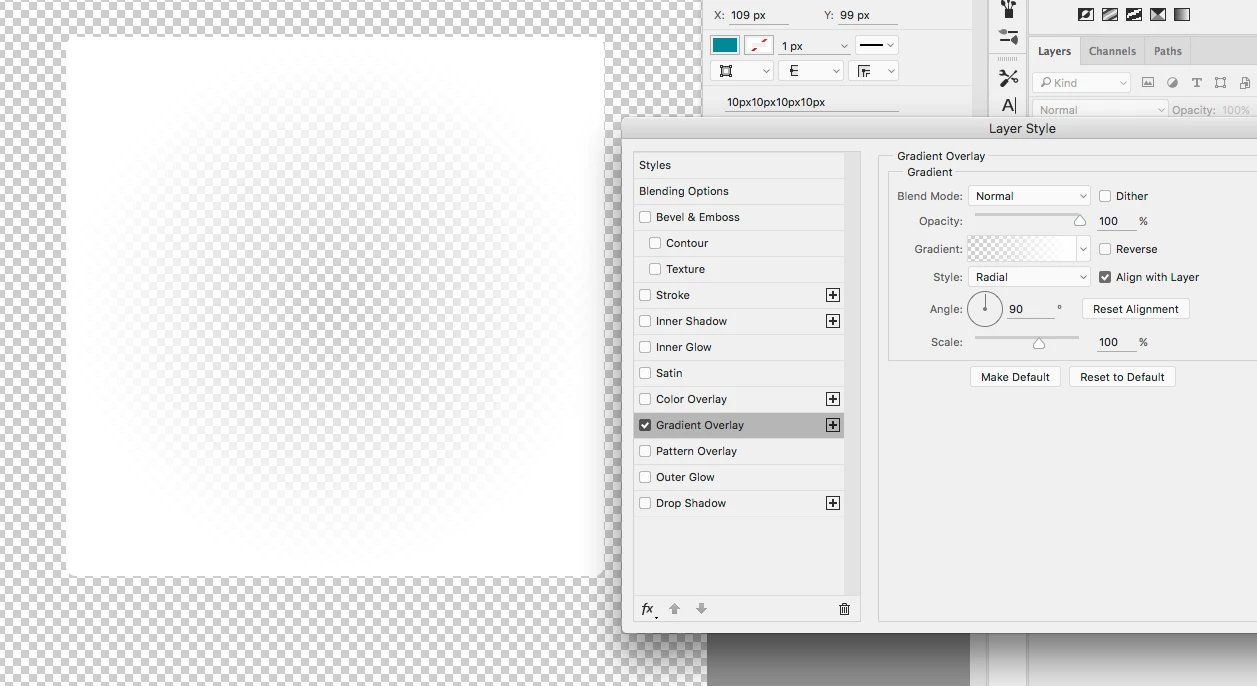
 

1. Double click on your layer to bring up the Layer Styles Dialog box.

2. Click on Gradient Overlay.

3. In the Gradient Overlay dialog box, Click on the Radial Option from the Style drop down menu.

4. Then just above that, click on the Gradient Box to bring up the Gradient Editor.

5. Set the Gradient to be White on both sides (the stops on the bottom) and then click on the stop at Top Left and set the Opacity to be 0.

6. Click on the stop at the top right and change the opacity to be100

Then the last step, still in the Layer Style Dialog box, click on Blending Options in the left side of the panel and change the Fill Opacity to 0. This will set the original fill of the shape to 0% Opacity and you will only see the Gradient Overlay you just applied.


Let us know if you have any questions,

Michelle

2 replies

mglush
Community Expert
mglushCommunity ExpertCorrect answer
Community Expert
February 29, 2020

Hi!

Here is another option:

You can use a Gradient overlay on your shape with teh following settings:
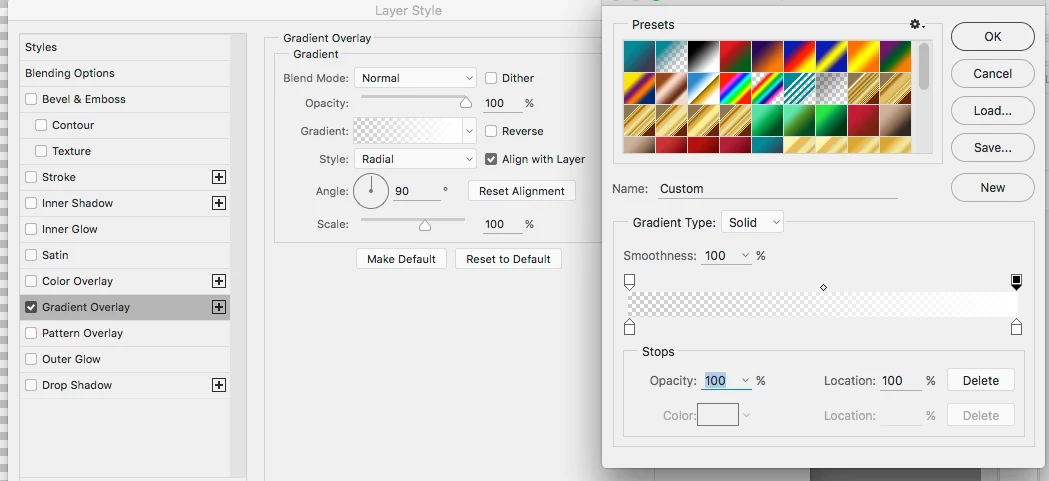
 

1. Double click on your layer to bring up the Layer Styles Dialog box.

2. Click on Gradient Overlay.

3. In the Gradient Overlay dialog box, Click on the Radial Option from the Style drop down menu.

4. Then just above that, click on the Gradient Box to bring up the Gradient Editor.

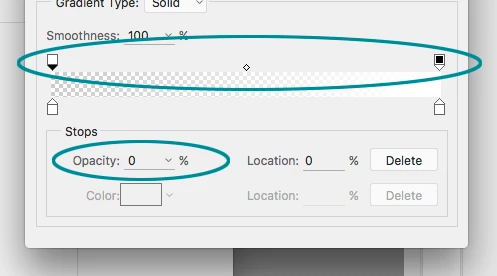
5. Set the Gradient to be White on both sides (the stops on the bottom) and then click on the stop at Top Left and set the Opacity to be 0.

6. Click on the stop at the top right and change the opacity to be100
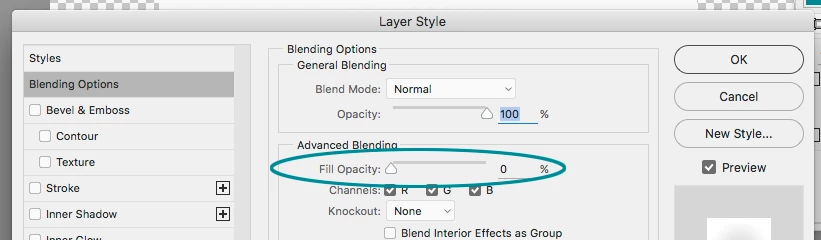
Then the last step, still in the Layer Style Dialog box, click on Blending Options in the left side of the panel and change the Fill Opacity to 0. This will set the original fill of the shape to 0% Opacity and you will only see the Gradient Overlay you just applied.
 

Let us know if you have any questions,

Michelle

didiermazier
Community Expert
Community Expert
February 29, 2020

great tip!

Chuck Uebele
Community Expert
Community Expert
February 29, 2020

You could try duplicating the layer, add an inner glow layer effect, using black, and have the inner glow feather to the center. Then go to channels and make a selection by ctrl/cmd clicking on the channel icon. Go back to your original layer and add a layer mask to it with the selection that you made, but hold the alt/opt key while doing so to inverse the selection, as otherwise the black edges will be transparent rather than the center.