
Known Participant
July 6, 2019
Question

Help, I need to remove background but have other layers/channels

  • July 6, 2019
  • 5 replies
  • 938 views

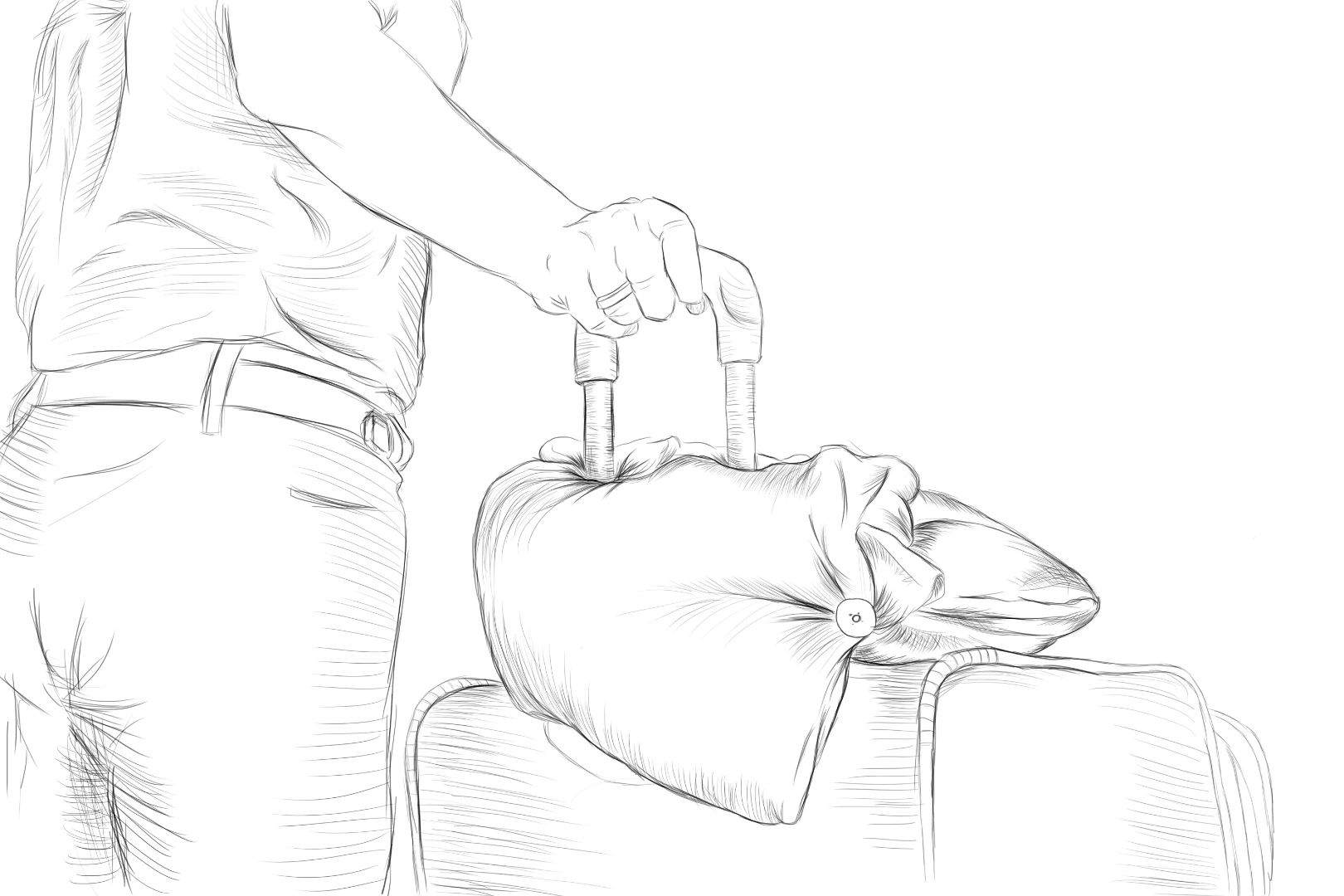
The below sketch was a PNG so the background layer contains the sketch. I then created an adjustment layer to darken and now need to remove the background. The youtube videos only address when there are one layer and one channel, after converting to grayscale, and the background layer is just white. I have an adjustment layer as well and now I need the best and most accurate way to do this if possible. Thanks so much!
    This topic has been closed for replies.

    5 replies

    Known Participant
    July 7, 2019

    To JJMack, I figured it out thanks. When you save the file do you do it as a PNG or Photoshop PDF. Hard to tell if the background is there or not as when it opens its always white as a PDF.

    JJMack
    Community Expert
    Community Expert
    July 8, 2019

    I never save Images using Photoshop as a PDF  Portable Document Format is for publishing Printable Manuals.  I save layer images as PSD files Photoshop native file format. PNG is for web pages images with transparency otherwise save Jpeg files for the web or printable images. When editing images edit Layerd document in 16 bit color save your work in layered PSD files.

    JJMack
    Michael Bullo
    Community Expert
    Community Expert
    July 6, 2019

    I can see that JJMack has already created the look you are after.

    Another method would be to change the blending mode of your sketch layer to Multiply. If you are finding that the lines aren't strong enough having changed the blending mode you could always duplicate the sketch layer.

    Known Participant
    July 6, 2019

    JJMack that is what I am looking for! How did you do that?

    Thank you!

    Victor

    JJMack
    Community Expert
    Community Expert
    July 6, 2019
    Known Participant
    July 7, 2019

    The link is a bit confusing and I am using grayscale. I have done it by converting to grayscale then coping the image. I then created a new channel and pasted the copy. This works but once when copying the image in layers it does not appear. I have to say but I need the directions for greyscale. Step by step if at all possible. I appreciate either way!!

    Michael Bullo
    Community Expert
    Community Expert
    July 6, 2019

    I don't fully follow what you are doing but it sounds like you may just need to "smoosh" all of your layers together. You can do this by choosing the Flatten Image option from the Layer menu and then continuing to use your technique.

    What I just mentioned above is a destructive process meaning that you couldn't, for example, make future tweaks to your adjustment layer if needed. If you absolutely had to merge all of your layers I would recommending saving a copy as a Photoshop file which you could revisit if needed.

    Community Expert
    July 6, 2019

    Hi,

    Are you after something like:

    If so, here is what I did:

    • I used the quick selection tool to select the background:
      Quickly select and change part of an image You can tidy up the selection with other tools including Select > Edit in Quick Mask Mode.
    • Then Select > Inverse.
    • With the layer selected, click the Add vector mask icon.

    I realise you have other layers and channels. I don't see why the above won't work if you have other layers in the file but maybe I'm missing what's happening in those layers. If it doesn't work, could you screenshot the various layers.

    JJMack
    Community Expert
    Community Expert
    July 6, 2019

    JJMack