Participant
May 4, 2017
Answered

Help with some perspective problems

  • May 4, 2017
  • 1 reply
  • 254 views

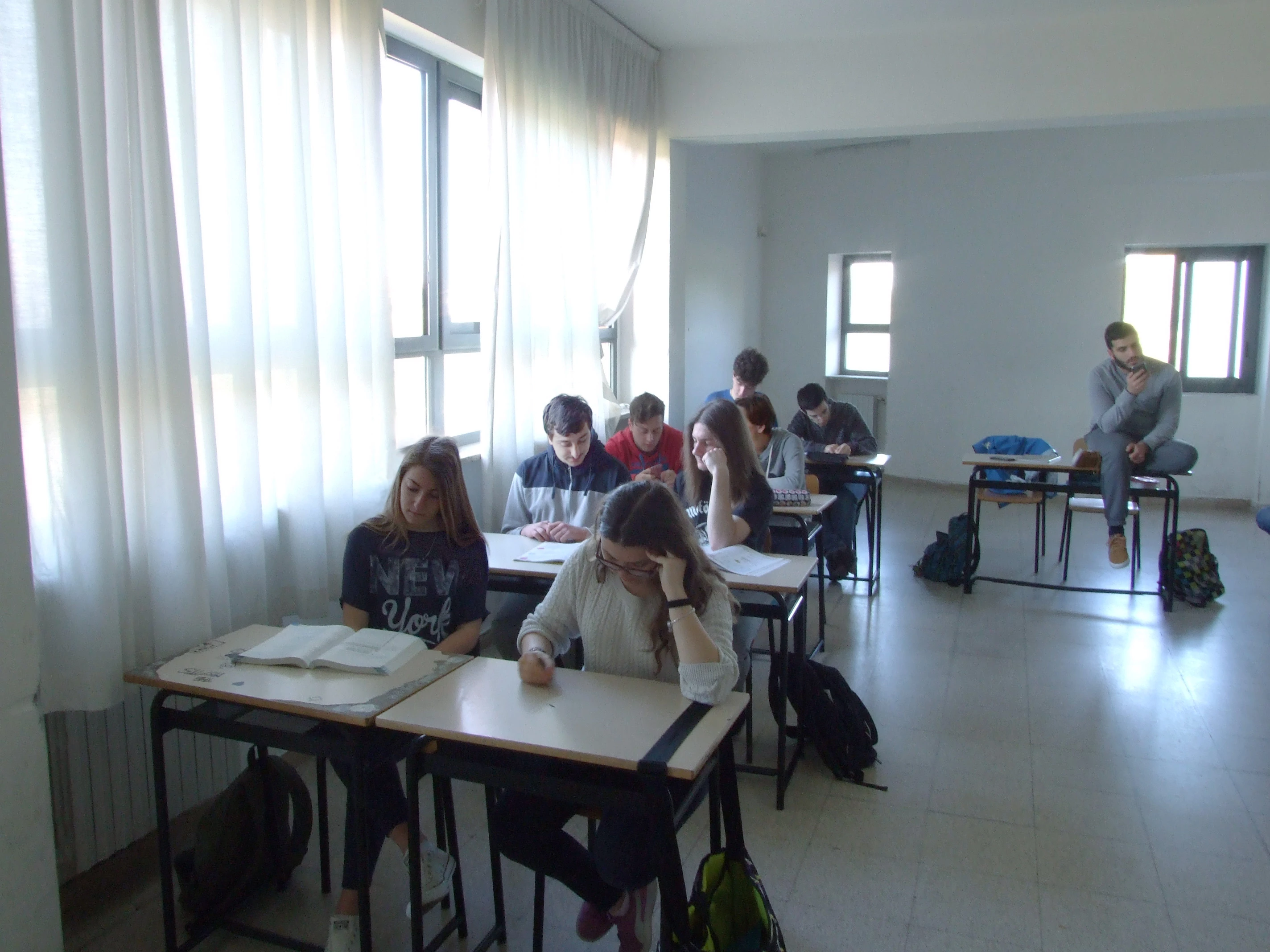
Hello everyone, i'm having some problems with a project I'm working on. I have to fit every person of this shot inside of a translucent parallelepiped, but it seems like i can't orientate myself correctly in a 2d space, and my work doesn't look realistic at all. Can someone help me?  Thank you all in advance!
This is my best tryout at making the bases, as you can see i also tried to make a grid to make thing easier, but it doesn't look ok at all :c

    This topic has been closed for replies.
    Correct answer davescm

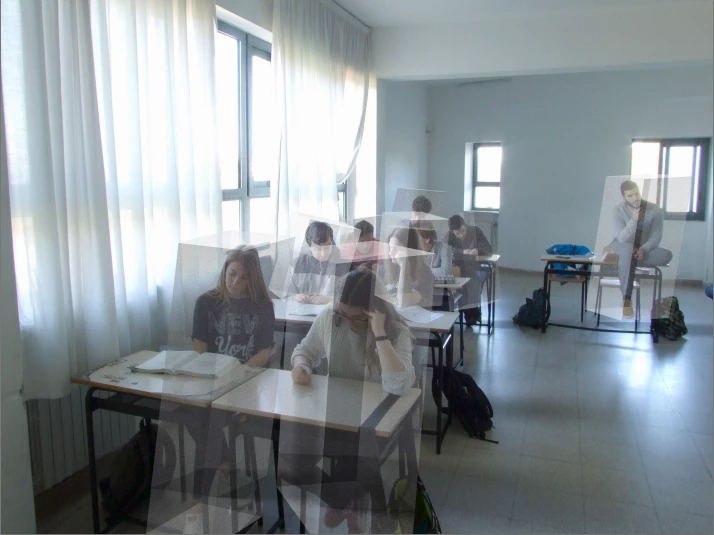
    You could consider this, using 3D groundplane to match the perspective and move parallelepiped objects:

    Add a new layer and use the rectangle tool to draw a path, then transform - skew the path so you have a parallelogram.
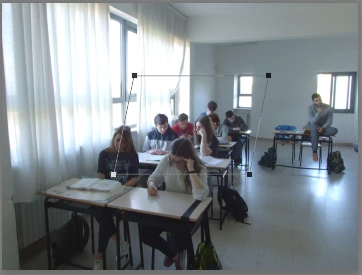
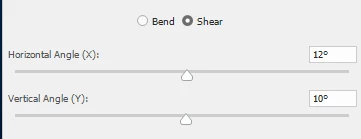
    Make a 3D extrusion from the path and then set the deform shear horizontal and vertical extrusion angles so you have a parallelepiped.
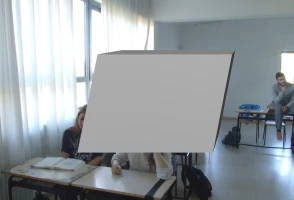
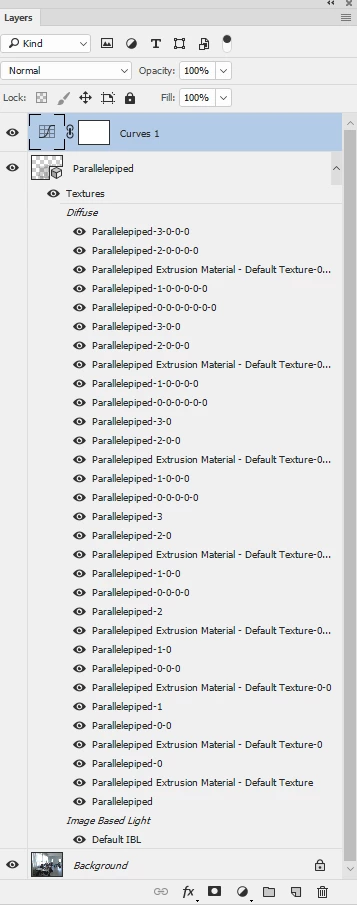
    Now set the diffuse material for the front back and extrusion to give a translucent look
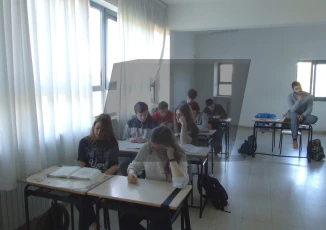
    Temporarily turn off the object visibility and select the move tool.

    Move the camera so the 3D groundplane grid aligns with the perspective of the floor
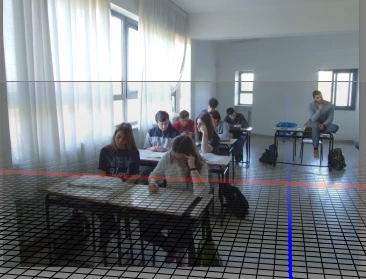
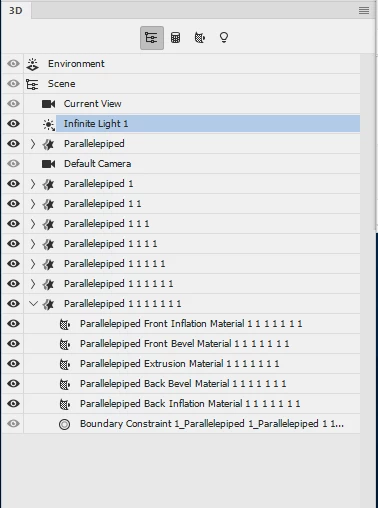
    Now turn the object back on and move and rotate it so that it covers the first person (move the infinite light so that it is shining straight down and use the ground shadow as a guide to where it is on the floor). Scale it so that it fits.
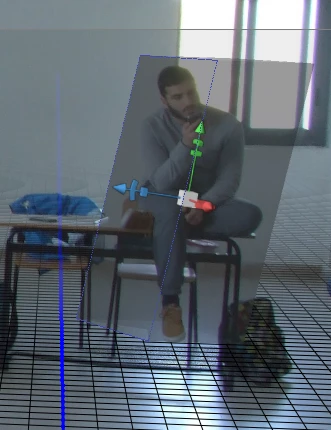
    Duplicate the object and repeat the moving and scaling for those. You can alter the shear angles for each to make them fit better.

    Then move the 3D light to shine from the left and render
    I hope that helps

    Dave

    1 reply

    davescm
    Community Expert
    davescmCommunity ExpertCorrect answer
    Community Expert
    May 5, 2017

    You could consider this, using 3D groundplane to match the perspective and move parallelepiped objects:

    Add a new layer and use the rectangle tool to draw a path, then transform - skew the path so you have a parallelogram.

    Make a 3D extrusion from the path and then set the deform shear horizontal and vertical extrusion angles so you have a parallelepiped.

    Now set the diffuse material for the front back and extrusion to give a translucent look

    Temporarily turn off the object visibility and select the move tool.

    Move the camera so the 3D groundplane grid aligns with the perspective of the floor

    Now turn the object back on and move and rotate it so that it covers the first person (move the infinite light so that it is shining straight down and use the ground shadow as a guide to where it is on the floor). Scale it so that it fits.

    Duplicate the object and repeat the moving and scaling for those. You can alter the shear angles for each to make them fit better.

    Then move the 3D light to shine from the left and render
    I hope that helps

    Dave