There's a trick for doing the first one that has no taper.
Create your first type layer, and make a copy (Ctrl J)
I've placed the copied layer in a group, but this is only for convenience — you'll see why with the next step
We now use Free Transform Step & Repeat to make a bunch more copies with each new layer being slightly more offset.
Select the copied Type layer and use Free Transform using these steps
Ctrl T (to start Free Transform)
Up cursor arrow twice, right cursor arrow twice (to move the layer two pixels up and two pixels to the right)
OK that Free Transform to comit it.
Now we use Step and Repeat to make more copies.
Hold down the Shift Ctrl and Alt keys and tap the T key as many times as you need to get the offset.
This is what mine looked with 10 copies
The reason I put the copied Type layers into a Group is that they are hiding the front layer, so we need to move that layer above the group. I have given a simple Inside stroke layer style to stand out against the copied layers.
Note: I used a two pixel offset, and if I zoom in to 200% you can see slight steps. If you used one pixel steps that would not show, but you'd need twice as many layers for the overall effect.
From here on you need to get creative, but it is a lot of fun and good practice.
Merge the grouped layers so they become a single layer, and use the Dodge and Burn tools to add shading. I used quick and dirty selections to keep the hard corners sharp. I changed to stroke on the front layer to Bevel & Emboss, but if you are using layer styles, you can do what you like and keep changind till you get what you are looking for.
I believe Photoshop no longer has its 3D tools now, but one of my favourite plugins is Alien Skin's Eye Candy 7 which has a host of effects including a nice Extrude. Remember, you always work on a copy of the front layer, because you need the front layer to do your effects on.
Note: Alien Skin now calls itself Exposure (spit) but I can't use the word 'Exposure (spit) without spitting (spit), so excused my bad manners, but Alien Skin was a super cool name, and Exposure (spit) really isn't.
These are the types of effects Eye Candy 7 does. I paid $99 for it a good few years ago. It's $170 New Zealand dollars now, which is about $105 US dollars, so about the same price. https://exposure.software/eyecandy/
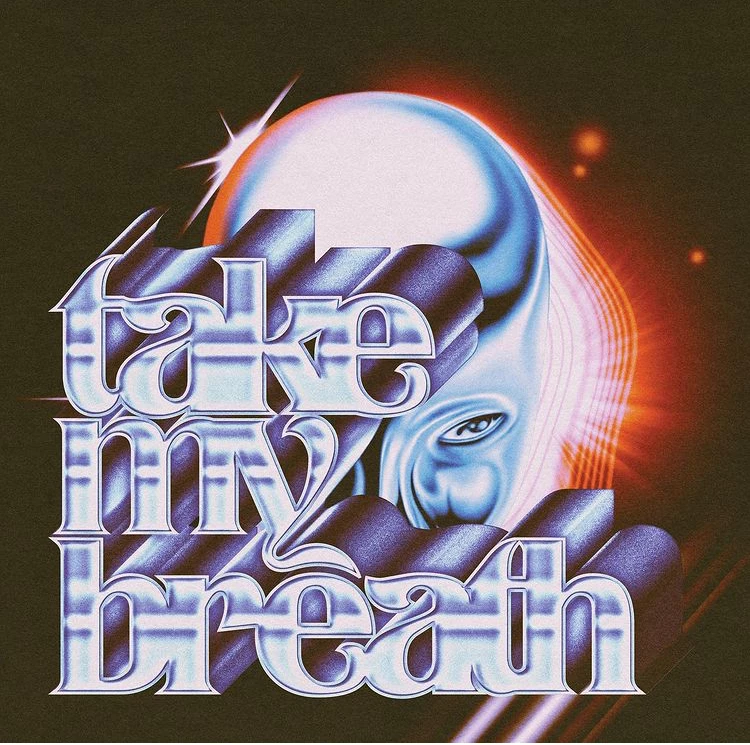
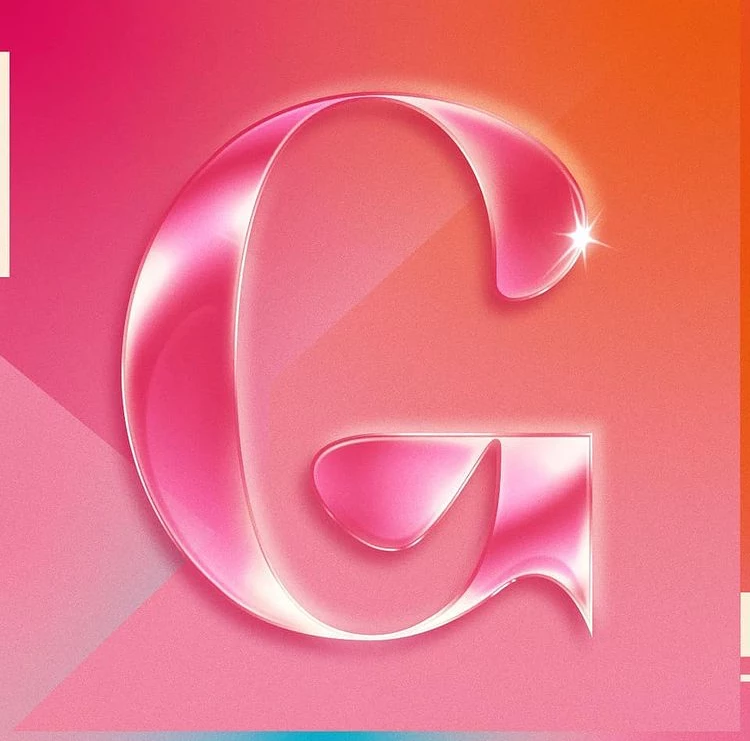
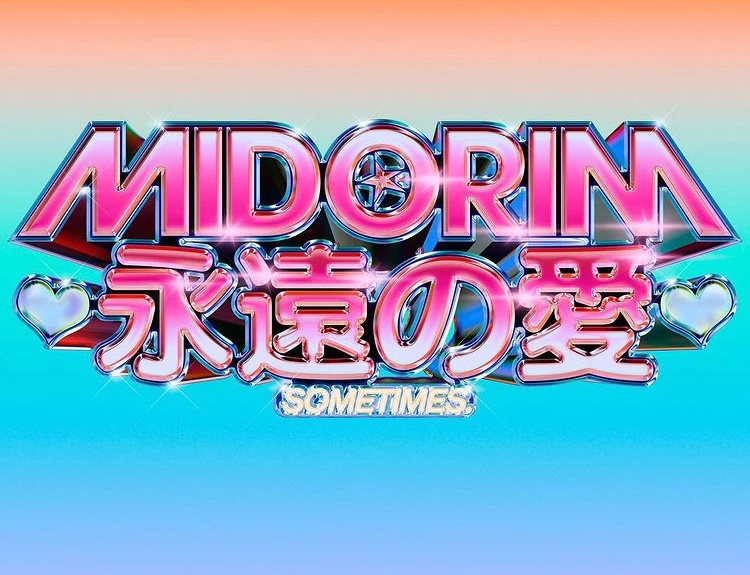
Sure, those are just various layer styles. There are lots of tutorials on how to use them, and there are some on how you can make your own. It's often a good idea to scale down these effects by about 80% (Layer>Layer Style>Scale Effects). Here's a page of free downloads, and there are many more:
-edit- Once you've applied the effect, look under the "fx" on that layer and it tells you what effects were used. It can be a combination of Bevel & Emboss, Outer Glow, Inner Glow, etc. You can play with them on other layers and make your own.

 AdChoices