
Inspiring
August 5, 2018
Answered

How add Legacy Brushes in CC 2018?

  • August 5, 2018
  • 2 replies
  • 7372 views

HI,

Does anyone know how to do this? In the tutorials I've seen it's a simple thing of clicking the menu button on the brushes panel and then selecting Legacy Brushes, but I don't have that option (see screenshot). None of the other options help either.
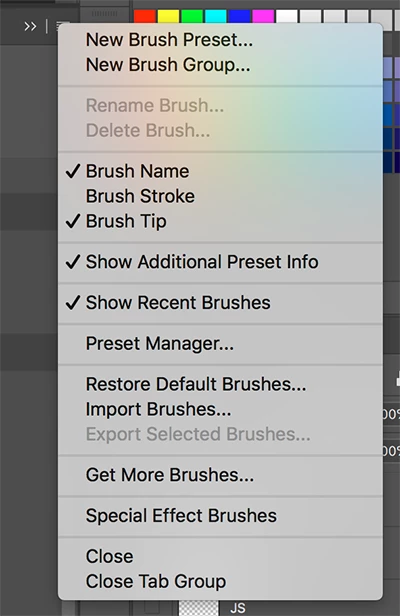
As I still have CS6 on my computer, I've tried searcing for the .abr file that holds them (I particularly want the 'Star' brush that I've used happily for years), but I can't find that either.

Thanks,

Jim
    This topic has been closed for replies.
    Correct answer JJMack

    I tried resetting tools AND resetting preferences, re-starting them both times, but still no joy.

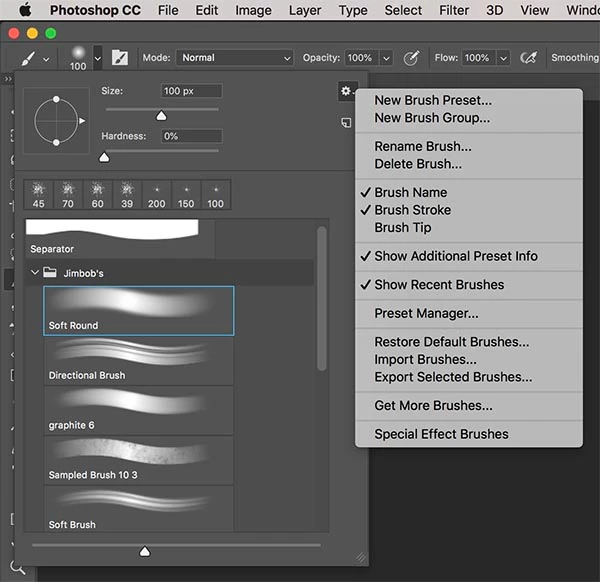
    Sorry, not really sure what you're asking in last question, but here's a screenshot I've just done similar to yours (and after I tried your other 2 suggestions). It's no different than the first screenshot I posted. I notice in yours it doesn't have the Special Effect Brushes like mine does at the bottom? Not sure why that is. If you're wondering, the Special Effect Brushes don't contain the Legacy Brushes.


    Have you tried uninstalling CC 2018 download Adobe cleaner run it then install CC 2018? Use the Creative Cloud Cleaner Tool to solve installation problems

    Your Mac CC 2018 install seem to have an installation problem.

    I'm not a painter most likely all the brushes I have are legacy brushes and brushes I loaded version ago.  I have never even created a brush group.

    2 replies

    Trevor.Dennis
    Community Expert
    Community Expert
    August 5, 2018

    Select the brush tool, and right click in the document window.

    Click on the little cog icon.

    You'll find the Legacy brush set as shown below.

    If you want to get back to how things were in CS6, then after adding the Legacy brushes, delete all the other folders.  They will still be there in the right click menu for when you need them again.

    If you go to this folder:

    C:\Users\your user name\AppData\Roaming\Adobe\Adobe Photoshop CS6\Presets\Brushes

    And select and copy the .abr files, you can copy them into the same folder but substituting CC 2018 for CS6.

    Note you might have to make Hidden items viewable

    JimmazzaAuthor
    Inspiring
    August 7, 2018

    At last! Thanks, JJMack. Much appreciated A complete re-install fixed the problem! I didn't need to run Cloud Cleaner.

    Thanks, Trevor. As I'd mentioned though, I just didn't get the option of Legacy Brushes in the drop-down, but a clean re-install now gives me that.

    Thanks to you both for your time and help

    JJMack
    Community Expert
    Community Expert
    August 5, 2018

    CC 2018 made major changes to Photoshop Brush support please search the forum. Most like this subject has been addressed in the past.

    https://forums.adobe.com/search.jspa?place=%2Fplaces%2F1413024&q=Legacy+Brushes+2018

    JJMack
    JimmazzaAuthor
    Inspiring
    August 5, 2018

    Thanks for the reply! I'd already searched the forums as well as other internet sites, but they all say the same thing i.e. select Legacy Brushes from the fly-out menu in the brush panel as in image below (taken from a site that Adobe linked to on their Twitter account):

    But as you can see in the screenshot I posted in my initial question, I don't have that option.

    JimmazzaAuthor
    Inspiring
    August 5, 2018

    Have you tried resetting all tools to see if that fixes your fly-out menu. And if the does not fix it try resetting your Photoshop Preferences restarting Photoshop.  You should have that menu item in Photoshop cc 2018 brushes fly-out menu. Older version of Photoshop do not have that menu item.

    Do you see the menu item in the Brush picker panel setting menu or a folder for legacy brushes?


    I tried resetting tools AND resetting preferences, re-starting them both times, but still no joy.

    Sorry, not really sure what you're asking in last question, but here's a screenshot I've just done similar to yours (and after I tried your other 2 suggestions). It's no different than the first screenshot I posted. I notice in yours it doesn't have the Special Effect Brushes like mine does at the bottom? Not sure why that is. If you're wondering, the Special Effect Brushes don't contain the Legacy Brushes.