Participating Frequently
October 25, 2022
Answered

How can I change the shortcut to switch layer in photoshop

  • October 25, 2022
  • 3 replies
  • 1439 views

Hi, first of all, I'm sorry for my bad English. I'm not good for English.


I want to change keyboard shortcut to switch selected layer.

I already know switch selected layer shortcut is "alt + [", "alt + ] "

But I want to this shortcut, but I can't find this shortcut setting... ToT


Can you help me? T_T

This topic has been closed for replies.
Correct answer Trevor.Dennis
quote

I know that the shortcut keys to change the selected layer are '[' and ']'.

But this shortcut is so far away from my left hand that it's uncomfortable to press. I'd like to change it to a different shortcut.

However, '[' and ']' cannot be found in the function of changing the shortcut. May I know where it is?


my Photoshop version is 19.1.9 20190724.r.451 2019/07/24: 1207350 x64


Please can you help me? T_T


By @LLLLLLLLLLLL


Just to be clear, you know that Ctrl [ and Ctrl ] move the selected layer up and down the layer stack, and don't actually change the selected layer? 


The shortcuts should definitely be there in version 19.

Do you have it set to Application Menues ?

You need to scroll a long way down the Layers shortcuts to Arrange.
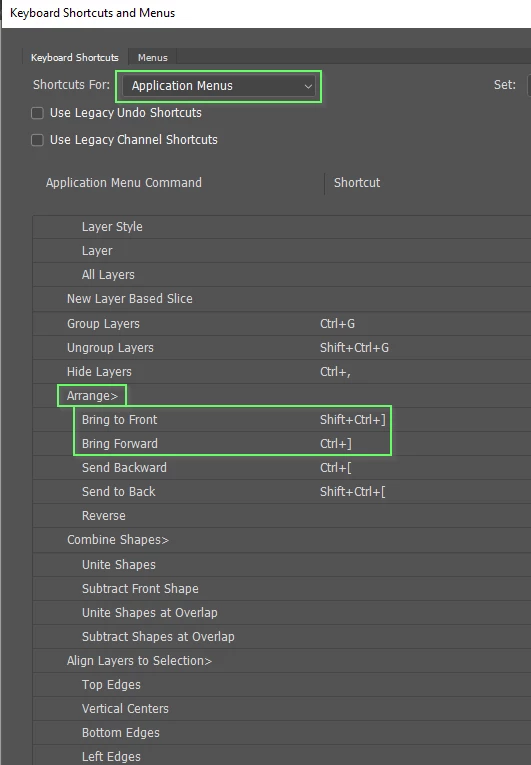
 

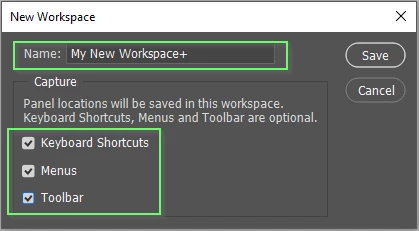
You can set the shortcut to anything you like.  A good way to do it is to save your custom shortcuts to a custom workspace.  You can then switch back to Essentials if you need the default shortcuts.
3 replies

Participating Frequently
November 13, 2022

I know that the shortcut keys to change the selected layer are '[' and ']'.

But this shortcut is so far away from my left hand that it's uncomfortable to press. I'd like to change it to a different shortcut.

However, '[' and ']' cannot be found in the function of changing the shortcut. May I know where it is?


my Photoshop version is 19.1.9 20190724.r.451 2019/07/24: 1207350 x64


Please can you help me? T_T

Trevor.Dennis
Community Expert
Trevor.DennisCommunity ExpertCorrect answer
Community Expert
November 13, 2022
quote

I know that the shortcut keys to change the selected layer are '[' and ']'.

But this shortcut is so far away from my left hand that it's uncomfortable to press. I'd like to change it to a different shortcut.

However, '[' and ']' cannot be found in the function of changing the shortcut. May I know where it is?


my Photoshop version is 19.1.9 20190724.r.451 2019/07/24: 1207350 x64


Please can you help me? T_T


By @LLLLLLLLLLLL


Just to be clear, you know that Ctrl [ and Ctrl ] move the selected layer up and down the layer stack, and don't actually change the selected layer? 


The shortcuts should definitely be there in version 19.

Do you have it set to Application Menues ?

You need to scroll a long way down the Layers shortcuts to Arrange.


You can set the shortcut to anything you like.  A good way to do it is to save your custom shortcuts to a custom workspace.  You can then switch back to Essentials if you need the default shortcuts.

Trevor.Dennis
Community Expert
Community Expert
October 26, 2022

Look through the Edit Shortcuts under Menu > Layer  for Arrange 

We don't know your first langauge, so you will need to translate Bring Forward  and Send Backward and when you locate them, you can change the shortcuts.

Ranjisha Sengupta
Legend
October 26, 2022

Hi there,


Thanks for reaching out. In Photoshop, click Edit > Keyboard Shortcuts in the menu bar. Photoshop will open the "Keyboard Shortcuts and Menus" window. Here, you'll choose which shortcuts you want to change. Click the "Shortcuts For" drop-down menu and select an item.

To learn the complete procedure, check https://helpx.adobe.com/photoshop/using/customizing-keyboard-shortcuts.html.


Let us know how it goes.

Thanks,

Ranjisha