
Nature Mike
Known Participant
August 23, 2018
Answered

How can I convert a layer mask to a pixel layer?

  • August 23, 2018
  • 4 replies
  • 3614 views

Hello,

Can anyone walk me through how to convert a layer mask to a pixel layer?

Thanks!

This topic has been closed for replies.
Correct answer Conrad_C

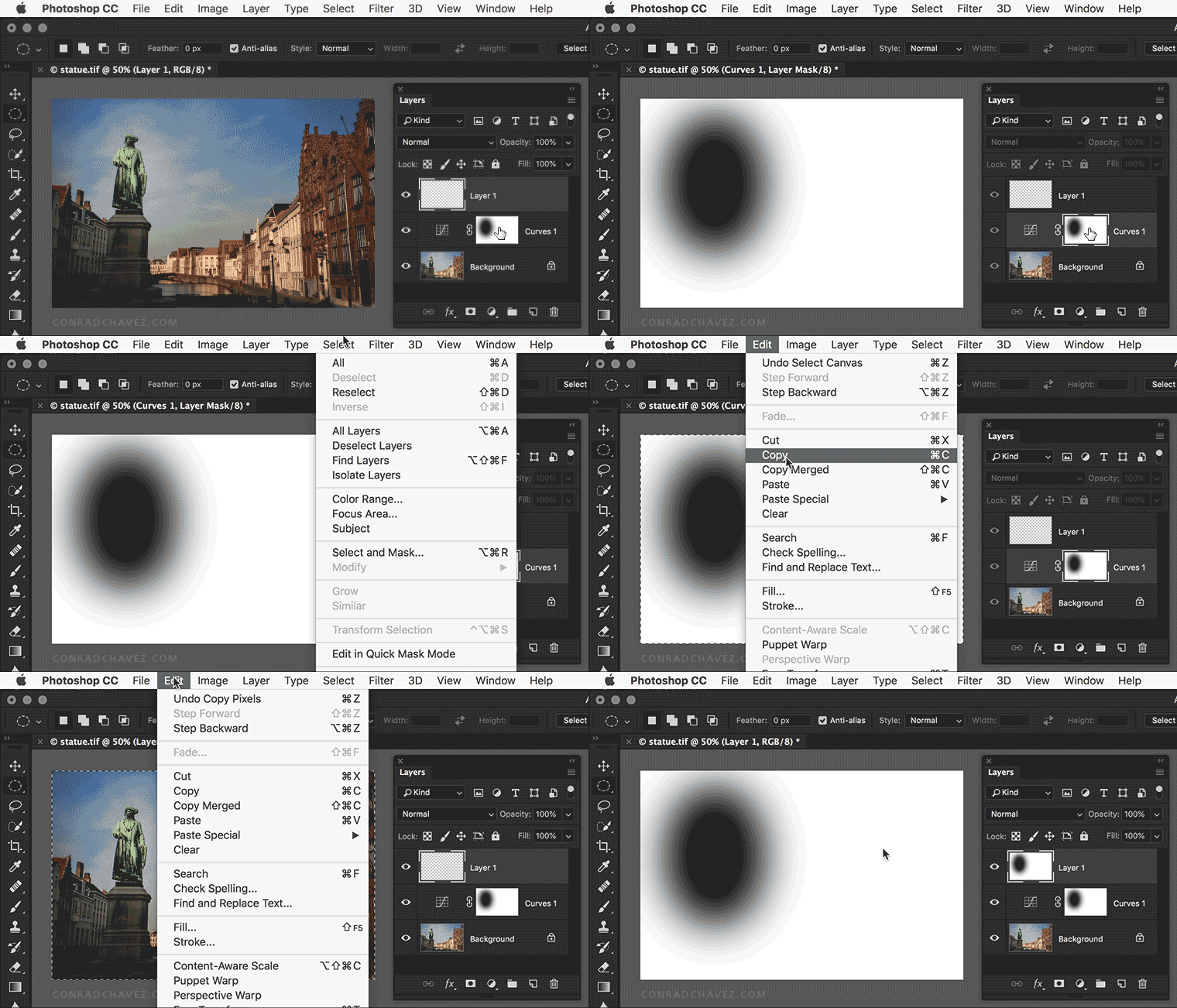
It's also possible to do this without the Channels panel. Option-click (macOS) or Alt-click (Windows) the mask thumbnail to make it active, select all, then copy and paste the mask contents into the layer. When you're done, Opt/Alt-click the layer mask again to switch it back to normal view.
4 replies

lambiloon
Community Expert
Community Expert
August 24, 2018

right click on link icon there you see option making mask layer to convert as final pixel layer....thanks

Ali Sajjad / Graphic Design Trainer / Freelancer / Adobe Certified Professional
Chuck Uebele
Community Expert
Community Expert
August 24, 2018

Ctrl/cmd click on the layer mask. Then use ctrl/cmd-c to copy it, then paste it into a new layer that is filled with black, and make sure you're filling with white.

Conrad_C
Community Expert
Conrad_CCommunity ExpertCorrect answer
Community Expert
August 24, 2018

It's also possible to do this without the Channels panel. Option-click (macOS) or Alt-click (Windows) the mask thumbnail to make it active, select all, then copy and paste the mask contents into the layer. When you're done, Opt/Alt-click the layer mask again to switch it back to normal view.

davescm
Community Expert
Community Expert
August 23, 2018

Hi

1. Click on the mask

2. Go to the channels panel

3. Click on the eye symbol next to the mask channel to turn it on and turn off the eye symbol for the RGB channel

4. Press Ctrl+A then Ctrl+C to copy

5. Turn back on the eye symbol for RGB and turn off the eye symbol for the mask channel

6 Press Shift+Ctrl+N to make a new layer

7 Press Ctrl+V to paste the copied mask channel into that new layer

Dave