Exit
  • Global community
    • Language:
      • Deutsch
      • English
      • Español
      • Français
      • Português
  • 日本語コミュニティ
  • 한국 커뮤니티
0

how can i draw lines with same width and length?

Explorer ,
Dec 25, 2017 Dec 25, 2017

how can i draw lines with same width and length?

2.4K
Translate
Report
Community guidelines
Be kind and respectful, give credit to the original source of content, and search for duplicates before posting. Learn more
community guidelines

correct answers 1 Correct answer

Community Expert , Dec 25, 2017 Dec 25, 2017

Or use Snap to Grid

When the lines are drawn you can use Free Transform to position them

And if you need to restrict the lines to cover another layer, clip them together by Alt clicking the intersection of the two layers

Translate
Adobe
Community Expert ,
Dec 25, 2017 Dec 25, 2017

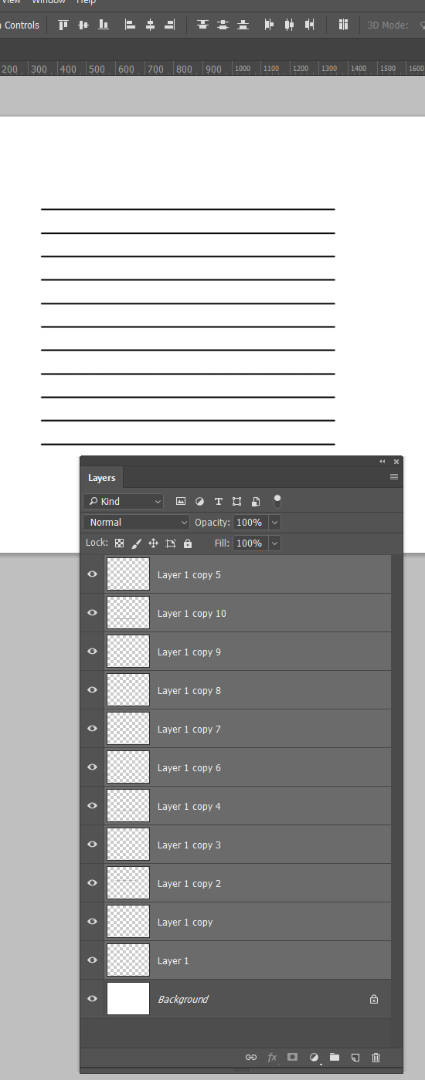
Draw one and copy the layer.  You can then select the move tool, and use the Alignment tools to space them equally

Translate
Report
Community guidelines
Be kind and respectful, give credit to the original source of content, and search for duplicates before posting. Learn more
community guidelines
Explorer ,
Dec 25, 2017 Dec 25, 2017

ye i know that way, but i like want a point where it stops when i draw, because otherwise i dont get a certain glow effect from it or how to describe that, that i want.

Translate
Report
Community guidelines
Be kind and respectful, give credit to the original source of content, and search for duplicates before posting. Learn more
community guidelines
Community Expert ,
Dec 25, 2017 Dec 25, 2017

Or use Snap to Grid

When the lines are drawn you can use Free Transform to position them

And if you need to restrict the lines to cover another layer, clip them together by Alt clicking the intersection of the two layers

Translate
Report
Community guidelines
Be kind and respectful, give credit to the original source of content, and search for duplicates before posting. Learn more
community guidelines
Explorer ,
Dec 25, 2017 Dec 25, 2017

I'll try this

Translate
Report
Community guidelines
Be kind and respectful, give credit to the original source of content, and search for duplicates before posting. Learn more
community guidelines
Community Expert ,
Dec 25, 2017 Dec 25, 2017
LATEST

1. Open a new file and add a transparent layer.

2. Draw the line and then Select > All, Edit > Copy

3. Hold down Cmd+Opt+Shift and choose Edit > Free Transform. Be sure to release the mouse before releasing the keyboard keys.

4. Hold down the Shift key for alignment and drag the line down to your desired distance from the first line. Then key Return. The second image wlll display marching ants.

5. Hold down Cmd+Opt+Shift and strike the T key repeatedly. Each time you do, another duplicate will appear, following with the exact spacing throughout that you had designated.

6. Select > Deselect to remove the marching ants.  Crop if desired,

Note that all of the lines appear on one layer.

step.jpg

Translate
Report
Community guidelines
Be kind and respectful, give credit to the original source of content, and search for duplicates before posting. Learn more
community guidelines