Participating Frequently
December 20, 2021
Answered

How can I expand the selection

  • December 20, 2021
  • 3 replies
  • 1981 views

how can i expand the selection so automatically snap the upper left corner of the canvas, i need this to batch multiple files of different dimensions.

example:
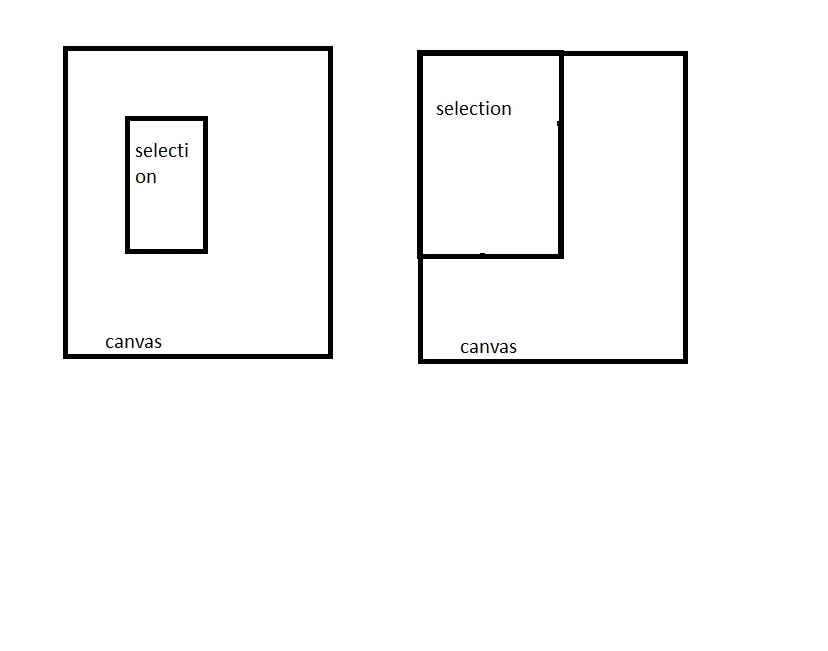
This topic has been closed for replies.
Correct answer Kukurykus
sTT = stringIDToTypeID;
dsc2 = new ActionDescriptor()
bnds = activeDocument.selection.bounds
slctn = {top: 0, left: 0, bottom: bnds[3], right: bnds[2]};
(ref = new ActionReference()).putProperty(sTT('channel'), sTT('selection'));
(dsc1 = new ActionDescriptor()).putReference(sTT('null'), ref); for(i in slctn)
	dsc2.putUnitDouble(sTT(i), sTT('pixelsUnit'), slctn[i])
dsc1.putObject(sTT('to'), sTT('rectangle'), dsc2)
executeAction(sTT('set'), dsc1);

3 replies

Stephen Marsh
Community Expert
Community Expert
December 20, 2021

A script is the most flexible way to do this.


It should be possible to do in an action as well, however one may need to get creative. I'll see what I can hack together, even though the script from Kukurykus being the best option, at least an action would be self contained/stand alone if you were using this within a larger action or multiple users without requiring the installation of a "helper script".


EDIT:


The key is setting the transform reference point to the lower right corner and then "massively overshooting" the transform to "negative values" past the upper left canvas corner to account for all expected size differences. It also appears that the quickmask hack has some importance as well.

Kukurykus
Legend
December 20, 2021

I have problem to reproduce your action. Can you show it somehow else?

Stephen Marsh
Community Expert
Community Expert
December 20, 2021

Sure for me, the biggest issue was seeing the wood for the trees:


Here is a download link:

https://www.dropbox.com/s/gvadqo2krz79e59/Resize%20Rectangular%20Selection%20to%20Zero%20Point.atn?dl=0


NOTE: Original action link replaced due to a careless error in original action!


Kukurykus
KukurykusCorrect answer
Legend
December 20, 2021
sTT = stringIDToTypeID;
dsc2 = new ActionDescriptor()
bnds = activeDocument.selection.bounds
slctn = {top: 0, left: 0, bottom: bnds[3], right: bnds[2]};
(ref = new ActionReference()).putProperty(sTT('channel'), sTT('selection'));
(dsc1 = new ActionDescriptor()).putReference(sTT('null'), ref); for(i in slctn)
	dsc2.putUnitDouble(sTT(i), sTT('pixelsUnit'), slctn[i])
dsc1.putObject(sTT('to'), sTT('rectangle'), dsc2)
executeAction(sTT('set'), dsc1);
Participating Frequently
December 20, 2021


Can I save this text as .jsx and just load it into photoshop as a script? or how do i run that script?

Stephen Marsh
Community Expert
Community Expert
December 20, 2021

The script worked when I changed rules to pixels. Thanks a lot!


Here is a small addition to the code so that you don't have to remember to do this:


// Save the current ruler units and set to pixels
var origRulers = app.preferences.rulerUnits;        
app.preferences.rulerUnits = Units.PIXELS;

//////////////////////
sTT = stringIDToTypeID;
dsc2 = new ActionDescriptor()
bnds = activeDocument.selection.bounds
slctn = {top: 0, left: 0, bottom: bnds[3], right: bnds[2]};
(ref = new ActionReference()).putProperty(sTT('channel'), sTT('selection'));
(dsc1 = new ActionDescriptor()).putReference(sTT('null'), ref); for(i in slctn)
	dsc2.putUnitDouble(sTT(i), sTT('pixelsUnit'), slctn[i])
dsc1.putObject(sTT('to'), sTT('rectangle'), dsc2)
executeAction(sTT('set'), dsc1);
//////////////////////

// Restore the ruler units
app.preferences.rulerUnits = origRulers;
Myra Ferguson
Community Expert
Community Expert
December 20, 2021

You can record the transformation of the selection to make it extend to the top and to the left edges of the canvas.


Try doing the following:

  1. Create a new action by clicking on the Create new action icon at the bottom of the Actions panel or by going to the Actions panel menu and selecting New Action...
  2. Draw your selection
  3. Go to Select > Transform Selection and drag the edges where you want the new selection to be made
  4. Stop recording the action (after you've added any other steps that you need)
  5. Go to File > Automate > Batch and select your action, your source, your destination, and any file naming preferences
Participating Frequently
December 20, 2021

Since I have different canvas sizes, and differently positioned selections, this doesn’t work for me. If I transform the selection to the edge in one image, it does not mean that there will be a selection to the edge of the canvas in the other image.
