Inspiring
October 10, 2019
Answered

How can I find the center of a layer in Photoshop?

  • October 10, 2019
  • 5 replies
  • 24226 views

I need to find the horizontal center of a LAYER not the entire document. I have Rulers enabled, and I'm snapping to guides, but unlike the tutorials I've read, the ruler guide that I pull down doesn' snap, or even light up, at any point. 


I have Photoshop Creative Cloud 20.0.4 on an iMac with the Mojave 10.14.6.


{Thread renamed by moderator}
Correct answer Jeff Arola

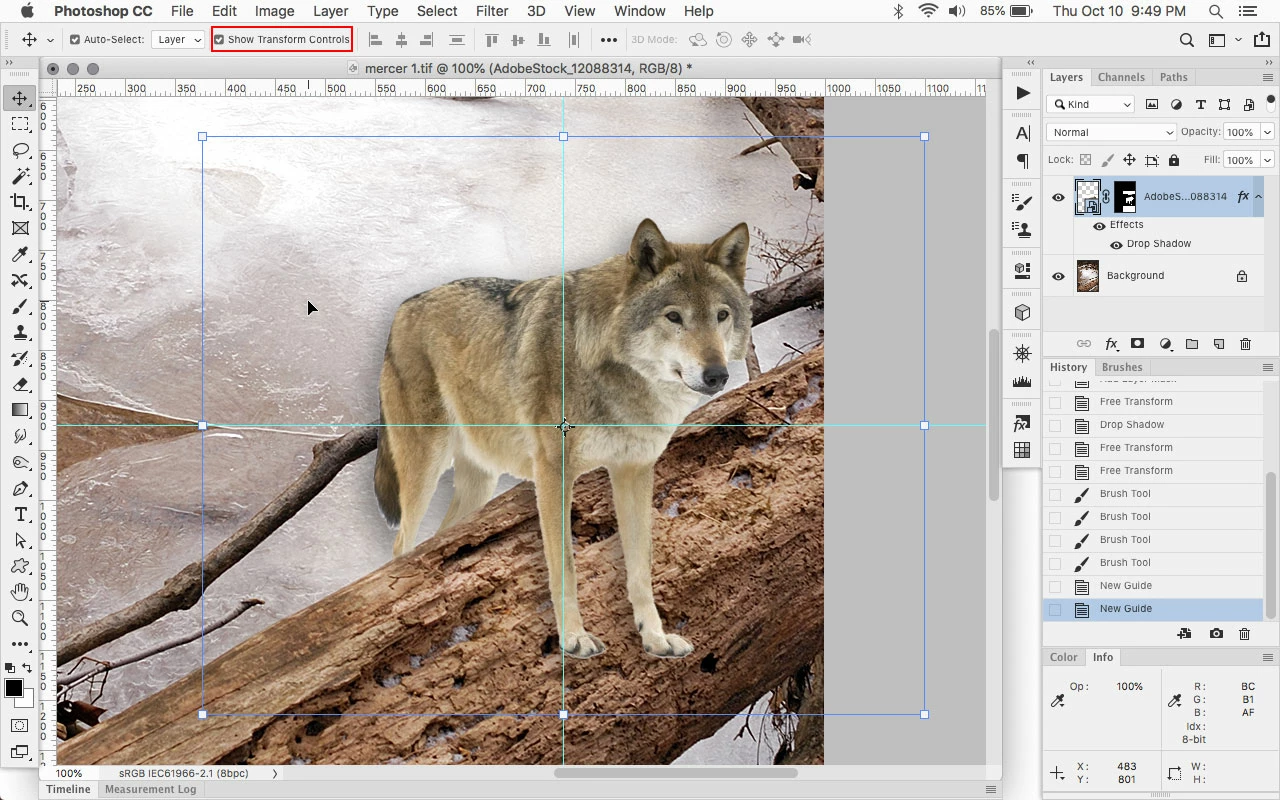
The usual way is to select the Move Tool and check Show Transform Controls so you can see the layer center indicated by the Reference Point in the Center, then the Guides will snap to the center Reference Point.


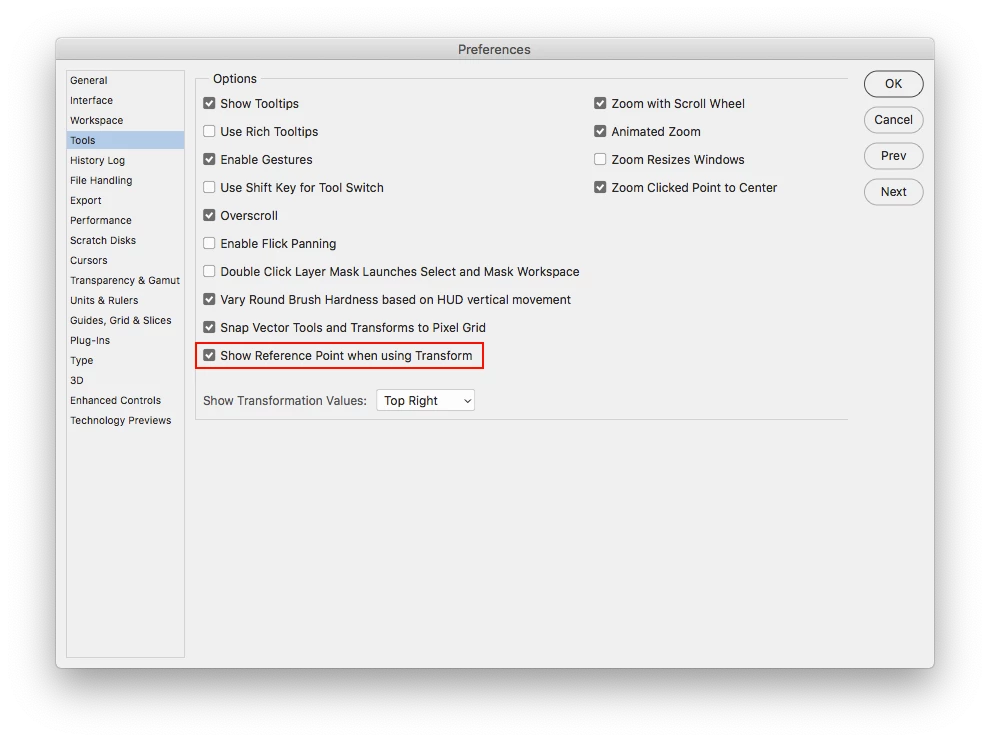
For whatever reason adobe decided to make some changes so now one has to go the Photoshop Preferences>Tools and Click Show Reference Point when Using Transform to see the Reference Point.


5 replies

Stephen Marsh
Community Expert
Community Expert
October 12, 2019

The following script will find the horizontal and vertical centre of the active layer. It will add guides and a colour sampler to the centre and also report the co-ordinates via a window. It should be simple enough to alter as required:


//community.adobe.com/t5/Photoshop/How-can-I-find-the-center-of-a-layer-in-Photoshop/td-p/10661864
// How can I find the center of a layer in Photoshop?

#target photoshop;

var savedRuler = app.preferences.rulerUnits;        
app.preferences.rulerUnits = Units.PIXELS;

var doc = activeDocument;
var layerBounds = doc.activeLayer.bounds
var hor = layerBounds[2]-layerBounds[0];
var ver = layerBounds[3]-layerBounds[1];
var hCentre = hor/2+layerBounds[0];
var vCentre = ver/2+layerBounds[1];

// Add horizontal guide
doc.guides.add(Direction.HORIZONTAL, vCentre);
// Add vertical guide
doc.guides.add(Direction.VERTICAL, hCentre); 

// Add colour sampler to centre of layer
doc.colorSamplers.add([hCentre, vCentre]); 

// Report the co-ordinates in pixels
alert('Active Layer Centre Point' + '\n' + 'X: ' + hCentre + '\n' + 'Y: ' + vCentre);

app.preferences.rulerUnits = savedRuler;    

//doc.colorSamplers.removeAll();
//doc.guides.removeAll();


Chuck Uebele
Community Expert
Community Expert
October 11, 2019

Jeff, the trouble is now that if you use transform to place guides, you have the move tool selected and you have to hold the shift key, when you start, but let it up once you start dragging, or the guide will disappear when you quit the transform.

Jeff Arola
Community Expert
Jeff ArolaCommunity ExpertCorrect answer
Community Expert
October 11, 2019

The usual way is to select the Move Tool and check Show Transform Controls so you can see the layer center indicated by the Reference Point in the Center, then the Guides will snap to the center Reference Point.


For whatever reason adobe decided to make some changes so now one has to go the Photoshop Preferences>Tools and Click Show Reference Point when Using Transform to see the Reference Point.


Chuck Uebele
Community Expert
Community Expert
October 10, 2019

Do you have snap turned on?

Sahil.Chawla
Adobe Employee
Adobe Employee
October 10, 2019

Hi There,

Thanks for reaching out the Adobe Community!

As you're looking to find the horizontal center point of a Layer in Photoshop, would suggest you to update Photoshop to version 20.0.6 which is the most recent update and let us know if it helps.

Also, you may have a look here and see how it goes: https://helpx.adobe.com/in/photoshop/using/aligning-layers.html


Regards,
Sahil

Inspiring
October 10, 2019
I'm worried that if I update now, many things about the interface will change and I'll have a lot of new things to learn just to use the program. i really, really don't have the time to go through that right now. Are you suggesting that my version of Photoshop is somehow broken, and only updating will fix it? The articles in your link don't pertain to my question.