Inspiring
June 23, 2018
Answered

How can I re-enable the smooth zoom again?

  • June 23, 2018
  • 2 replies
  • 14572 views

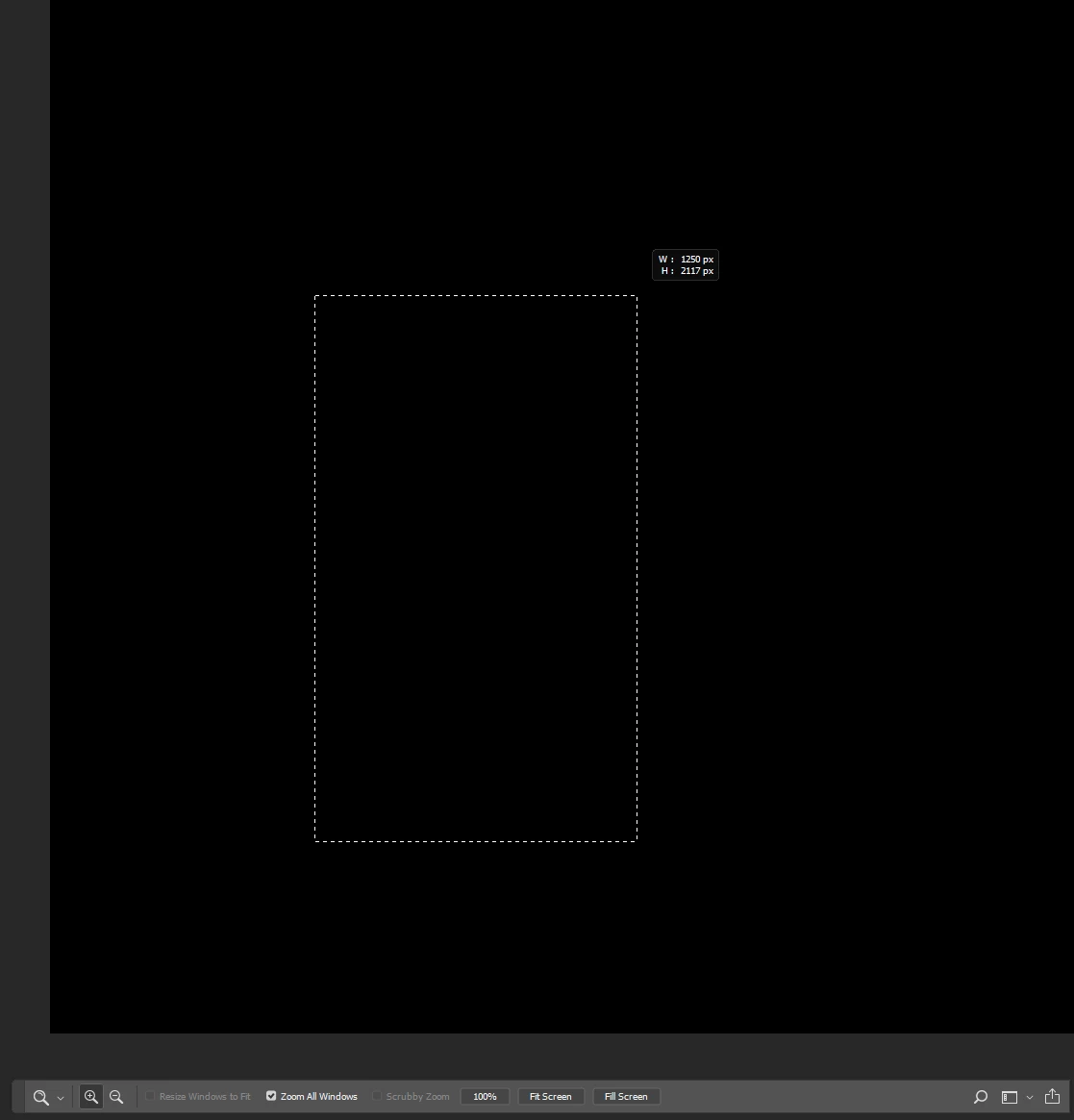
Hello I'm using the last adobe update and  I don't really know how to describe my problem, but before (2days ago) I had a smooth zoom and now my zoom is like a square (like in the pic below) and I hate it. So what should I do to make the zoom be smooth again and not like the square pic posted below.

    This topic has been closed for replies.
    Correct answer chloes10001364

    There you have :

    Adobe Photoshop Version: 19.1.3 20180323.r.293 2018/03/23: 1163761  x64

    Number of Launches: 101

    Operating System: Windows 10 64-bit

    Version: 10 or greater 10.0.17134.1

    System architecture: AMD CPU Family:15, Model:1, Stepping:1 with MMX, SSE Integer, SSE FP, SSE2, SSE3, SSE4.1, SSE4.2, AVX, AVX2

    Physical processor count: 8

    Logical processor count: 16

    Processor speed: 3914 MHz

    Built-in memory: 65464 MB

    Free memory: 2 MB

    Memory available to Photoshop: 55679 MB

    Memory used by Photoshop: 58 %

    Alias Layers: Disabled.

    Modifier Palette: Enabled.

    Highbeam: Enabled.

    Image tile size: 1028K

    Image cache levels: 4

    Font Preview: Medium

    TextComposer: Latin

    Display: 1

    Display Bounds: top=0, left=0, bottom=1080, right=1920

    Display: 2

    Display Bounds: top=1080, left=-400, bottom=2520, right=2160

    OpenGL Drawing: Enabled.

    OpenGL Allow Old GPUs: Not Detected.

    OpenGL Drawing Mode: Advanced

    OpenGL Allow Normal Mode: True.

    OpenGL Allow Advanced Mode: True.

    AIFCoreInitialized=1

    AIFOGLInitialized=1

    OGLContextCreated=1

    NumGLGPUs=1

    NumCLGPUs=1

    NumNativeGPUs=0

    glgpu[0].GLVersion="4.1"

    glgpu[0].IsIntegratedGLGPU=0

    glgpu[0].GLMemoryMB=11264

    glgpu[0].GLName="NVIDIA GeForce GTX 1080 Ti"

    glgpu[0].GLVendor="NVIDIA Corporation"

    glgpu[0].GLVendorID=4318

    glgpu[0].GLDriverVersion="24.21.13.9811"

    glgpu[0].GLRectTextureSize=32768

    glgpu[0].GLRenderer="GeForce GTX 1080 Ti/PCIe/SSE2"

    glgpu[0].GLRendererID=6918

    glgpu[0].HasGLNPOTSupport=1

    glgpu[0].GLDriver="C:\WINDOWS\System32\DriverStore\FileRepository\nv_dispi.inf_amd64_040c7acb04cee565\nvldumdx.dll,C:\WINDOWS\System32\DriverStore\FileRepository\nv_dispi.inf_amd64_040c7acb04cee565\nvldumdx.dll,C:\WINDOWS\System32\DriverStore\FileRepository\nv_dispi.inf_amd64_040c7acb04cee565\nvldumdx.dll,C:\WINDOWS\System32\DriverStore\FileRepository\nv_dispi.inf_amd64_040c7acb04cee565\nvldumdx.dll"

    glgpu[0].GLDriverDate="20180601000000.000000-000"

    glgpu[0].CanCompileProgramGLSL=1

    glgpu[0].GLFrameBufferOK=1

    glgpu[0].glGetString[GL_SHADING_LANGUAGE_VERSION]="4.60 NVIDIA"

    glgpu[0].glGetProgramivARB[GL_FRAGMENT_PROGRAM_ARB][GL_MAX_PROGRAM_INSTRUCTIONS_ARB]=[65536]

    glgpu[0].glGetIntegerv[GL_MAX_TEXTURE_UNITS]=[4]

    glgpu[0].glGetIntegerv[GL_MAX_COMBINED_TEXTURE_IMAGE_UNITS]=[192]

    glgpu[0].glGetIntegerv[GL_MAX_VERTEX_TEXTURE_IMAGE_UNITS]=[32]

    glgpu[0].glGetIntegerv[GL_MAX_TEXTURE_IMAGE_UNITS]=[32]

    glgpu[0].glGetIntegerv[GL_MAX_DRAW_BUFFERS]=[8]

    glgpu[0].glGetIntegerv[GL_MAX_VERTEX_UNIFORM_COMPONENTS]=[4096]

    glgpu[0].glGetIntegerv[GL_MAX_FRAGMENT_UNIFORM_COMPONENTS]=[4096]


    For some reason I reset the preferences and it somehow works... so it's fixed thanks for the help anyway.
    2 replies

    Participant
    September 4, 2021

    If anyone is still wondering, there's a setting in preferences called "Animated Zoom" which enables the weird ugly square zoom animation. Just uncheck that.

    Participant
    November 6, 2021

    You just saved my day! Thanks a lot!

    gener7
    Community Expert
    Community Expert
    June 23, 2018

    Scrubby zoom is dimmed meaning you have a problem with your graphics driver, Go to Preferences > Performance and see that Use Graphics Processor is checked on.

    Troubleshoot the issue using this help file.

    Troubleshoot Photoshop graphics processor (GPU) and graphics driver issues

    Inspiring
    June 23, 2018

    Hello, thanks for your reply.
    Sadly I already checked this place and I have different stuff than shown in the examples
    (My screen is at the right) notice how I don't have the same options as shown in the tutorial.

    chloes10001364AuthorCorrect answer
    Inspiring
    June 23, 2018

    There you have :

    Adobe Photoshop Version: 19.1.3 20180323.r.293 2018/03/23: 1163761  x64

    Number of Launches: 101

    Operating System: Windows 10 64-bit

    Version: 10 or greater 10.0.17134.1

    System architecture: AMD CPU Family:15, Model:1, Stepping:1 with MMX, SSE Integer, SSE FP, SSE2, SSE3, SSE4.1, SSE4.2, AVX, AVX2

    Physical processor count: 8

    Logical processor count: 16

    Processor speed: 3914 MHz

    Built-in memory: 65464 MB

    Free memory: 2 MB

    Memory available to Photoshop: 55679 MB

    Memory used by Photoshop: 58 %

    Alias Layers: Disabled.

    Modifier Palette: Enabled.

    Highbeam: Enabled.

    Image tile size: 1028K

    Image cache levels: 4

    Font Preview: Medium

    TextComposer: Latin

    Display: 1

    Display Bounds: top=0, left=0, bottom=1080, right=1920

    Display: 2

    Display Bounds: top=1080, left=-400, bottom=2520, right=2160

    OpenGL Drawing: Enabled.

    OpenGL Allow Old GPUs: Not Detected.

    OpenGL Drawing Mode: Advanced

    OpenGL Allow Normal Mode: True.

    OpenGL Allow Advanced Mode: True.

    AIFCoreInitialized=1

    AIFOGLInitialized=1

    OGLContextCreated=1

    NumGLGPUs=1

    NumCLGPUs=1

    NumNativeGPUs=0

    glgpu[0].GLVersion="4.1"

    glgpu[0].IsIntegratedGLGPU=0

    glgpu[0].GLMemoryMB=11264

    glgpu[0].GLName="NVIDIA GeForce GTX 1080 Ti"

    glgpu[0].GLVendor="NVIDIA Corporation"

    glgpu[0].GLVendorID=4318

    glgpu[0].GLDriverVersion="24.21.13.9811"

    glgpu[0].GLRectTextureSize=32768

    glgpu[0].GLRenderer="GeForce GTX 1080 Ti/PCIe/SSE2"

    glgpu[0].GLRendererID=6918

    glgpu[0].HasGLNPOTSupport=1

    glgpu[0].GLDriver="C:\WINDOWS\System32\DriverStore\FileRepository\nv_dispi.inf_amd64_040c7acb04cee565\nvldumdx.dll,C:\WINDOWS\System32\DriverStore\FileRepository\nv_dispi.inf_amd64_040c7acb04cee565\nvldumdx.dll,C:\WINDOWS\System32\DriverStore\FileRepository\nv_dispi.inf_amd64_040c7acb04cee565\nvldumdx.dll,C:\WINDOWS\System32\DriverStore\FileRepository\nv_dispi.inf_amd64_040c7acb04cee565\nvldumdx.dll"

    glgpu[0].GLDriverDate="20180601000000.000000-000"

    glgpu[0].CanCompileProgramGLSL=1

    glgpu[0].GLFrameBufferOK=1

    glgpu[0].glGetString[GL_SHADING_LANGUAGE_VERSION]="4.60 NVIDIA"

    glgpu[0].glGetProgramivARB[GL_FRAGMENT_PROGRAM_ARB][GL_MAX_PROGRAM_INSTRUCTIONS_ARB]=[65536]

    glgpu[0].glGetIntegerv[GL_MAX_TEXTURE_UNITS]=[4]

    glgpu[0].glGetIntegerv[GL_MAX_COMBINED_TEXTURE_IMAGE_UNITS]=[192]

    glgpu[0].glGetIntegerv[GL_MAX_VERTEX_TEXTURE_IMAGE_UNITS]=[32]

    glgpu[0].glGetIntegerv[GL_MAX_TEXTURE_IMAGE_UNITS]=[32]

    glgpu[0].glGetIntegerv[GL_MAX_DRAW_BUFFERS]=[8]

    glgpu[0].glGetIntegerv[GL_MAX_VERTEX_UNIFORM_COMPONENTS]=[4096]

    glgpu[0].glGetIntegerv[GL_MAX_FRAGMENT_UNIFORM_COMPONENTS]=[4096]


    For some reason I reset the preferences and it somehow works... so it's fixed thanks for the help anyway.