Participating Frequently
May 20, 2017
Answered

How can I recreate this texture with Photoshop

  • May 20, 2017
  • 1 reply
  • 1598 views

Hi,

I'm wondering if I can recreate something similar to this texture with Photoshop:
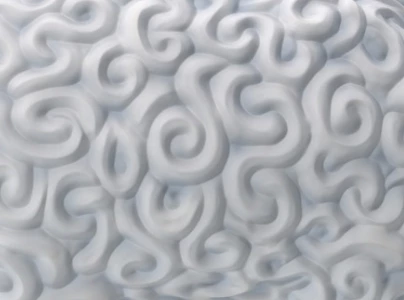
What would be a good way of doing this?

If I can't do it with Photoshop, with what program can I do it?

    This topic has been closed for replies.
    Correct answer davescm

    Hi

    Try this - my scrolls are far from perfect but hopefully you get the idea.

    1. Start with a square - I used 1024 x 1024.

    2. Draw on some scrolls - avoiding the edges and using a soft brush with spacing set to minimum (1%)
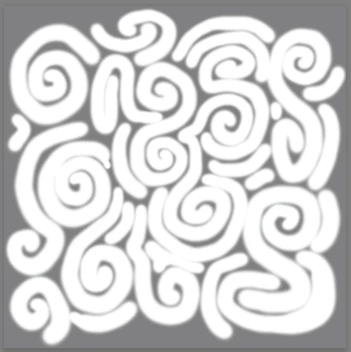
    3. Use Filter - Other Offset - set to half the width and height (in my case 512px and check wrap around)
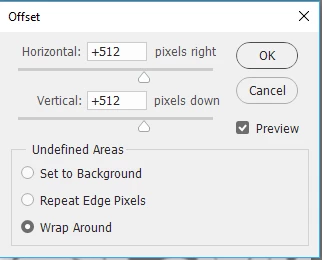
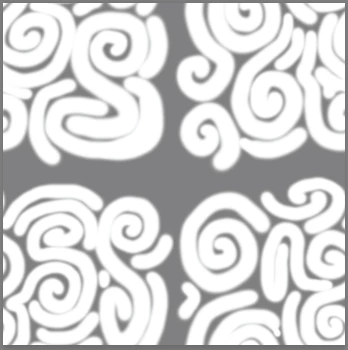
    4. Extend/add scrolls to cover the mid section without touching the outer edges

    5. Add a curves layer set so output values are between 128 and 135 - this will keep the depth of the map low
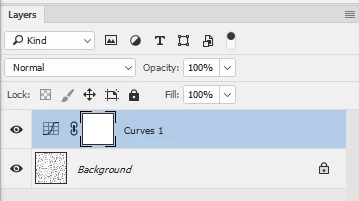
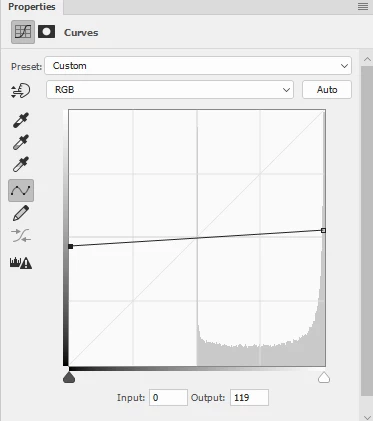
    6. Make the curves and scroll layer into a smart object and add a slight gaussian blur ( I used 9 pixels)
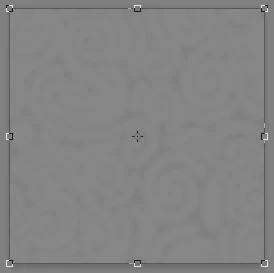
    7. Go to 3d and make Mesh from 3D depth map
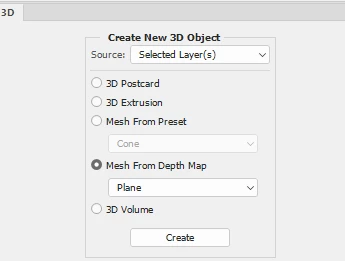
    8. Adjust the camera so the "peak" edges just touch the edge of the frame (don't worry about the tiny gaps)  and adjust the light to give the shadows you want
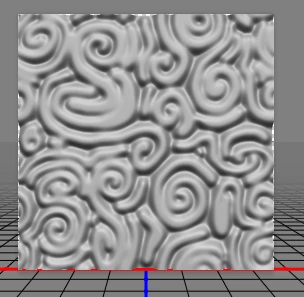
    9 Render the 3D layer
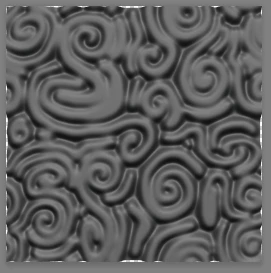
    10. Add a new empty layer and Merge Visible - you now have a tile on a single layer  but those tiny gaps at the edges will stop it if used as a pattern so :

    Use Filter Other Offset to move it 512 pixels
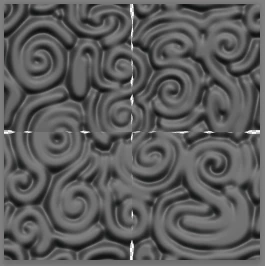
    11. Use a brush and clone tool to fill those gaps and you will have a scroll texture that will tile

    I hope that helps to get you started

    Dave

    1 reply

    Silkrooster
    Legend
    May 21, 2017

    Some programs call that a 2 1/2 D image. Which means not quite 2D and not quite 3D but somewhere in between. It is easy to do in a program that has such a feature like Zbrush.

    However, if you look at the image clearly, you can see it has a highlight, a shadow and a path or shape. Therefore you could create a 2d shape then apply a depth map to make it raise. Generally with height maps or bump maps the middle height would be mid gray or 128r, 128b, 128g. and moving toward white or black would raise or lower the image which way depends on the program.

    The shape it self can be done with just a paintbrush tool and create the strokes. Since it is repetitive, copy and paste could help you out in the speeding up the process.

    alexx0186Author
    Participating Frequently
    May 21, 2017

    Hi there,
    Thanks for your response.

    I wonder how he managed to perfectly imbricate those shapes (and their topology) without them overlapping each other.

    Did he carefully draw the shapes apart, or is it part of an effect.

    I'm trying to find a tutorial about Photoshop depth maps on youtube, but I'm not sure which one would serve my purpose.
    Do you know of a good tutorial about this?

    Thanks again

    davescm
    Community Expert
    davescmCommunity ExpertCorrect answer
    Community Expert
    May 21, 2017

    Hi

    Try this - my scrolls are far from perfect but hopefully you get the idea.

    1. Start with a square - I used 1024 x 1024.

    2. Draw on some scrolls - avoiding the edges and using a soft brush with spacing set to minimum (1%)

    3. Use Filter - Other Offset - set to half the width and height (in my case 512px and check wrap around)

    4. Extend/add scrolls to cover the mid section without touching the outer edges

    5. Add a curves layer set so output values are between 128 and 135 - this will keep the depth of the map low

    6. Make the curves and scroll layer into a smart object and add a slight gaussian blur ( I used 9 pixels)

    7. Go to 3d and make Mesh from 3D depth map

    8. Adjust the camera so the "peak" edges just touch the edge of the frame (don't worry about the tiny gaps)  and adjust the light to give the shadows you want

    9 Render the 3D layer

    10. Add a new empty layer and Merge Visible - you now have a tile on a single layer  but those tiny gaps at the edges will stop it if used as a pattern so :

    Use Filter Other Offset to move it 512 pixels

    11. Use a brush and clone tool to fill those gaps and you will have a scroll texture that will tile

    I hope that helps to get you started

    Dave