Answered
How can I unflatten layers in my photoshop file? CS5.5 Extended
How can I unflatten layers in my photoshop file? CS5.5 Extended

How can I unflatten layers in my photoshop file? CS5.5 Extended
Did you click flatten image? If you saved the project and closed out of Photoshop there's no way of unflattening the image. If you haven't saved it yet, you may be able to undo using the history panel?
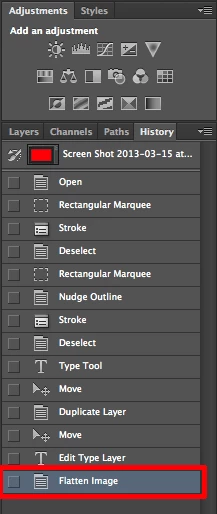
In the future I would save another version of the project before flattening the image. Or, you can duplicate and flatten groups of layers all at once. Just select the layers you want to flatten, right click them, select Duplicate Layers and press Command E to merge those layers together. You can also right click on the layers and choose Merge Layers.
If you duplicate the layers to begin with you can simply delete the merged layer and go back to your original layers to make more changes. This way of working is called non-destructive editing. I always duplicate layers before working on them.
Already have an account? Login
Enter your E-mail address. We'll send you an e-mail with instructions to reset your password.
 AdChoices