nurah1994
Participant
December 2, 2017
Answered

How do I achieve this effect using photoshop?

  • December 2, 2017
  • 1 reply
  • 570 views

Hello!

I am working on a project for school and I would like to know how to achieve this effect on the silhouettes shown below (color, texture, overlay, etc.)

I like how the silhouettes are somewhat grainy/textured and have some transparent areas that show the image below it.

paper-battle-nike-1.jpg

Your help is appreciated!

Thank you.
This topic has been closed for replies.
Correct answer Trevor.Dennis

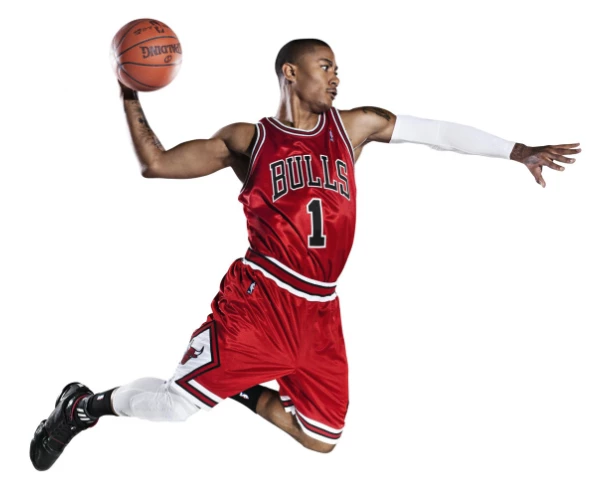
Find your player images with white backgrounds, which will make it easier to use Blend modes to stack them.

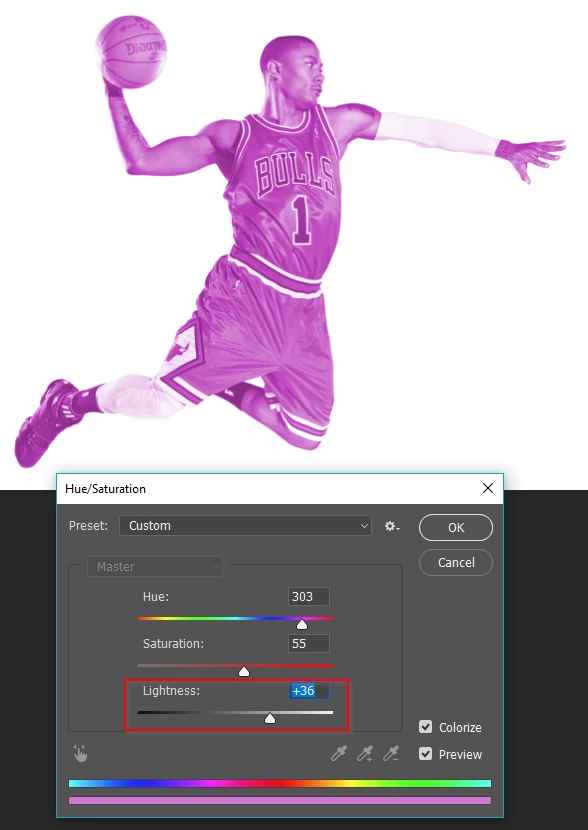
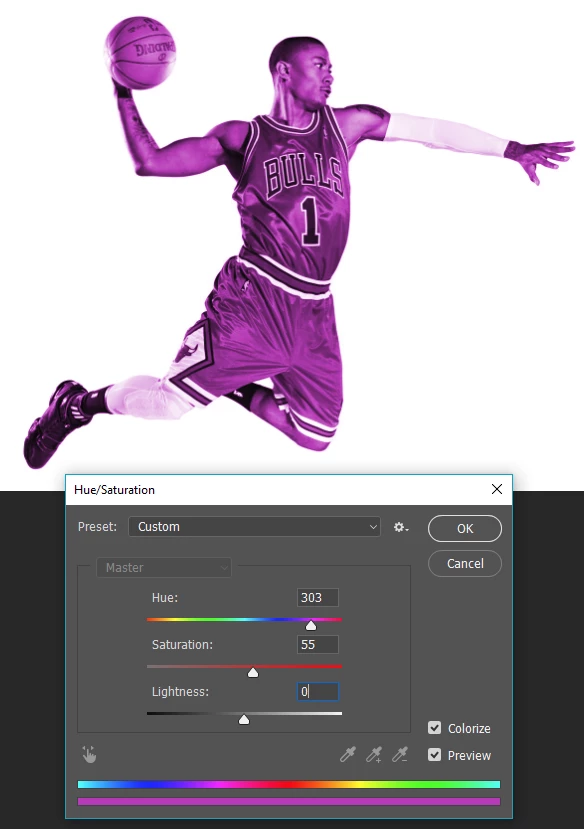
Make the layers Smart Objects, by right clicking, and apply Hue Saturation directly to each layer.

Click on Colorize and adjust the hue to suite.  You'll notice a direct correlation between the hue slider and colour of the player.

You can get to that thinner tones effect by upping the Lightness slider

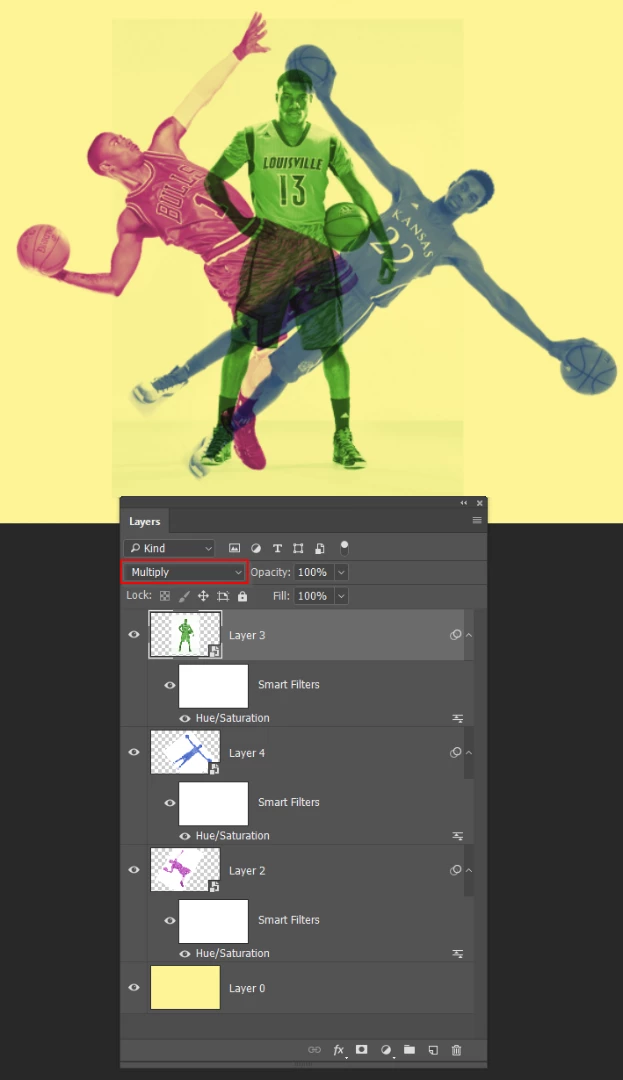
You can stack the layers using Multiply mode but other blend modes in the multiply group will work.  (This assumes you use files wit a white background)  Making the layers into Smart Objects means you can edit the colour as often as you like.

1 reply

cmgap
Community Expert
Community Expert
December 3, 2017

There's a number of tools and techniques being used here. Blend modes, layer types, opacity levels and masking to name a few - so there isn't a quick easy answer...

You will have to experiment and discover as you go along. This help file from Adobe explains blend modes nicely with examples: https://helpx.adobe.com/photoshop/using/blending-modes.html

And this one from TPC: https://photoshoptrainingchannel.com/?s=blend+modes

Hope this is helpful - others ACPs are sure to chime in.

nurah1994
nurah1994Author
Participant
December 4, 2017

Thank you for your response, but I tried playing around with blend modes and opacity levels before posting but I can't seem to get it. This is all I get. Is it because I'm using flat vectors rather than multi-tone images?

Trevor.Dennis
Community Expert
Trevor.DennisCommunity ExpertCorrect answer
Community Expert
December 4, 2017

Find your player images with white backgrounds, which will make it easier to use Blend modes to stack them.

Make the layers Smart Objects, by right clicking, and apply Hue Saturation directly to each layer.

Click on Colorize and adjust the hue to suite.  You'll notice a direct correlation between the hue slider and colour of the player.

You can get to that thinner tones effect by upping the Lightness slider

You can stack the layers using Multiply mode but other blend modes in the multiply group will work.  (This assumes you use files wit a white background)  Making the layers into Smart Objects means you can edit the colour as often as you like.