
Participant
February 9, 2021
Question

How do I achieve this look?

  • February 9, 2021
  • 4 replies
  • 566 views

Hi all, I'm relatively new to PS (but fine on SketchUp, Enscape, Twinmotion, Revit etc) and am looking for help on some architectural project drawings which I'd like to complete in a certain style and colouring matching an example drawing (attached). I was hoping someone could give me some ideas as to how I'd get this look for my drawings using a 3D model as the base. 
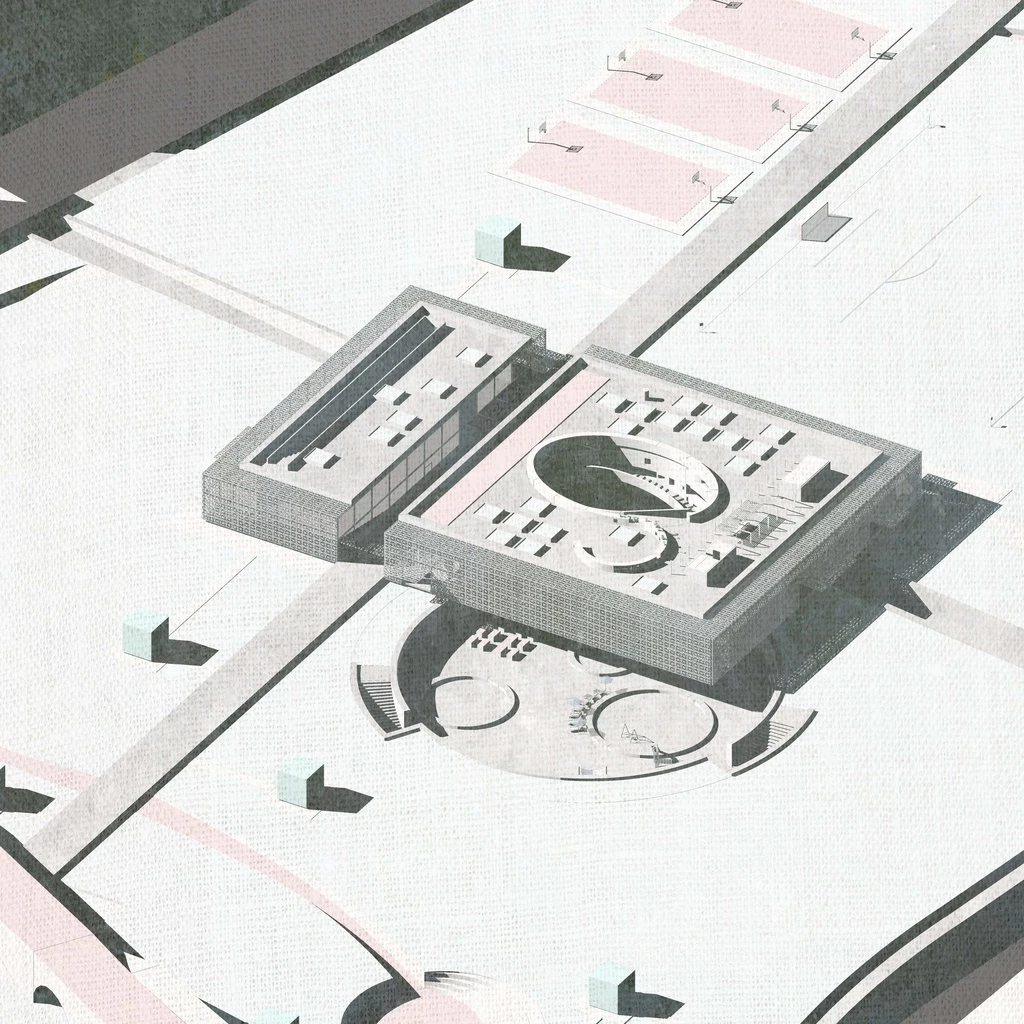
This topic has been closed for replies.

4 replies

davescm
Community Expert
Community Expert
February 9, 2021

If it is just that "canvas" look that you are after, put your render on a layer above or below a layer filled with a canvas pattern (Edit >Fill >Pattern and choose a canvas surface pattern). Change the blend mode of the upper layer to Multiply.

Dave

Participant
February 11, 2021

Thanks everyone for your help. The combination of all of your suggestions has got me there. Perfect.

Trevor.Dennis
Community Expert
Community Expert
February 9, 2021

Checking your example with Levels we can see there are no blacks in the image

We can achieve that with Curves or Levels.  I've used Levels below by moving the output slider to the right opening up shadow values, and the midtone slider to the left to brighten the image.  Note I have masked the left side of the image so you can see before and after.

Opening up the blacks has reduced saturation some, but you could go further with a Hue/Saturation or Vibrance layer.

I would always Export to 2D from SketchUp (at 4000 pixels) and use Photoshop for any sort of effect like this.  You have infinitely more control and it really doesn't take much time.


Trevor.Dennis
Community Expert
Community Expert
February 9, 2021

Hmmm...  It didn't show my saturation screen shot.  Try again.

Ussnorway7605025
Legend
February 9, 2021

have you tried Adobe Dimension?

Warren Heaton
Community Expert
Community Expert
February 9, 2021

You would set the colors of materials and surfaces while working in Sketchup, keeping them to the desired color theme.


Changing the colors of materials and faces in SketchUp

https://blog.sketchup.com/article/changing-colors-materials-and-faces-sketchup


If you're not sure which colors you want to use, Adobe Color can help with creating and exploring color themes:

https://color.adobe.com/create/color-wheel


JuJitsoupAuthor
Participant
February 9, 2021

Thanks for the reply. I've been using SU for 15yrs so am OK with changing the colour to materials. You can't though, quite get these sort of tones in SU as it's quite limited for output tbh. It's like the model has been clay rendered then processed in SU then the colours add but also it's the texture in the background I'd like a hand with.

Warren Heaton
Community Expert
Community Expert
February 10, 2021

When I 1st read your post, I was thinking about trying to match just the color, not the style and color.


Here's something you could try:

  1. Open your Sketchup render in Photoshop and convert for Smart Filters (Filter > Convert for Smart Filters).
  2. Apply Texturizer from the Filter Gallery (Filter > Filter Gallery... > Texture > Texturizer).
  3. Create a Levels Adjustment Layer and change the mids from 1.0 to 2.5 (Layer > New Adjustment Layer > Levels...).
  4. Create a Hue/Saturation Adjustment layer and change the Saturation from 9 to -25  (Layer > New Adjustment Layer > Hue/Saturation...).


This should get you in the ballpark of what you're going for.

I applied it to two images featured on Sketchup's blog pages below to provide a sample of how it looks.


-Warren