
Participating Frequently
July 21, 2012
Answered

How do I batch watermark a logo onto varying heights?

  • July 21, 2012
  • 5 replies
  • 27166 views

I would like to watermark a logo on a batch folder of photos, but the photos are different heights (but same width). If I use text in Photoshop it's not a problem, but if I use my logo the Action places it in different positions depending on the height of the photo. What I am looking for is a way to have the logo placed in a relative position to the bottom right corner of the photo. Say, 25px from the bottom and 0px from the right. I am unsure of how to achieve this relative placement.
    This topic has been closed for replies.
    Correct answer station_two

    There's a classic Russell Brown tutorial that might help you.  It was created for Photoshop CS2, but the technique is applicable to later versions of Photoshop too.

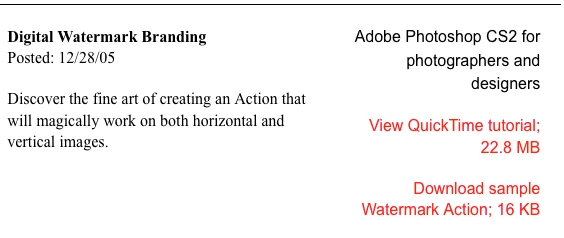
    Go to:  http://www.russellbrown.com/tips_tech.html , and scroll down till you see this:

    5 replies

    jeremias vigo
    Participant
    March 24, 2018

    Here is another way to do this. The language is in Portuguese but it's very easy to follow: https://www.youtube.com/watch?v=sA6xuKf8CDM

    jeremias vigo
    Participant
    March 24, 2018

    Here is a way to do this. The video language is in Portuguese but it's very easy to follow the steps: Inserir marca d'agua ou logo em várias fotos de qualquer formato simultaneamente - YouTube

    c.pfaffenbichler
    Community Expert
    Community Expert
    July 21, 2012

    In the long run it may pay off to look into Scripting for Watermarking.

    But Actions may suffice and if the logo in question (mind posting a screenshot?) is hard-edged and does use only a limited number of colors it might be convenient to vectorize it and include the paths (»Insert Path«) in the Action – that way one would not need to keep an external image avilable and could transfer the Action more easily.

    c.pfaffenbichler
    Community Expert
    Community Expert
    July 21, 2012

    You may well want to look into more accompliahed Watermarking techniques, but for your immediate problem adding

    • Select All

    • Align right

    • Align bottom

    • nudge left

    to your Action might suffice.

    JJMack
    Community Expert
    Community Expert
    July 21, 2012

    c.pfaffenbichler wrote:

    • Select All

    • Align right

    • Align bottom

    • nudge left

    to your Action might suffice.

    Because the print width is the same the same size font will work well and be align well like appended and even make your 25 pixel nudge left and up after the select all do a select>Modift Selection>Contract in the dialog 25px  Then do the Layer>Align Layers to selection>bottom edge etc without the end nudge left

    JJMack
    Participating Frequently
    February 20, 2013

    juliew1589 wrote:

    Oops, my apologies, here it is:

    I see nothing.

    Also looking at what I can see in your original action post its not one that you should use with the Image Processor Pro plug-in script.  There should be no save in any action used by the script.  The script is design to do the saves and give you control over where files are saved and provides you you file type save options and the ability to name files well. Actions have limits when it come to saving files and naming them.  The script can also resize your  images.   The only resize you should do in any action used with the script is a cropping resize to change the images aspect ratio.

    So what you need are two actions one that only adds the watermark and flatten the image if a layer styles was added to the logo. Layer styles can not be recorded relativlely setting are in absolute pixels. That is why I add watermark to full print size images then downsize the watermarked image for the web. so when flatten the layer style will be scaled because it was rastersized by the flatten.

    The second action is one that crops the image into the 320:213 aspect ratio you need so when the script resizes the image to fit into a 320x320 pixel area it will be exactly 320 px x 213 px. Once the image is cropped to the aspect ratio the  second action should play the first watermark action.

    Both the actions should be run before the script resizes the image. Tab one uses action one watermark only before resizing then tab one should resize to fit 960 px by 960 px the images original aspect ratio will be preserved.  Tab two uses action two one that crops and watermarks before resizing then tab two should resize to fit 320 px x 320 px and wind up with the crop aspect ratio 320:213 and be 320px x 213 px.


    Sorry, I was giving you the incorrect action. What I gave you is the action I used before I started with IP Pro in my quest to make thumbnails.

    And then my past didn't work - darn. Here is the correct one which I devised to work before IP Pro saves.

    I need a 960 pixel wide version (height relative), and now I also need the 320 px x 213 px version, named with an x.

    So you are saying I need 2 actions? Could one link to the other, or would I have to perform each action separately? And do I need your script, and/or IP Pro as well?

    Thanks again

    station_two
    station_twoCorrect answer
    Inspiring
    July 21, 2012

    There's a classic Russell Brown tutorial that might help you.  It was created for Photoshop CS2, but the technique is applicable to later versions of Photoshop too.

    Go to:  http://www.russellbrown.com/tips_tech.html , and scroll down till you see this: