May 1, 2013
Answered

How do I change a black signature (on a white background) to another color?

  • May 1, 2013
  • 5 replies
  • 62566 views

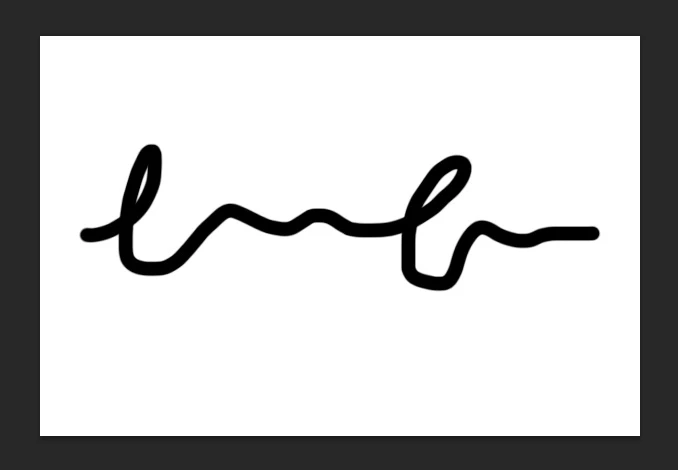
I have a black hand-written signature on a white background scanned in and saved as jpg.

I need to select the black lines and change the color to something else, but I can't figure out how to select the black and change the color to (for instance) yellow. I'm relatively new to Photoshop and am not familiar with masks, etc.

The color replacement tool isn't working for some reason. If I select the area using the magic wand, it selects what I want to change (the black lined signature), but I don't know how to then replace the color.

Help! (I'm using CS5)
Correct answer EricaLynneLarson

Here's process start to finish:

Being sure you're working on a copy of the original signature image...

1) Bring in your signature image.

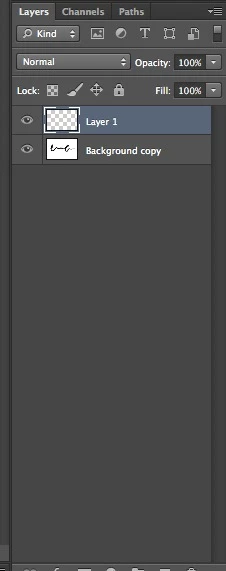
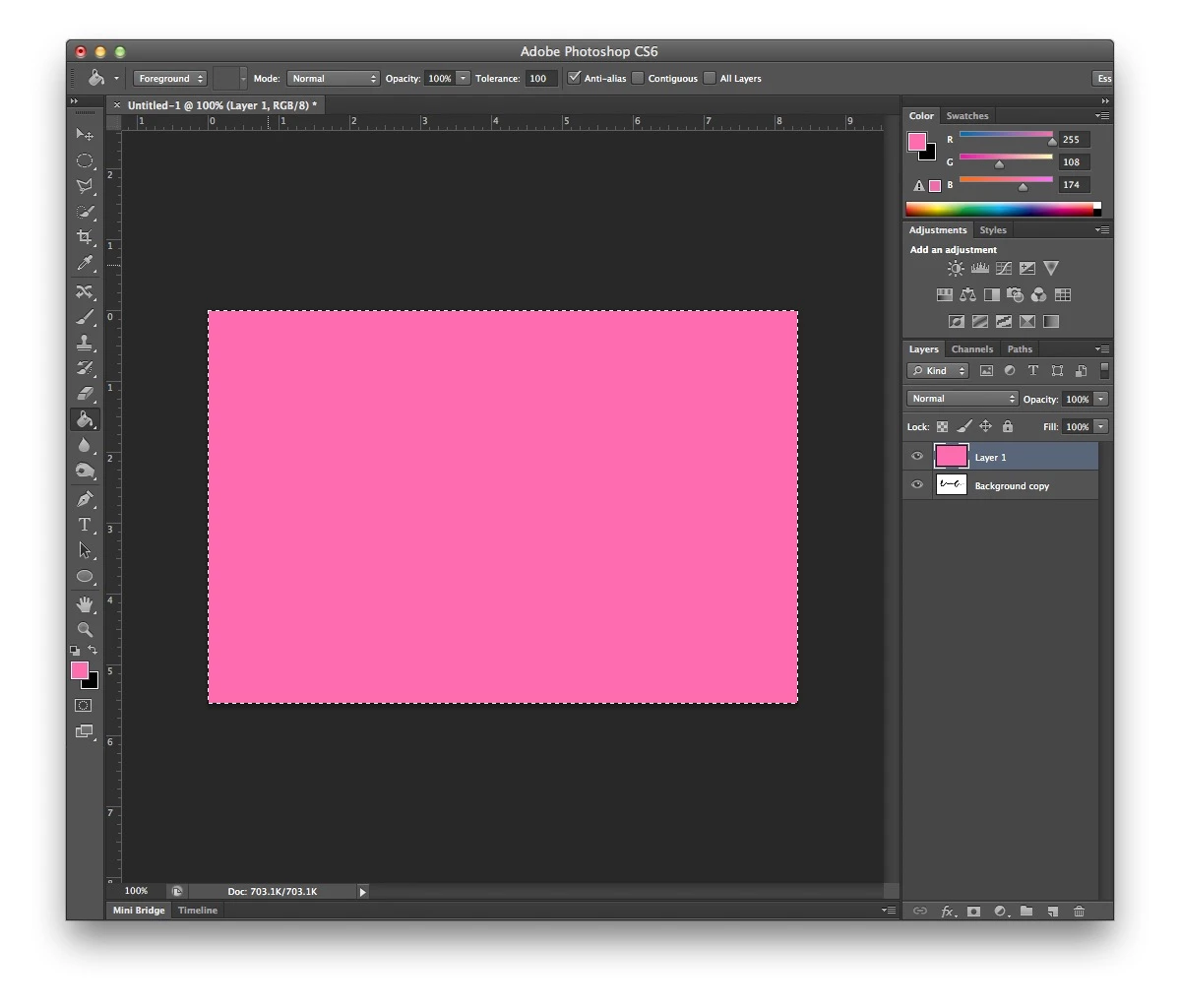
2) Create a new layer and fill it with the color you want to replace the black with.

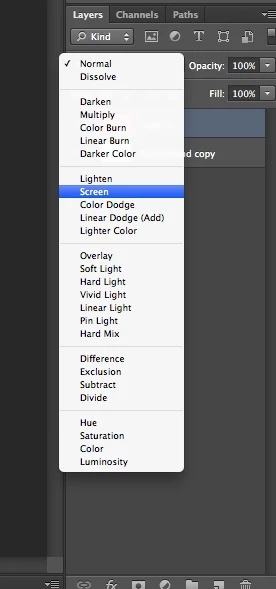
3) Set the layer mode to Screen.

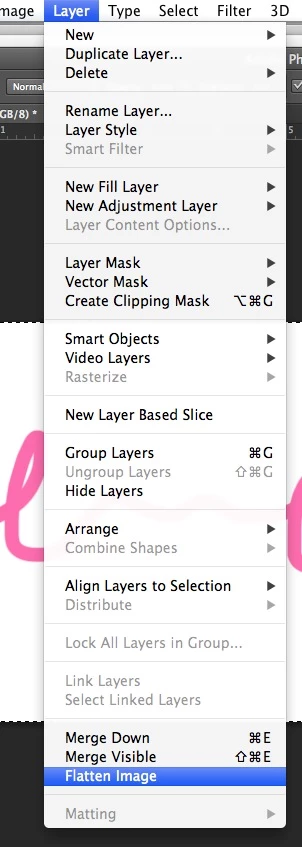
4) Flatten the image by going to Layer > Flatten Image.

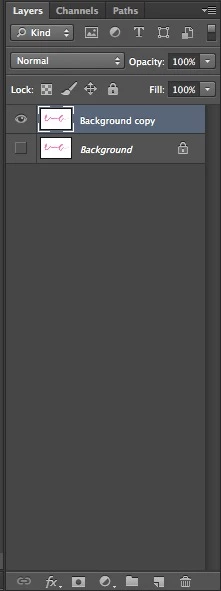
5) Duplicate the layer by control-clicking on the layer in the layers panel. Make the original layer invisible by clicking on the eyeball icon beside it.

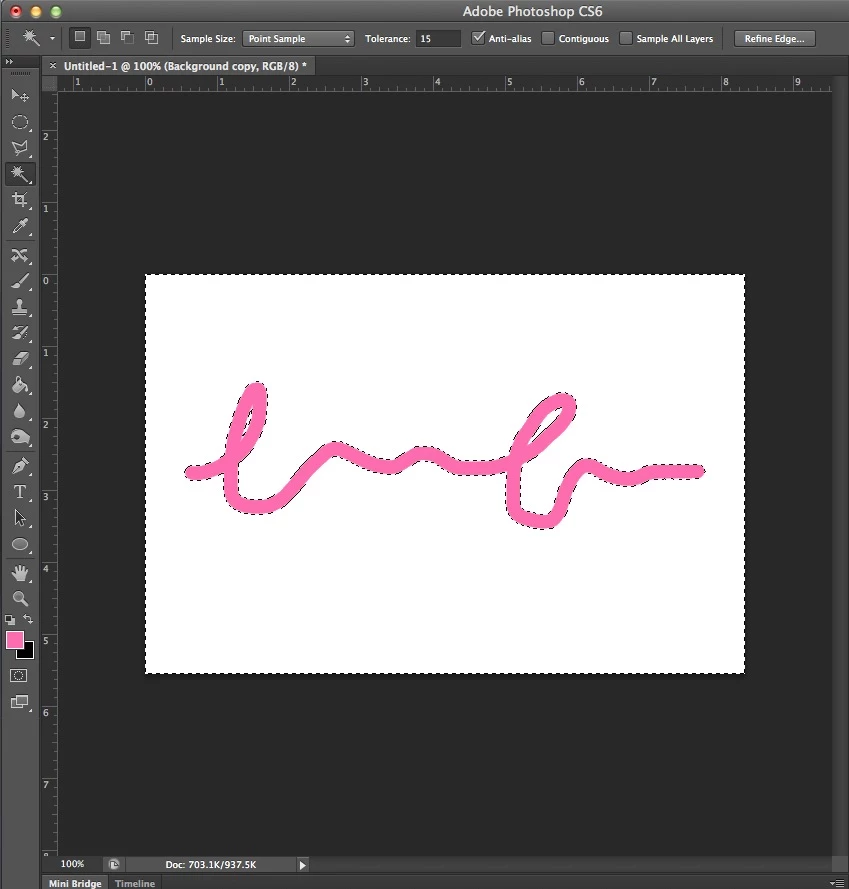
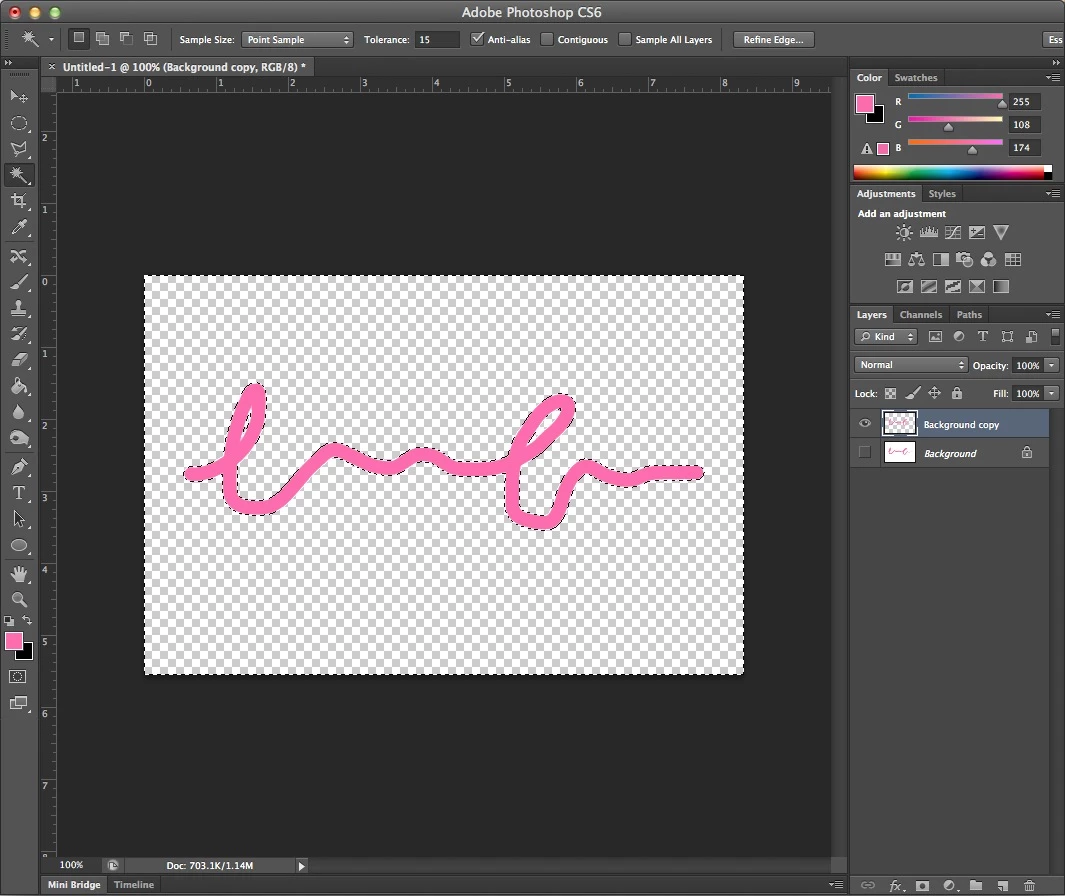
6) Use the magic wand to select the white area of your image, and delete it. Make sure that contiguous is unchecked up at the top of your screen so that you select the areas of white contained within loop in the signature.

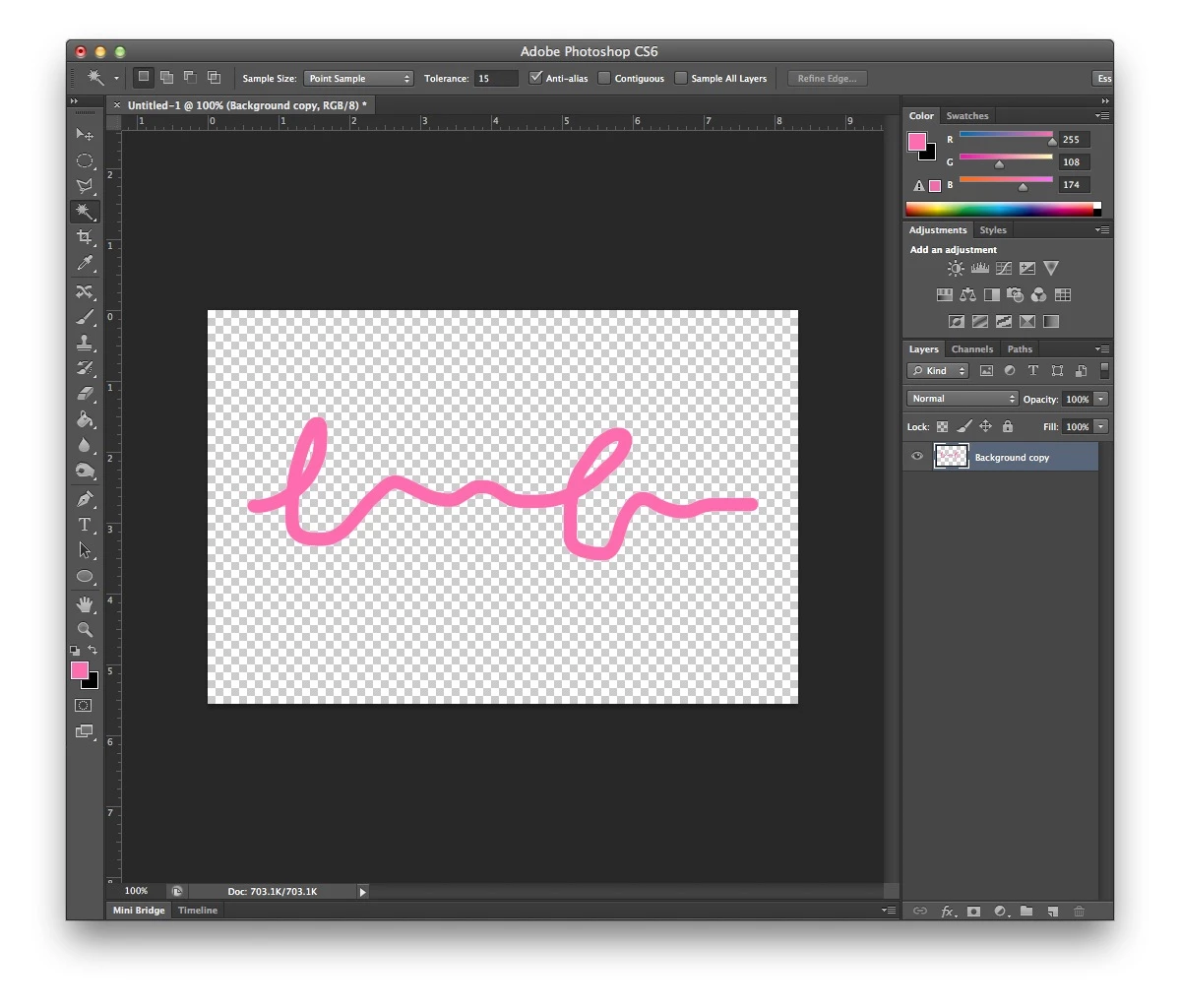
7) Delete the layer you have hidden by dragging it to the trashcan in the layers panel.

Now you can simply drag the remaining layer into your other document, or save this is as a .png to be placed into a new document. I hope this helps!

5 replies

Participant
May 22, 2022

The easiest way I have found to do this is: Image/Adjustments/Selective Color

then select Blacks from the dropdown list on the top, then change the values of Cyan, Magenta, and Yellow to: +100, +100, -80. This will change all the blacks in the images to a dark blue color.

f30055449
Known Participant
February 27, 2017

Can someone explain what "Screen" mode does ?

Following the solution post, I'm not getting why when flattening the image pink+white gives white, and pink+black gives pink.

Or maybe a link where layer modes are nicely explained (not a video please)

Thanks in advance

Bojan Živković11378569
Community Expert
Community Expert
May 23, 2022

Here is official explanation of blending modes which can be applied to layer or to brush, for example, when painting Blending modes in Adobe Photoshop

jessebrev
Participant
February 25, 2017

That's awesome! Exactly what I needed.

EricaLynneLarsonCorrect answer
Adobe Employee
May 6, 2013

Here's process start to finish:

Being sure you're working on a copy of the original signature image...

1) Bring in your signature image.

2) Create a new layer and fill it with the color you want to replace the black with.

3) Set the layer mode to Screen.

4) Flatten the image by going to Layer > Flatten Image.

5) Duplicate the layer by control-clicking on the layer in the layers panel. Make the original layer invisible by clicking on the eyeball icon beside it.

6) Use the magic wand to select the white area of your image, and delete it. Make sure that contiguous is unchecked up at the top of your screen so that you select the areas of white contained within loop in the signature.

7) Delete the layer you have hidden by dragging it to the trashcan in the layers panel.

Now you can simply drag the remaining layer into your other document, or save this is as a .png to be placed into a new document. I hope this helps!

Inspiring
May 1, 2013

Hello,

There are many way to do this. I would try making a Solid Color Fill Layer and setting its Blend Mode to Lighten or Screen. (This will work if your background is pure white and sig is black)

Go Layer>New Fill Layer>Solid Color, set its Blend Mode to Lighten, and choose your color.

May 1, 2013

awesome, thanks -- now how do I get rid of the white background? Ultimately, I want to place the signature over a photo.

Silkrooster
Legend
May 2, 2013

Use a blend mode. Multiply, screen and overlay need to be your friend when its time to remove, black, white or mid grey.