

Participant
June 7, 2023
解決済み

How do I change a curved line thickness as it goes?

  • June 7, 2023
  • 返信数 4.
  • 2340 ビュー

Im trying to make a design that involves lines with different thicknesses on the same curved line. Is it possible? I can't find anyone else asking about it!


Thanks

このトピックへの返信は締め切られました。
解決に役立った回答 Leslie Moak Murray

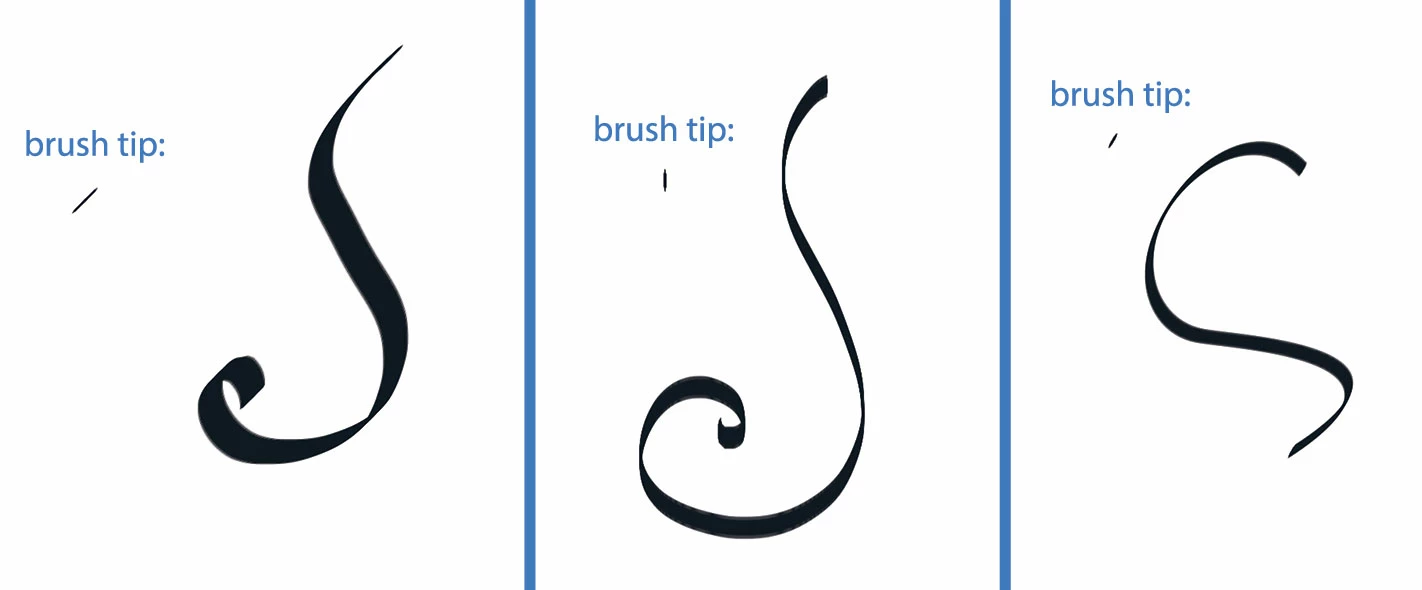
If you mean what I think you mean, there are brushes that can do it. You can make your own. Here are three angled brushes I use, next to the strokes they make (you can play with the thickness and angle etc):
 

返信数 4

Trevor.Dennis
Community Expert
Community Expert
June 8, 2023

The Calligraphy presets are good for freehand drawing, but if you want a brush stroke to decrease gradually in size thoughout its stroke, then set Size Jitter to Fade.  To give yourself complete control of the brush stroke, make a workpath and stroke the path with Simulate Pressure checked.  The fade rate is a function of brush size and spacing.


You can combine the effects, but note that Calligraphy presets tend to have very tight spacing, so need higher values for Fade.

Conrad_C
Community Expert
Community Expert
June 8, 2023

In both Photoshop and Illustrator, changing the width of a stroke as you draw or paint is much easier using a graphics tablet with a pressure-sensitive stylus. Then you can control the width by how hard you press down the stylus tip while drawing.


There is also a very manual way to create these kinds of designs, if you’re familiar with using the Pen tool to draw and edit vector paths. (1) Draw a path, (2) duplicate and offset it, (3) connect both into one closed path, (4) convert to a shape layer and fill the shape. At any time you can change the shape layer path by editing its points and handles.


jane-e
Community Expert
Community Expert
June 7, 2023

@Monique236926556xja 


Leslie has a good answer for Photoshop's brushes. If you also have Adobe Illustrator, it includes a Width tool for variable width strokes. You can create multiple width points and drag them out/in as far as you want to achieve the desired effect.

https://helpx.adobe.com/illustrator/using/tool-techniques/width-tool.html


Jane


Brad @ Roaring Mouse
Community Expert
Community Expert
June 9, 2023

Yes, this. Another approcah is to create the shape you want in Illustrator then bring it into Photoshop as a Smart Object that can be edited if necessary.

Leslie Moak Murray
Community Expert
Community Expert
June 7, 2023

If you mean what I think you mean, there are brushes that can do it. You can make your own. Here are three angled brushes I use, next to the strokes they make (you can play with the thickness and angle etc):


Participant
June 7, 2023

Thank you so much! This is exactly what I was looking for!