Nickperks
Known Participant
June 10, 2021
Answered

How do I colorize a black and white photo to a specific colour?

  • June 10, 2021
  • 3 replies
  • 3406 views

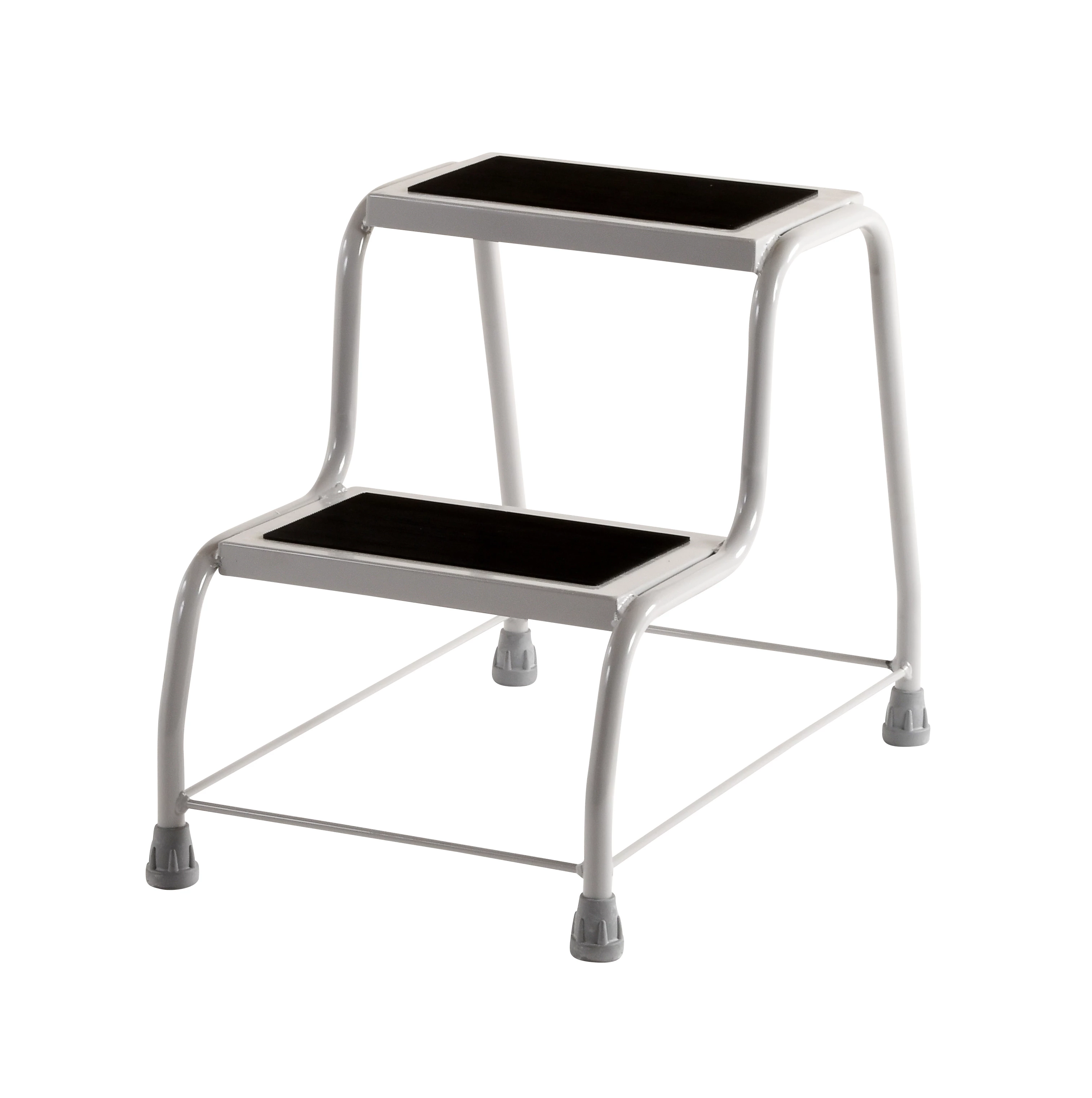
At present I'm trying to colourized the following product for our company website:
 

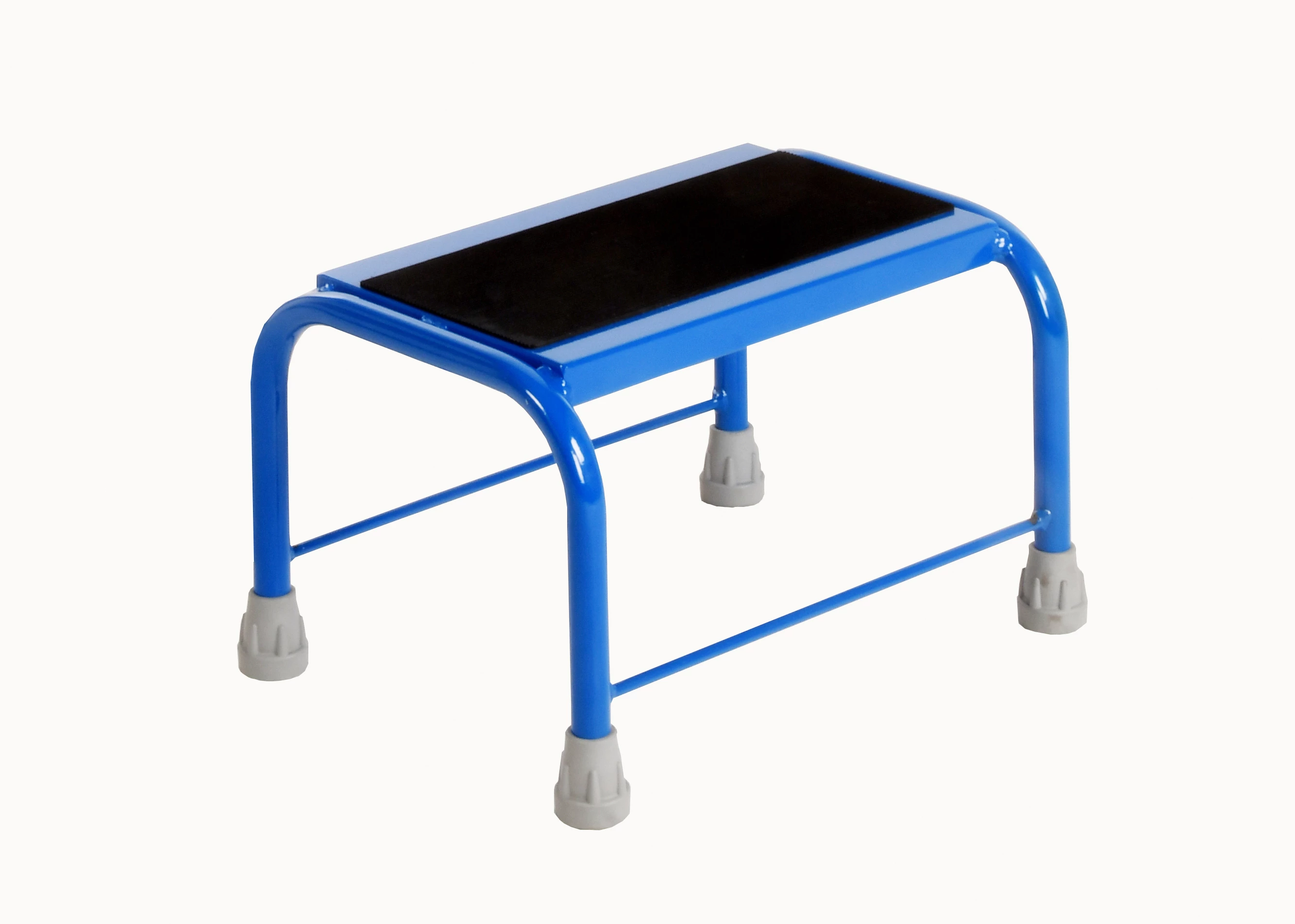
I'm trying to colorize the product to the following blue colour:
 

I am very new to Photoshop and I'm learning a lot.  I've tried a fair few things and read a few articles.  So I've tried things like the Raw Camera, the Neural Filter,  multiple adjustment and clicked colorize and finally added a solid colour layer and tried to match the colour using that.  The best I have managed is:
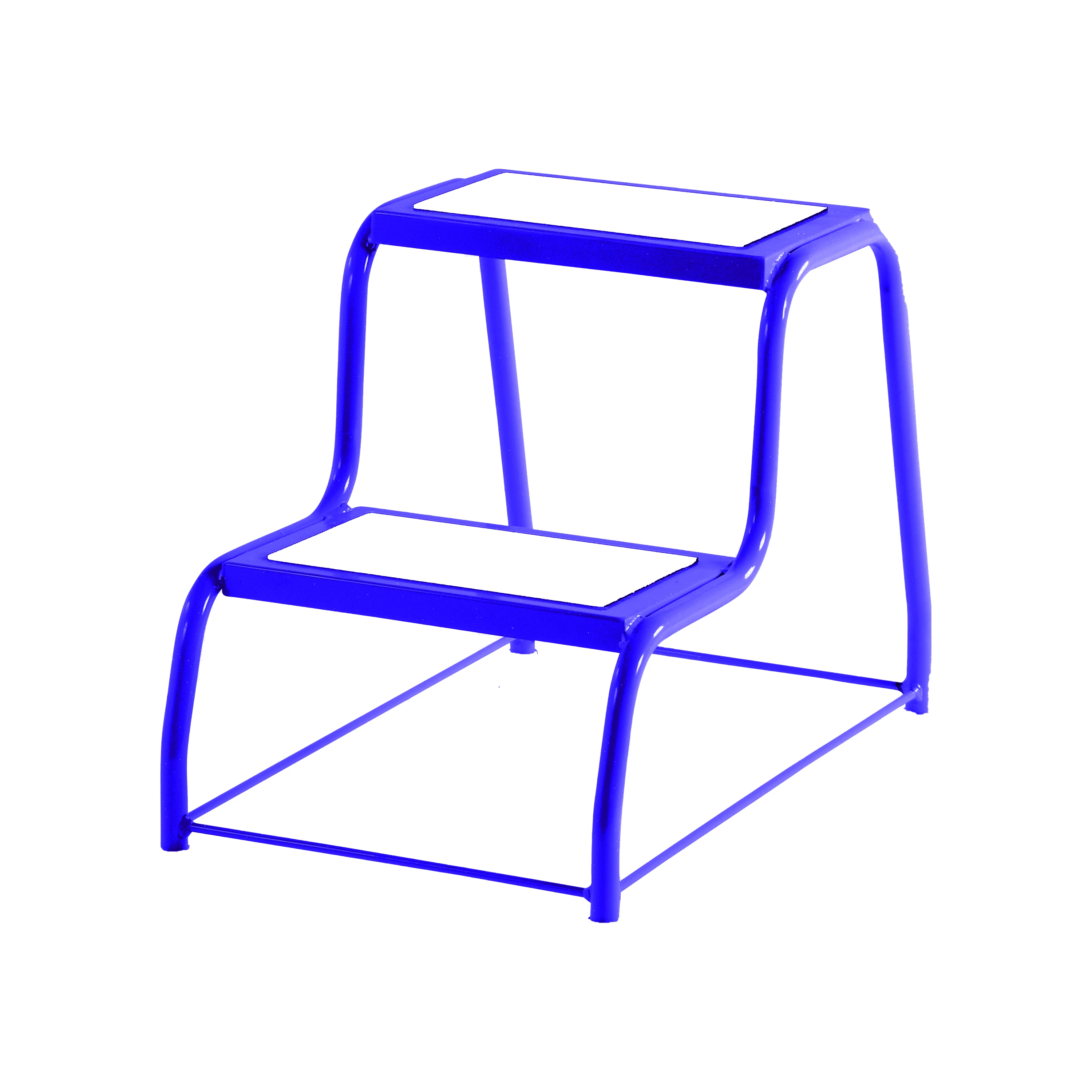
 

Yes, I know it's missing it's feet and the step pads but I cut them out so that I can add them back at a later date after I mated the body of the product to the required colour successfullly.


I'm really hoping somebody out there has some hints or ideas so that I can get a closer match to the colour I require.

Thanks in advance for any help anybody might be able to offer.

Regards

Nick Perks
This topic has been closed for replies.
Correct answer c.pfaffenbichler

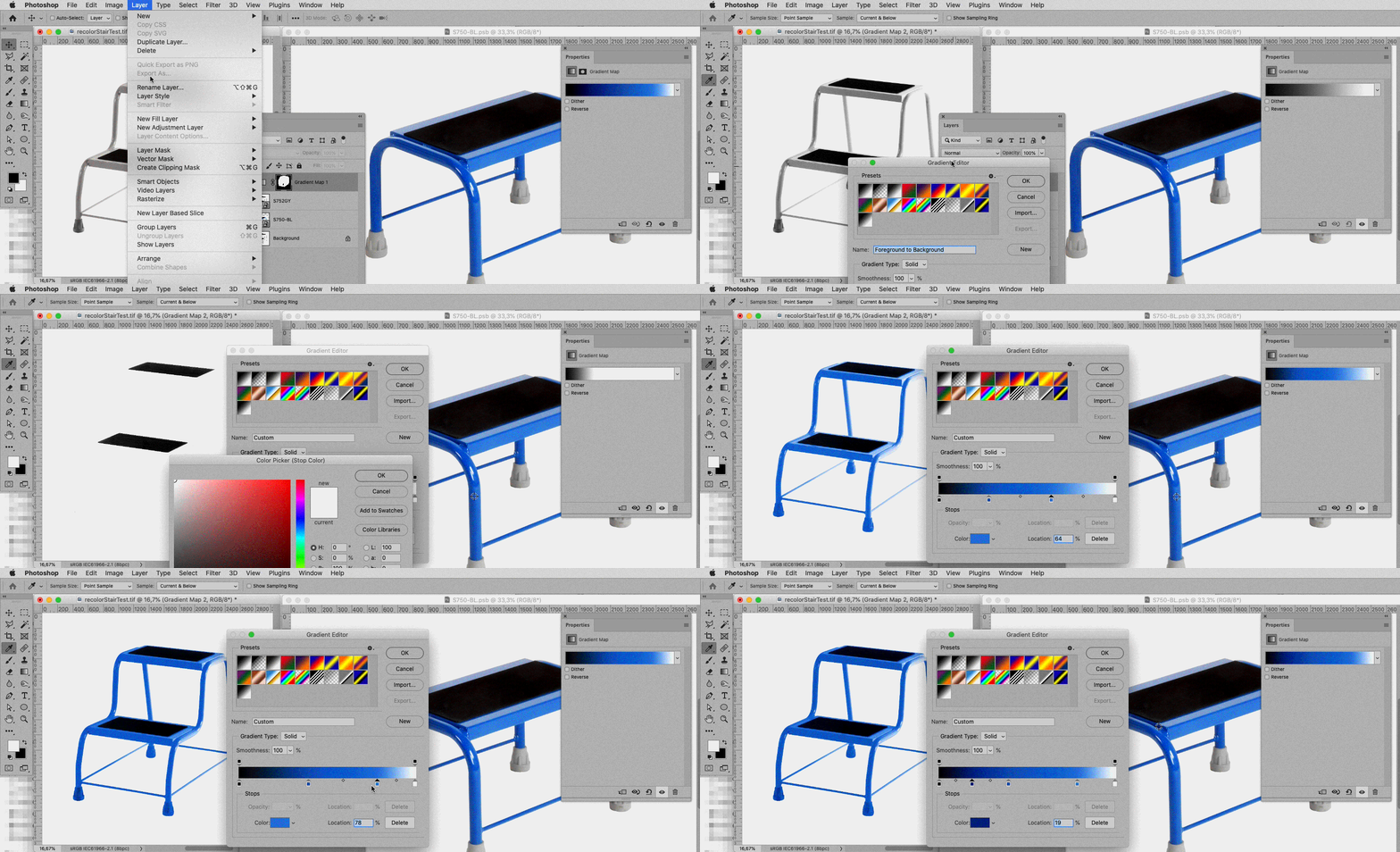
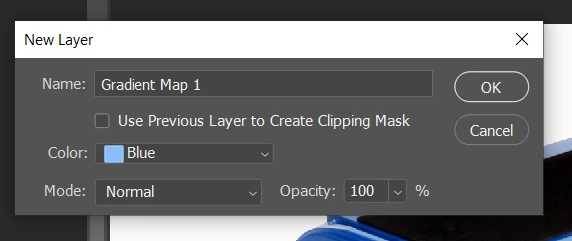
I'm frustrated as I feel I'm so close but haven't quite grasped it.  When you initially click on the Layer > New Adjustment Layer > Gradient map what options do you select from the dialogue box that appears?


Again thanks and regards

Nick


Just hit OK, then edit the Gradient as necessary. 

3 replies

Participating Frequently
January 20, 2022

Thank you . I follow it  and do as the  Adobe tutorial: https://helpx.adobe.com/photoshop/using/colorize.html


c.pfaffenbichler
Community Expert
Community Expert
June 10, 2021

Nickperks
NickperksAuthor
Known Participant
June 11, 2021

Wow that looks so impressive, well done!!!!  But I'm not sure how you did it.  Can you send me an article to read about gradient map adjustment layers please, so I can explore further.


Thank you for taking the time to respond to me.

Regards

Nick

Nickperks
NickperksAuthor
Known Participant
June 15, 2021

I think I might be a little bit stuck and I was hoping you could help again, please.

I was trying to change the following image:

However, when I attempt to add a gradient layer as you have previously described I get the following results.

I assumed it was due to the background so I attempted to remove it using that background eraser tool.  But it still didn't work and I didn't know how to make the background white again.  Having given it my best shot my result fell far short of a usable image.  

My results:

I don't suppose you have any idea about where I'm going wrong and how I might sort the problem.

Thanks again for your support.

Regards

Nick


Oooppss!! I just reaslised that part of the problem was that I had the background set to something other than white when I applied the gradient layer.  However, even having changed the background colour back to white, when I apply the gradient layer the shadows in the image change colour.  So what is the best method to change the background back to white and remove the shadows.

Thanks and regards

Nick

c.pfaffenbichler
Community Expert
Community Expert
June 10, 2021

Gradient Map Adjustment Layers with Layer Masks would be one option.