Participating Frequently
April 18, 2025
Answered

How do I create this distressed type effect in Photoshop?

  • April 18, 2025
  • 3 replies
  • 3384 views

Hey everyone,

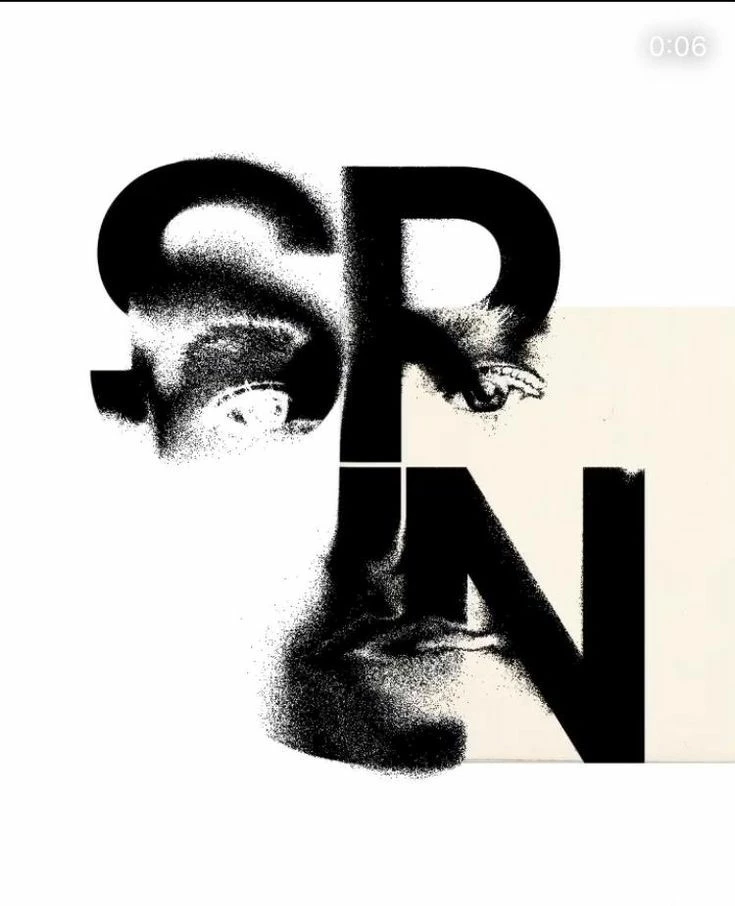
I’m trying to recreate a distressed/aged type effect in Photoshop similar to what you'd see on vintage posters or worn signage. I’ve attached an image for reference — you’ll notice the text looks rough, with parts of it eroded or worn away, almost like it’s been scratched or weathered over time.
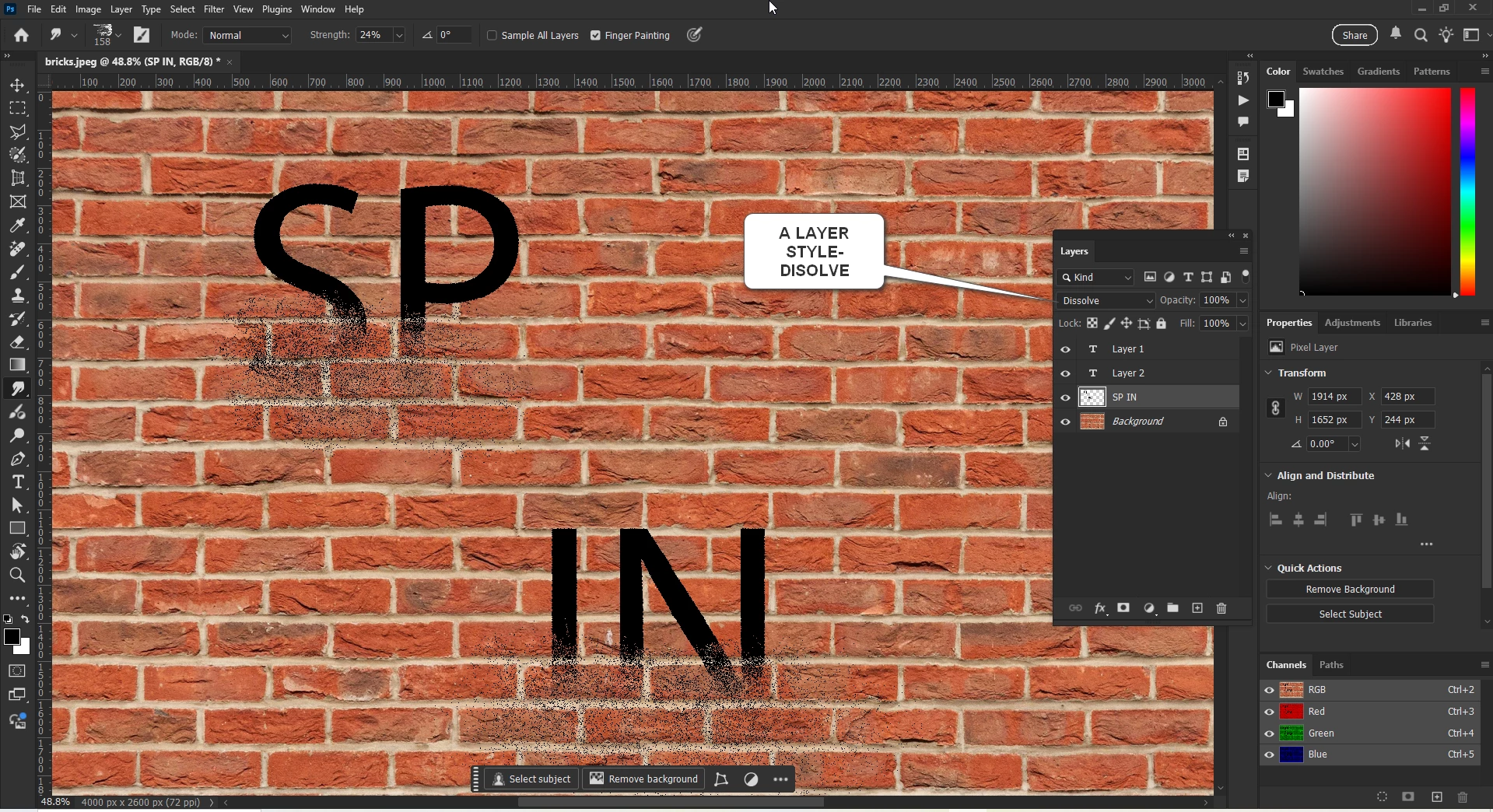
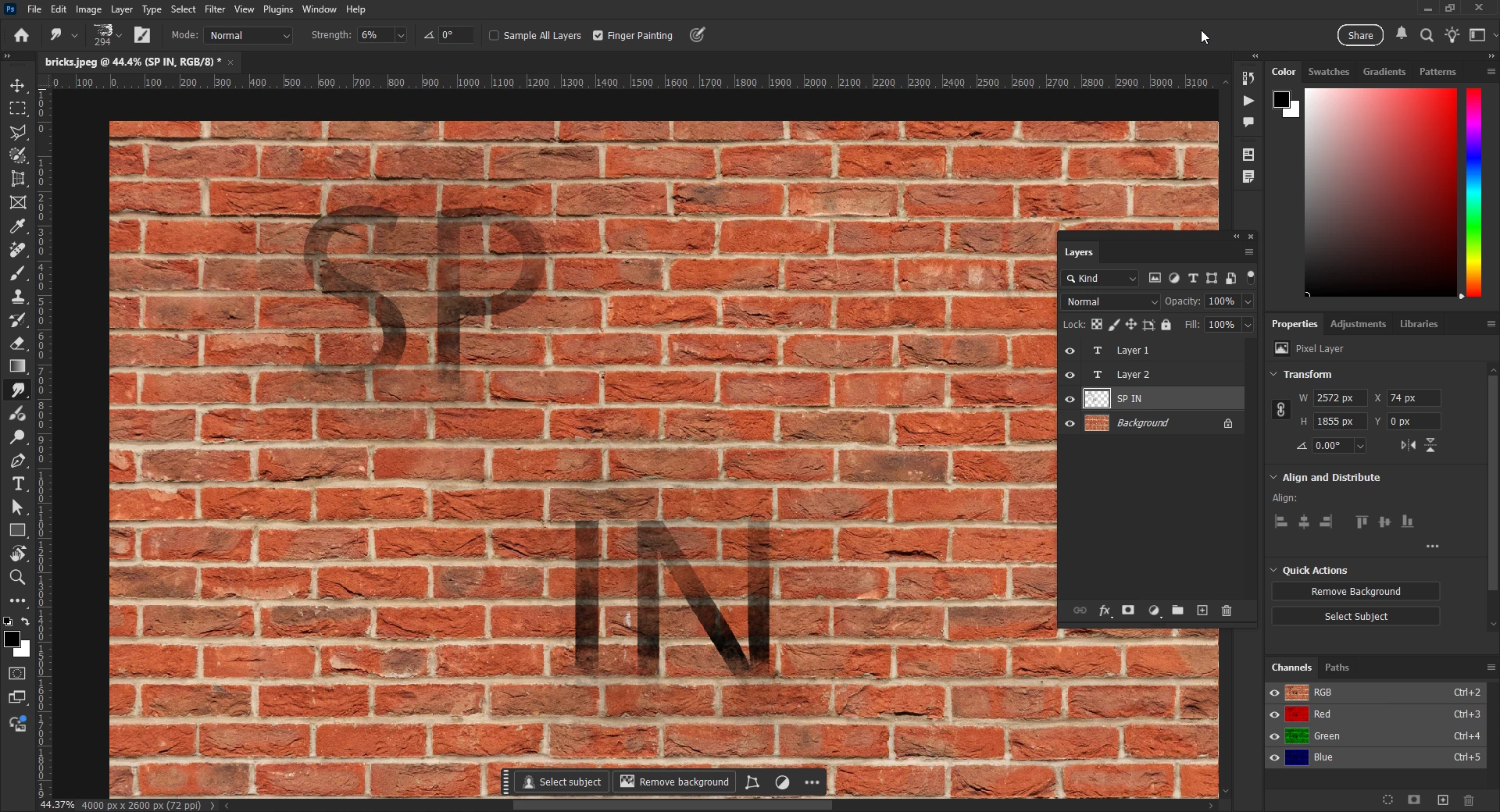
Correct answer Glenn 8675309

When I age something I usually just use a crinkled paper brush click once, and done.

What you depict is not how images age on posters- but if what you depicted is what you want go for it.

Here are a couple of ideas:

I am a lazy designer:  I try to do things as simply as possible. 

3 replies

Glenn 8675309
Glenn 8675309Correct answer
Legend
April 20, 2025

When I age something I usually just use a crinkled paper brush click once, and done.

What you depict is not how images age on posters- but if what you depicted is what you want go for it.

Here are a couple of ideas:

I am a lazy designer:  I try to do things as simply as possible. 

Glenn 8675309
Legend
April 20, 2025

You have Adobe Express?    You can create some nice stuff quickly there.

Trevor.Dennis
Community Expert
Community Expert
April 19, 2025

For any sort of distressed outlines.


Ctrl click the layer to select it, and Contract the selection.  The CTB is useful for this (and a zillion other things)


With the Layer Mask selected, go Filter > Filter Gallery, and find the effect you like the most.

Spatter is a good option.  You can adjust the mask offset, or density. You can change the effect because it's a mask.

The Text layer is obviously fully editable.  


You can even add layer styles and it still works

Trevor.Dennis
Community Expert
Community Expert
April 19, 2025

If you want to localise where the effect is visible, just copy the Type layer, delete the layer mask, and add a new layer mask.

Then use a soft black brush to mask/paint out where you want the effect to show.


joe_1137Author
Participating Frequently
April 20, 2025

Thank-you for your response but this is not the effect the reference shows

Legend
April 18, 2025

joe, while we wait for the gurus to tell us how to accomplish it, you could search for distressed fonts (many sites have free fonts, like www.dafont.com) or perhaps check in the Adobe Fonts section of Creative Cloud. Also, you could choose a rough-looking/grafitti text, rasterize it (rendering the text no longer editable), then use a brush to paint-in the desired roughness.


Larry
joe_1137Author
Participating Frequently
April 18, 2025

Thanks Larry.