Participant
September 9, 2021
Beantwortet

How do I create this effect in Photoshop?

  • September 9, 2021
  • 1 Antwort
  • 390 Ansichten

Hello everyone, 


I wondering if anyone can give me some gudance on how to colorize a photo like this.
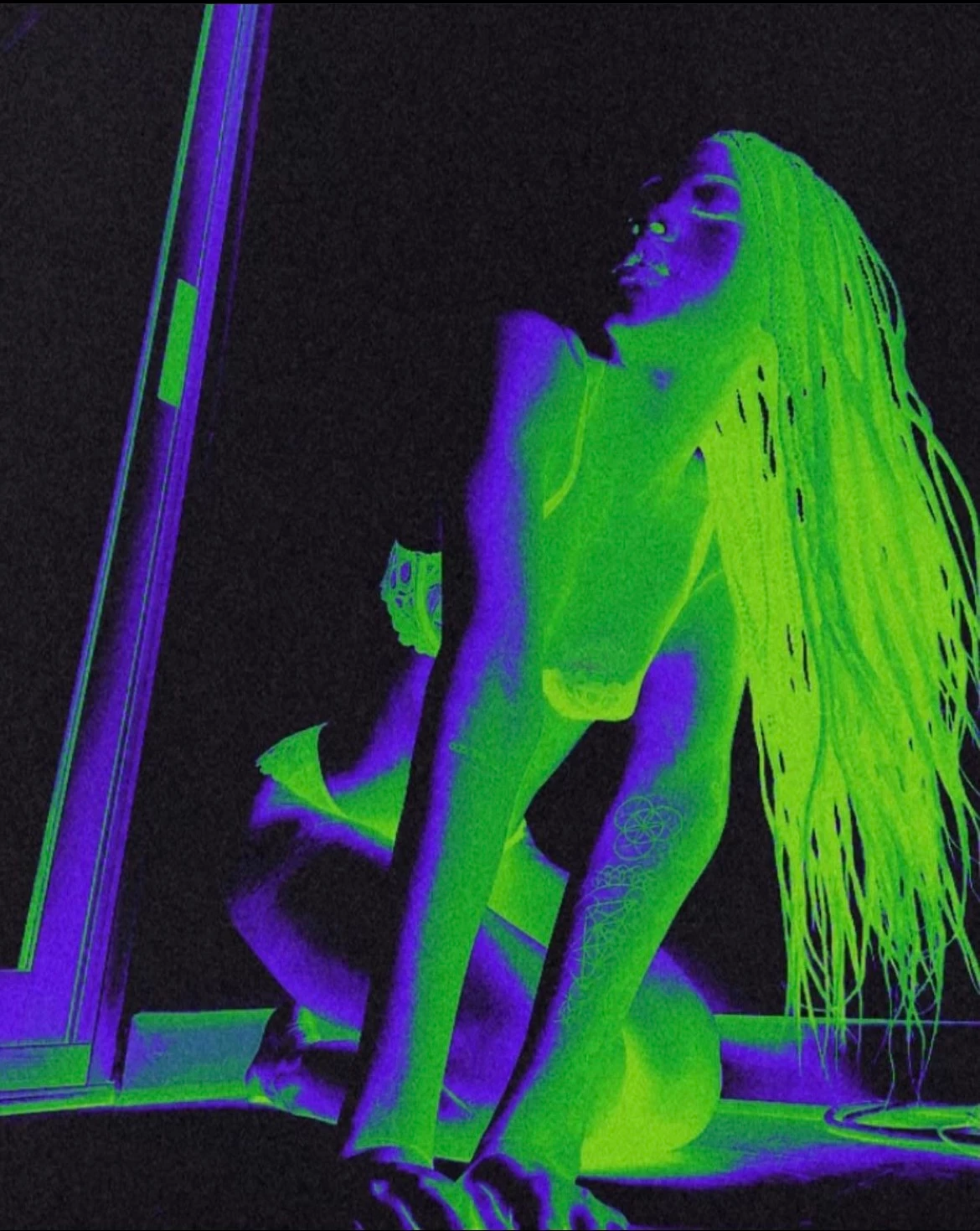
 

Dieses Thema wurde für Antworten geschlossen.
Beste Antwort von Myra Ferguson

You can apply a Gradient Map adjustment layer. Here's how:

  1. Open an image of a person with a fairly light background
  2. Go to Layer > New Adjustment Layer > Gradient Map (or add the adjustment layer from the bottom of the Layers panel)
  3. In the Properties panel (Window > Properties) click on the ramp to open the Gradient Editor
  4. Make the left color stop green (about #65b846) with a location of around 40%
  5. Add color stop to the middle, make it purple (about #4b14c9) with a location around 70%
  6. Make the right color stop black


Adjust the colors and locations of the color stops in the Gradent Map as needed.


1 Antwort

Myra Ferguson
Community Expert
Community Expert
September 9, 2021

You can apply a Gradient Map adjustment layer. Here's how:

  1. Open an image of a person with a fairly light background
  2. Go to Layer > New Adjustment Layer > Gradient Map (or add the adjustment layer from the bottom of the Layers panel)
  3. In the Properties panel (Window > Properties) click on the ramp to open the Gradient Editor
  4. Make the left color stop green (about #65b846) with a location of around 40%
  5. Add color stop to the middle, make it purple (about #4b14c9) with a location around 70%
  6. Make the right color stop black


Adjust the colors and locations of the color stops in the Gradent Map as needed.


Participant
September 10, 2021

Thank you so much, Myra! I have followed your instructions but now I have a solid gradient layer over my image and I'm unsure what to do next.
