

lesley_hilton
Known Participant
July 4, 2019
Question

How do I erase a background from an image?

  • July 4, 2019
  • 5 replies
  • 879 views

Windows, Photoshop 19.1.5

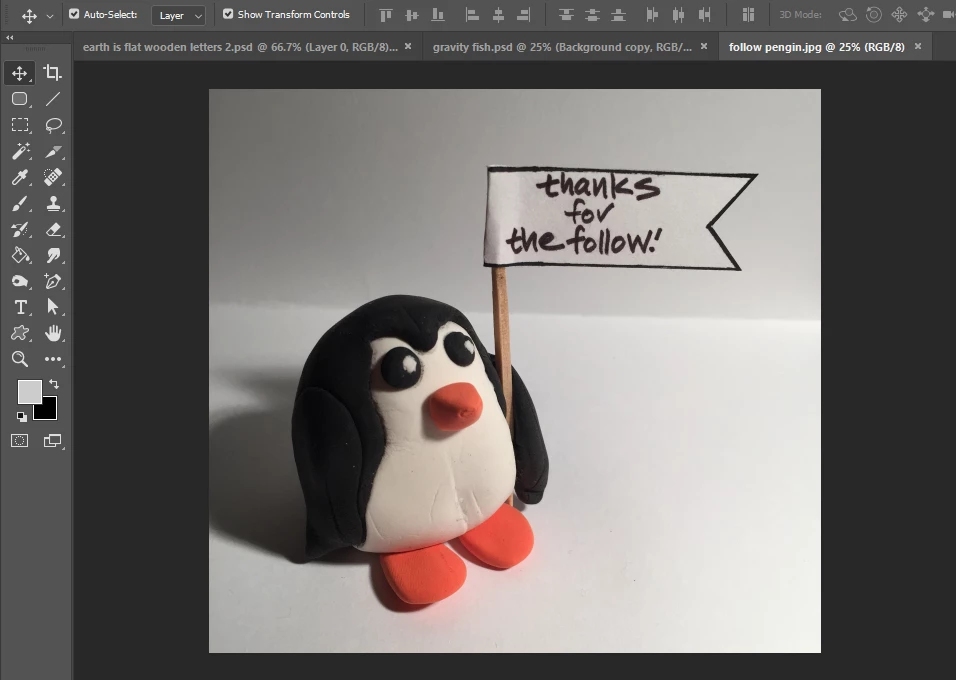
How do I erase the background of a photo, to make it transparent, without erasing it pixel by pixel?

For example, I just want the penguin and the flag, not the white/gray background.

Thanks in advance!
This topic has been closed for replies.

5 replies

macpawel
Participating Frequently
July 5, 2019

Maybe the simplest way to remove this background is:

Select Quick Selection Tool (W)

Press Select Subject buton located on the top on option bar

Using Quick Selection Tool adjust your selection. Alt Key allows you to subtract from selection and normal tool add additional areas

Pres Select and Mask Button to adjust selectiion. You can try to use View on Black and then use Shift Edges (Left) and Smooth (Right) sliders to adjust selection. In the bottom section of Select And Mask panel go tu Output section and choose Layer and Mask option

This way your object will be extracted from background with mask - it's nice way

UK Clipping Path
Participant
July 5, 2019

You can use erase any image background with Photoshop but you can also remove the background using Microsoft word and even in PowerPoint.

Since Photoshop is far more sophisticated than other removal services such as PowerPoint, you can use various methods to make the background transparent. I found an article on Adobe help about erasing backgrounds which may help you.

Read here: https://helpx.adobe.com/photoshop/using/erasing-parts-image.html

JJMack
Community Expert
Community Expert
July 5, 2019

Erasing layer area will work well with some images that have good contrast between simple subject and the background  so automated tools like the background eraser can do a good job select and erasing the background.   Tools like that  will not be able to do a good job on most images because of high detail and lack of contrast between subject and background in some areas. For example fly away hair.  Erasing is very destructive you can not recover what is eraser after the current history stated are purged.  Masking is a better method of extracting a subject for it destroys nothing All the original image is still intact in your layered document and layer masks can be improved on.

JJMack
davescm
Community Expert
Community Expert
July 5, 2019

I agree JJ, a layer mask every time for me.
You are absolutely right on the vector mask from a path and that is also what I would do. I just tried to keep it very simple for the OP as a normal mask can be painted to adust it and refine edge used on softer areas if required.

Dave

JJMack
Community Expert
Community Expert
July 5, 2019

If you do what Dave wrote you will have a good none destructive extraction. Mask can always be made better so you can remove or regain areas that can be better. This image because of the composition and shadows can not be easily selected with automated selection tools and features like select subject.  Because the subject smooth edges the Pen tool is an excellent tool to use extract this subject. Paths are easy to edit and adjust. You want to use as few control points as possible for a smooth outline.  You do not need to convert this Path to as selection to add a layer mask,  You can Add the Path as a vector layer mask and be able to use vector tools  on the vector mask just like a shape layer.

JJMack
davescm
Community Expert
Community Expert
July 4, 2019

Hi

There are some simple basic steps to achieve what you want.

1. If your image is on a background layer then convert it to a normal layer by clicking on the lock next to the layer icon in the layers panel.

2. Make a selection of the part you want to keep.
You could do this with the quick select tool or, as I did, draw round the object with the pen tool to create a path then convert the path to a selection

3. Go to menu Layer > Layer Mask > Reveal selection

Dave

Sahil.Chawla
Adobe Employee
Adobe Employee
July 4, 2019

Hi Lesley,

As you're trying to remove the background from the above image and just keep the subject, please check this article to know how to achieve this: Replace a dull background with a fresh new look |

Regards,
Sahil