
February 11, 2017
Answered

How do I expand the layers panel ?

  • February 11, 2017
  • 5 replies
  • 13925 views

Hey! So this question is about customizing your workspace. So on youtube tutorials I see the right side of the workspace like this
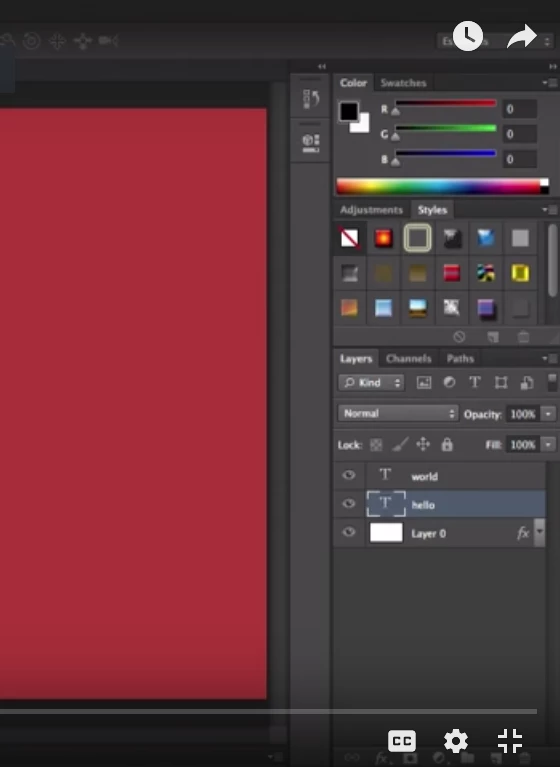
And in my own workspace, the right side is like this
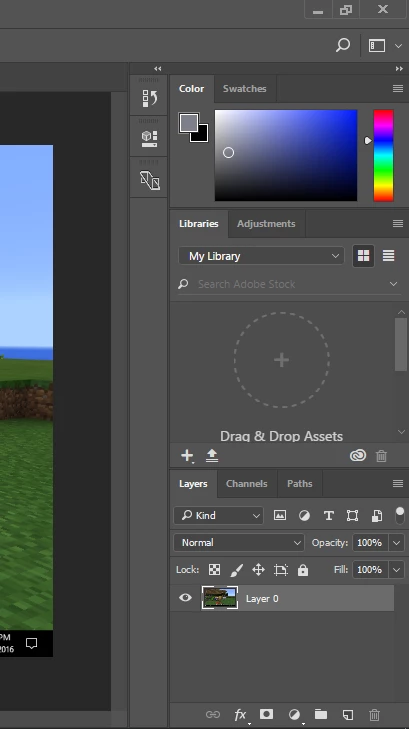
So my layers panel is way small and when I work with a lot of layers, it gets really hard to navigate through it..Can someone please tell me how to expand it like the one I see everywhere on the internet?

I am a beginner in photoshop so please bear with me..
This topic has been closed for replies.
Correct answer davescm

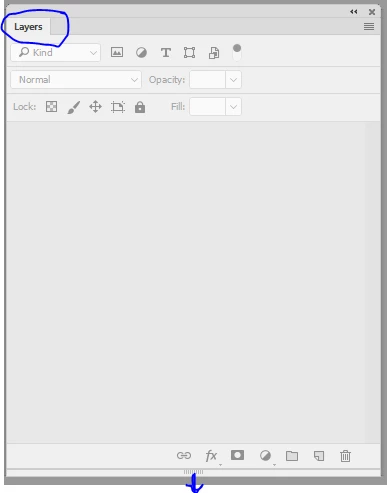
Just click on the tab at the top of the layer panel where it says Layers and with the mouse held down - drag it to where you want it.

To make it taller - drag the bottom of the layer panel

Dave

5 replies

February 12, 2017

thank you for the amazing tips guys!! Now my layers panel looks like this

But it doesn't allow me to make it larger than that so I guess thats my limit

melissapiccone
Community Expert
Community Expert
February 12, 2017

Double click those panels above to close them like I showed you in the screenshots above And you will get more vertical space...

Melissa Piccone | Adobe Trainer | Online Courses Author | Fine Artist
melissapiccone
Community Expert
Community Expert
February 11, 2017

You have some great answers here. I just want to add that you can also "collapse" the panels above by double clicking on their tabs. From your screenshot, double click on your library tab and double click on your color tab.

I collapsed my libraries...

Melissa Piccone | Adobe Trainer | Online Courses Author | Fine Artist
melissapiccone
Community Expert
Community Expert
February 11, 2017

And... one more thing - use groups. Organize your layers with the folder icon at the bottom of the layers panel. Also, if you are using layer effects, collapse them - if you have  fx with a down arrow - close them all up. To close them all at once, hold alt/opt and just click one, they will all close.

Melissa Piccone | Adobe Trainer | Online Courses Author | Fine Artist
Terri Stevens
Legend
February 11, 2017

You can also change the size of the thumbnail previews on each layer, once you have the layer panel in a position you are comfortable with. Click the icon-top right in the layers panel

Select  'Panel Options'

Choose a bigger thumbnail size

And the thumbnail becomes easier to see

Theresa J
Community Expert
Community Expert
February 11, 2017

Great tip. I always change the panel icon to the largest size when I am teaching, so that my students can actually see what's going on.

Theresa J
Community Expert
Community Expert
February 11, 2017

I recorded this video for my beginning students. It explains what panels are, and how to rearrange them. Photoshop CC User Interface Tour - YouTube

Trevor.Dennis
Community Expert
Community Expert
February 11, 2017

Drag it out from its group.

Move it higher up the screen.

Drag down the bottom right corner.

February 11, 2017

i dont understand.. what is a group?

davescm
Community Expert
davescmCommunity ExpertCorrect answer
Community Expert
February 11, 2017

Just click on the tab at the top of the layer panel where it says Layers and with the mouse held down - drag it to where you want it.

To make it taller - drag the bottom of the layer panel

Dave