danielb94023111
Known Participant
April 9, 2025
Answered

how do I get a mask inside of a mask?

  • April 9, 2025
  • 3 replies
  • 831 views

I just want to ask the window frame so that I can adjust the color.

In the image, you see I have been able to mask out the entire window, but that doesn't do what I wanted to do. How would I get like the white box back into the mask?


Also, you used to be able to invert mats by pushing comman+shift+I 

they're also used to be an option when you're masking that said inverse none of those things work anymore. If anyone can tell me how to in a mask as well that would be helpful too.

Correct answer Conrad_C
quote

I could've sworn just like two weeks ago. I did a project where all I had to do was create a shape with the pen tool right click and then select fill path and if I filled it with black or white, it would do what I wanted it to do

By @danielb94023111


OK. That's a little different, where the Pen tool is used to draw a path that is then converted to a pixel selection (the animated marquee).


quote

The window frame was created in the picture when I took the picture.

By @danielb94023111


If you just want to color the window frame, then:

1. Start from the path you drew in your screen shot, that has the inner and outer shapes. Make sure that is selected in the Paths panel. 

2. Choose Layer > New Fill Layer > Solid Color (or whatever fill you wanted such as Gradient). 

3. Set the fill color you want. The path that was selected becomes a vector mask for the new Solid Color Fill layer. 

4. Use a path selection tool to select the inner path, then click the Path Operations button, choose Subtract Front Shape, and that will put a hole in the Color Fill layer.
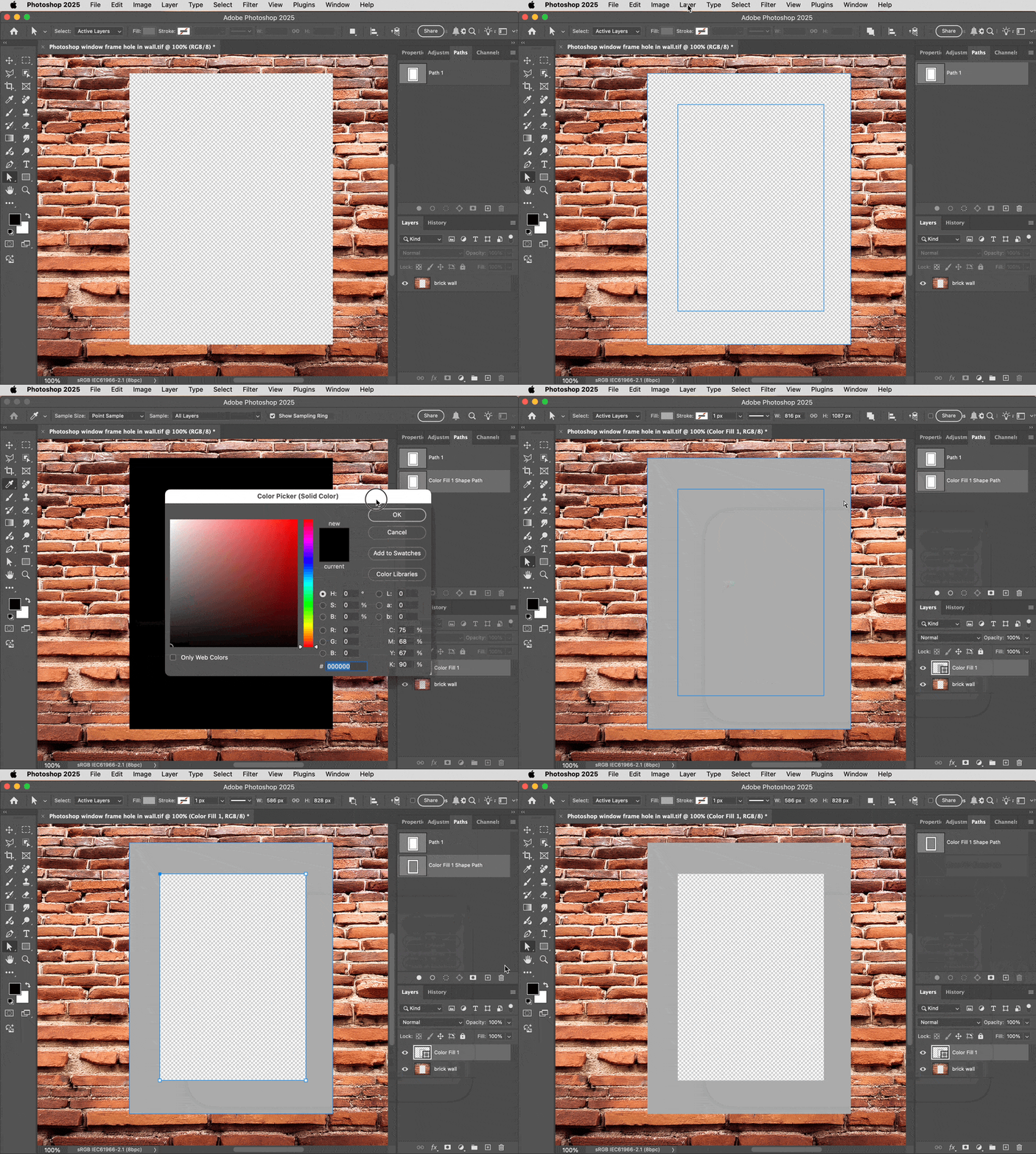


You could also do it the way you did before, which is to convert the path to a pixel selection and then fill that. I find that harder to edit and it would take more steps to do, but if you understand pixel selections/masks better than path/vector masks, maybe doing the extra steps to work with it as a pixel selection/mask might be worth it.


It is important to know that when you work with a vector shape layer or a Solid Color Fill layer, the way you edit the fill is definitely different than if you work with a pixel selection where you would use the Edit > Fill command. Yes, it’s confusing.

3 replies

Conrad_C
Community Expert
Community Expert
April 9, 2025

Inverting masks still exists, for pixel masks. But the screen shot you attached shows a vector path with path handles, where it works differently, see the demo below.


Also, Command+Shift+I is not for inverting masks, it’s the command for inverting pixel selections (Select > Inverse). The command for inverting a pixel layer or its pixel mask is Image > Adjustments > Invert (Command+I).


For the vector path you drew for the window:

1. Make sure the window frame was created as a Shape layer, not a Path. This will let you fill it. Also make sure the inner and outer paths of the window are on the same shape layer. 

2. In the Layers panel, make sure the shape layer is selected. 

3. Use a path selection tool to select the inner path of the window frame shape layer. 

4. In the options bar for the path tool you are using, click the Path Operations icon and choose Subtract Front Shape. That should create a hole.


danielb94023111
Known Participant
April 9, 2025

Thank you for taking the time to explain this, but I'm more confused now. Command+I doesn't do anything either. I don't know what what you mean by a vector path. I just use the pen tool and I made the white box just to show you what I wanted to cut out with the mask. So don't pay too much attention to it.

The window frame was created in the picture when I took the picture.

I'm not sure what you mean by a pixel mask. Photoshop only uses pixels I thought.

I could've sworn just like two weeks ago. I did a project where all I had to do was create a shape with the pen tool right click and then select fill path and if I filled it with black or white, it would do what I wanted it to do

Maybe the easiest way would be to do your screen, capture video and just make a mask with a mask inside of it for me.

Conrad_C
Community Expert
Conrad_CCommunity ExpertCorrect answer
Community Expert
April 9, 2025
quote

I could've sworn just like two weeks ago. I did a project where all I had to do was create a shape with the pen tool right click and then select fill path and if I filled it with black or white, it would do what I wanted it to do

By @danielb94023111


OK. That's a little different, where the Pen tool is used to draw a path that is then converted to a pixel selection (the animated marquee).


quote

The window frame was created in the picture when I took the picture.

By @danielb94023111


If you just want to color the window frame, then:

1. Start from the path you drew in your screen shot, that has the inner and outer shapes. Make sure that is selected in the Paths panel. 

2. Choose Layer > New Fill Layer > Solid Color (or whatever fill you wanted such as Gradient). 

3. Set the fill color you want. The path that was selected becomes a vector mask for the new Solid Color Fill layer. 

4. Use a path selection tool to select the inner path, then click the Path Operations button, choose Subtract Front Shape, and that will put a hole in the Color Fill layer.


You could also do it the way you did before, which is to convert the path to a pixel selection and then fill that. I find that harder to edit and it would take more steps to do, but if you understand pixel selections/masks better than path/vector masks, maybe doing the extra steps to work with it as a pixel selection/mask might be worth it.


It is important to know that when you work with a vector shape layer or a Solid Color Fill layer, the way you edit the fill is definitely different than if you work with a pixel selection where you would use the Edit > Fill command. Yes, it’s confusing.

jane-e
Community Expert
Community Expert
April 9, 2025
quote

How would I get like the white box back into the mask?

By @danielb94023111


Black hides what is on the layer with the layer mask, and white shows what is on that layer. If you want your mask to have a "white box" then make an appropriate selection and fill it with white (on the mask not on the image).


if you need more assistance, Please show your layers panel and resize it wide enough and tall enough so that we can see all of it. 


Command + Shift + I inverts the current selection; Command + I inverts the colors.


Jane


danielb94023111
Known Participant
April 9, 2025

I just restarted my computer and now command+I invert the colors like to a negative of the photo

danielb94023111
Known Participant
April 9, 2025

I just restarted my computer and command plus I like invert the colors of the mask to like an old film negative, but not the mask itself.

Bojan Živković11378569
Community Expert
Community Expert
April 9, 2025

To invert use Command/Control + I, is that what are you looking for?