aephrii
Participant
January 9, 2018
Answered

How Do I Get Brushes Back?

  • January 9, 2018
  • 2 replies
  • 918 views

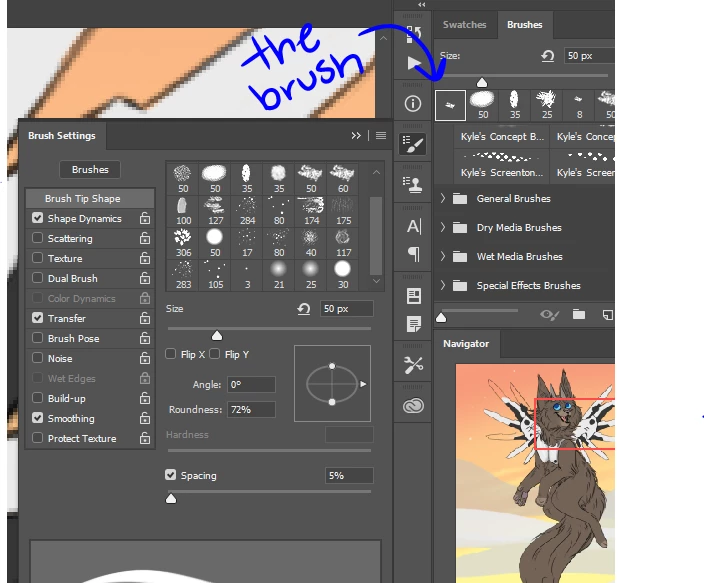
OK, ive had Photoshop CC for almost 3 years now. I found brushes I liked and don't like, like for textures. But, with this new 2018 update, its seems some of the brushes are no longer there. How do I get them back? All I see now is Kyle's brushes, when I really am not used to them. My brush that I love IS still there, I can use it for my eraser, which it wasn't like that before. I started on a piece with my brush, was almost done, and started adding in special effects. I switched to the eraser and switch back to the brush, but the brush type was different! I know what the brush looks like, so I keep pressing it to set my brush as it, but it keeps switching back to my eraser like its stuck on it! I don't know why this is happening, but I really just want my brush back.Thank You.
    This topic has been closed for replies.
    Correct answer Trevor.Dennis

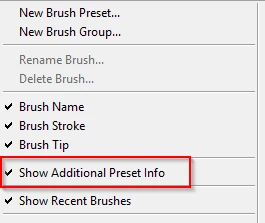
    cc2018 is able to save Tool settings with brush presets.  If you right click to bring up the presets panel, then click on the Cog icon and enable Show Additional Preset Info

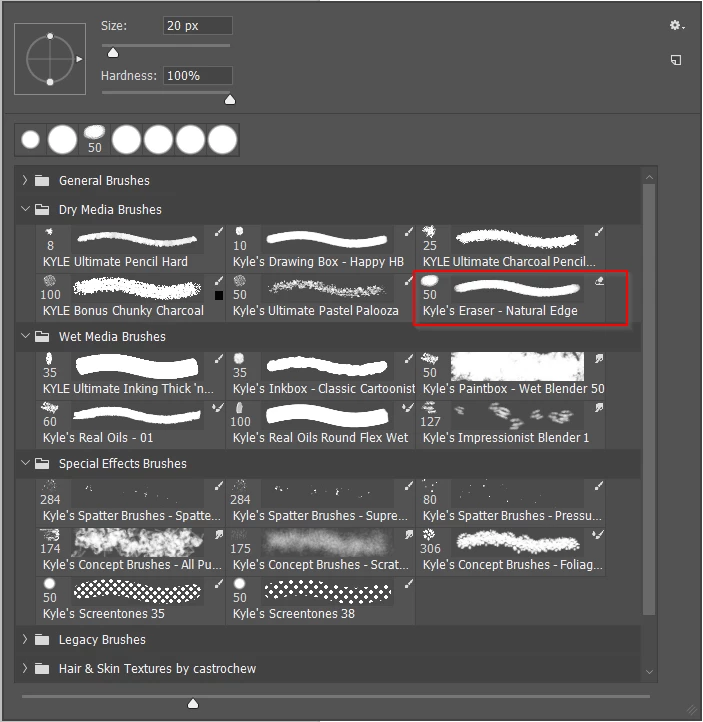
    You can see if a particular tool is associated with a particular preset.

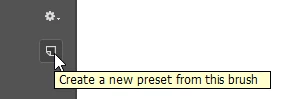
    If you really want to use that preset with another tool, select the preset, and then on Create a new preset from this brush

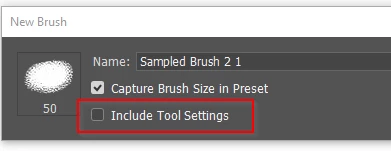
    And make sure Include Tool Settings is unchecked.  You will then be able to use that preset with any tool.

    Or you could choose another preset designed for the tool you are using.

    Have a look at Julianne Kost's blog entry on the CC2018 brush management system

    Adobe Announces New Features for Photoshop CC 2018 « Julieanne Kost's Blog

    2 replies

    Trevor.Dennis
    Community Expert
    Trevor.DennisCommunity ExpertCorrect answer
    Community Expert
    January 9, 2018

    cc2018 is able to save Tool settings with brush presets.  If you right click to bring up the presets panel, then click on the Cog icon and enable Show Additional Preset Info

    You can see if a particular tool is associated with a particular preset.

    If you really want to use that preset with another tool, select the preset, and then on Create a new preset from this brush

    And make sure Include Tool Settings is unchecked.  You will then be able to use that preset with any tool.

    Or you could choose another preset designed for the tool you are using.

    Have a look at Julianne Kost's blog entry on the CC2018 brush management system

    Adobe Announces New Features for Photoshop CC 2018 « Julieanne Kost's Blog

    melissapiccone
    Community Expert
    Community Expert
    January 9, 2018

    Did you save your brush as a preset? If you save it, it will always be there for you. Click on the brushes fly out menu and choose new brush preset.

    Melissa Piccone | Adobe Trainer | Online Courses Author | Fine Artist