 Adobe Community

- Home
- Photoshop ecosystem
- Discussions
- Re: How do I get these boxes to go away? Move tool...
- Re: How do I get these boxes to go away? Move tool...

Copy link to clipboard
Copied
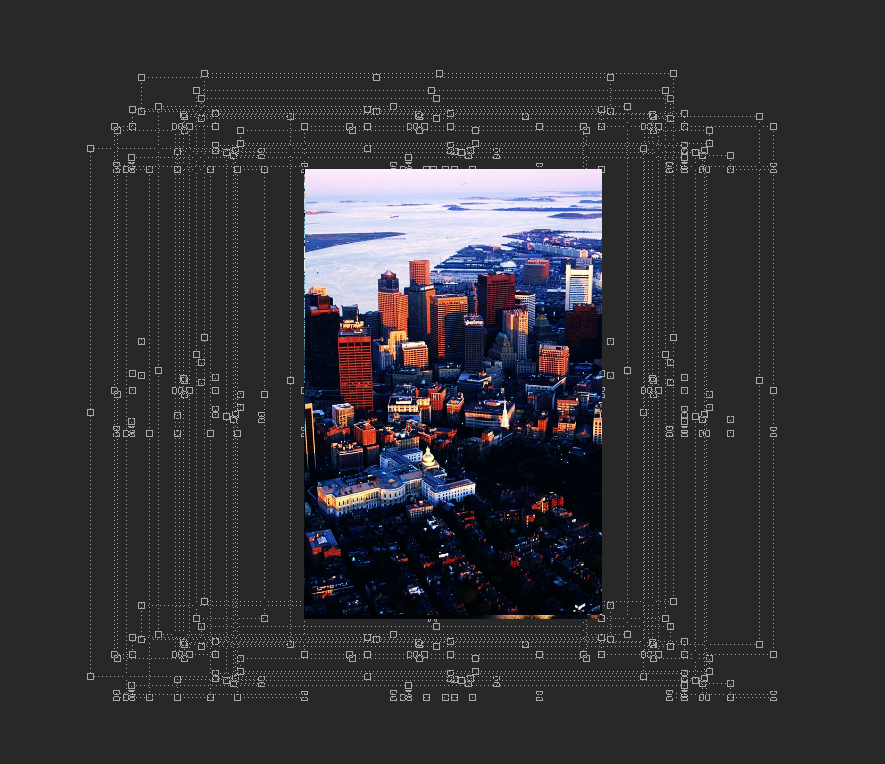
Every time I use the move tool to move a layer, these things pop up around the image! Deleting the layer doesn't make them go away. The only thing that works is turning off transform controls, but I like having those on. I've had it not do this before and then it just randomly started and I cannot figure out how to turn it off. Any help would be appreciated! Thank you.


 1 Correct answer


Hello 
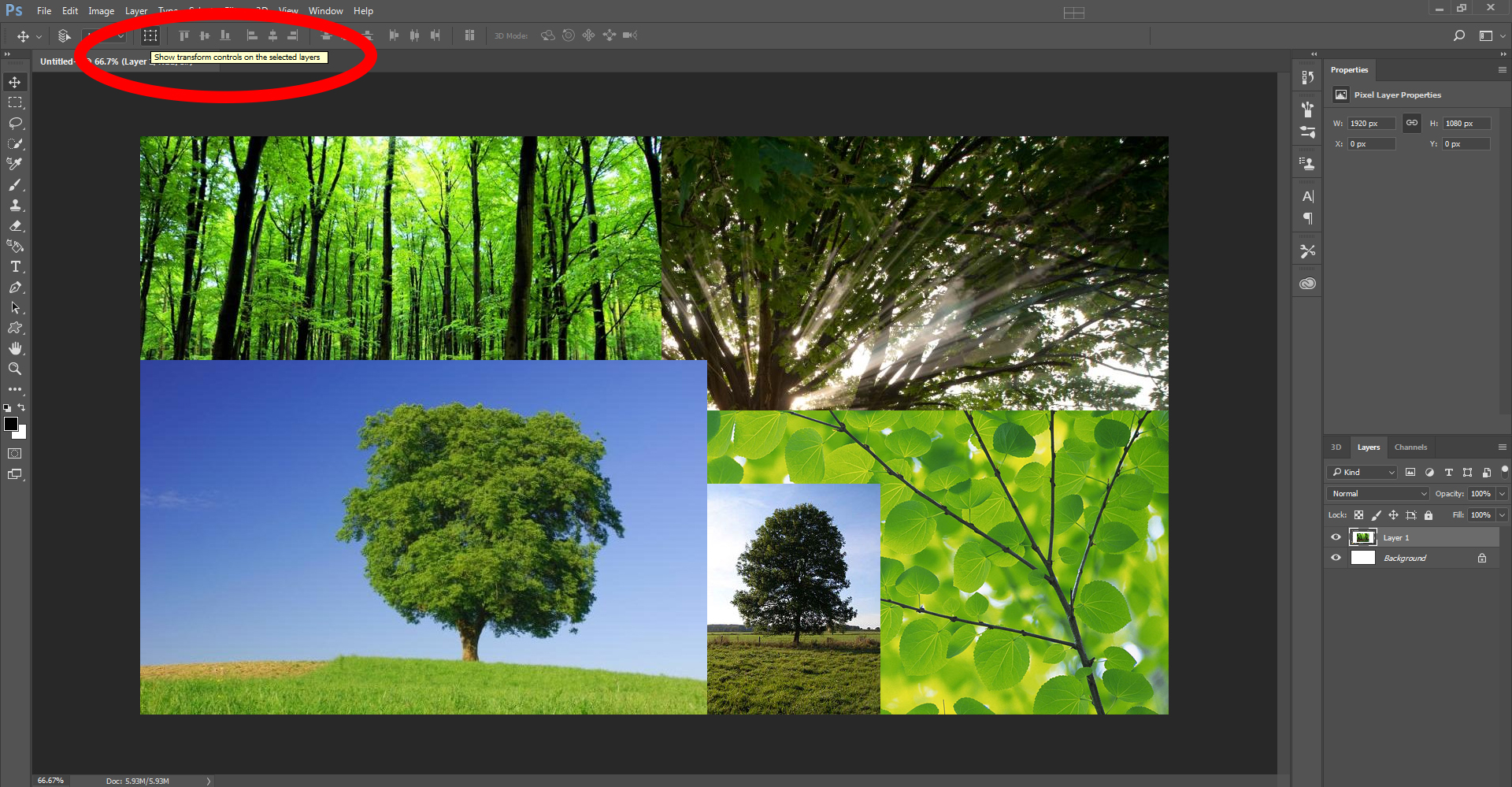
I can't see your Options Bar, but I think you have this feature turned on "Show Transform controls on the selected layers" Hope this helps! 

Explore related tutorials & articles
 11
Replies
11
11
Replies
11


Copy link to clipboard
Copied
Does turning off »Use Graphics Processor« in the Performance Preferences and restarting Photoshop helps it?
Otherwise update your video card driver from the GPU maker's website.
Copy link to clipboard
Copied
It's already off. 
Copy link to clipboard
Copied
Hello 
I can't see your Options Bar, but I think you have this feature turned on "Show Transform controls on the selected layers" Hope this helps! 
Copy link to clipboard
Copied
How do I get that option to appear? It's not currently on my toolbar.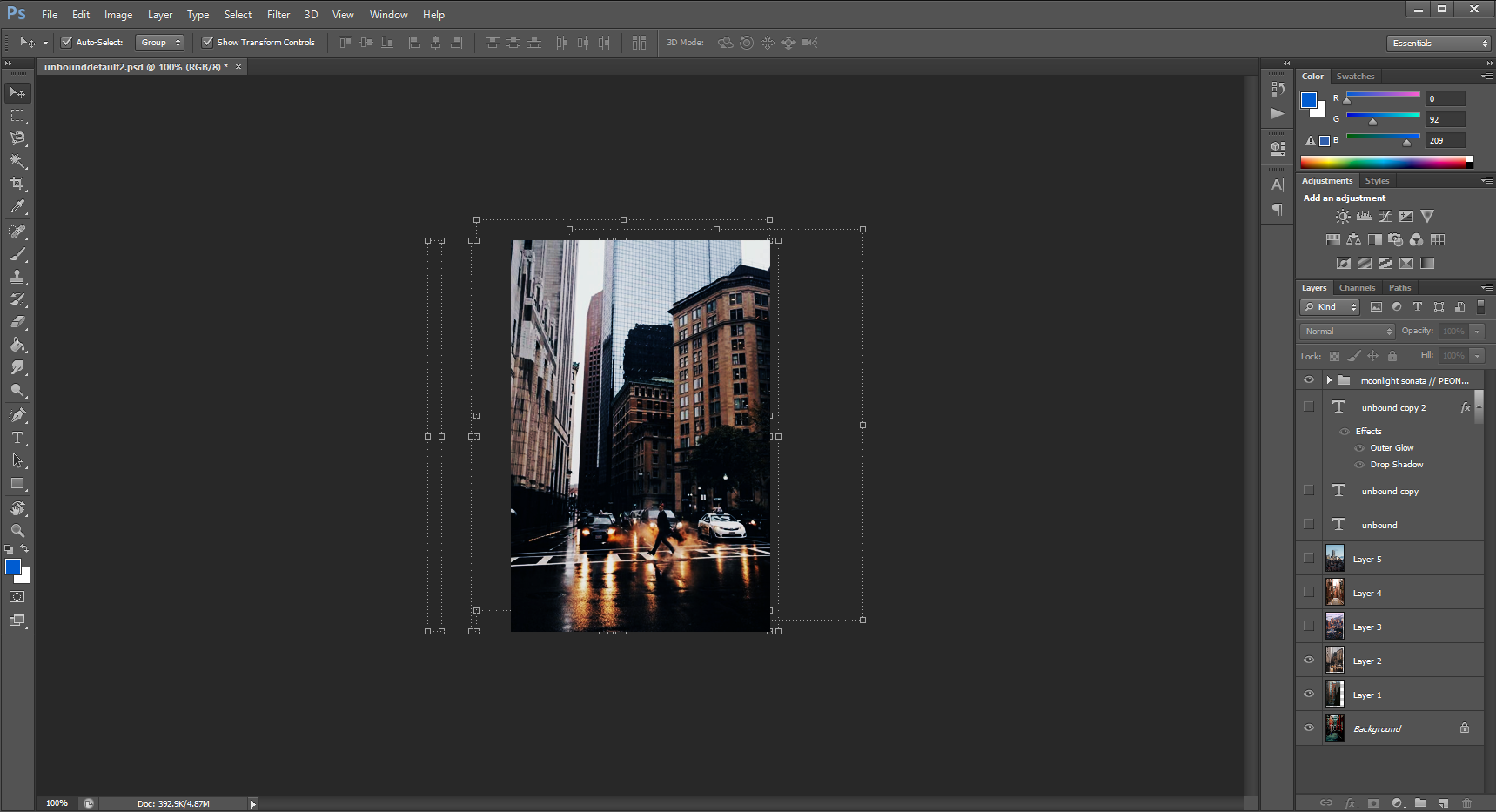
Copy link to clipboard
Copied
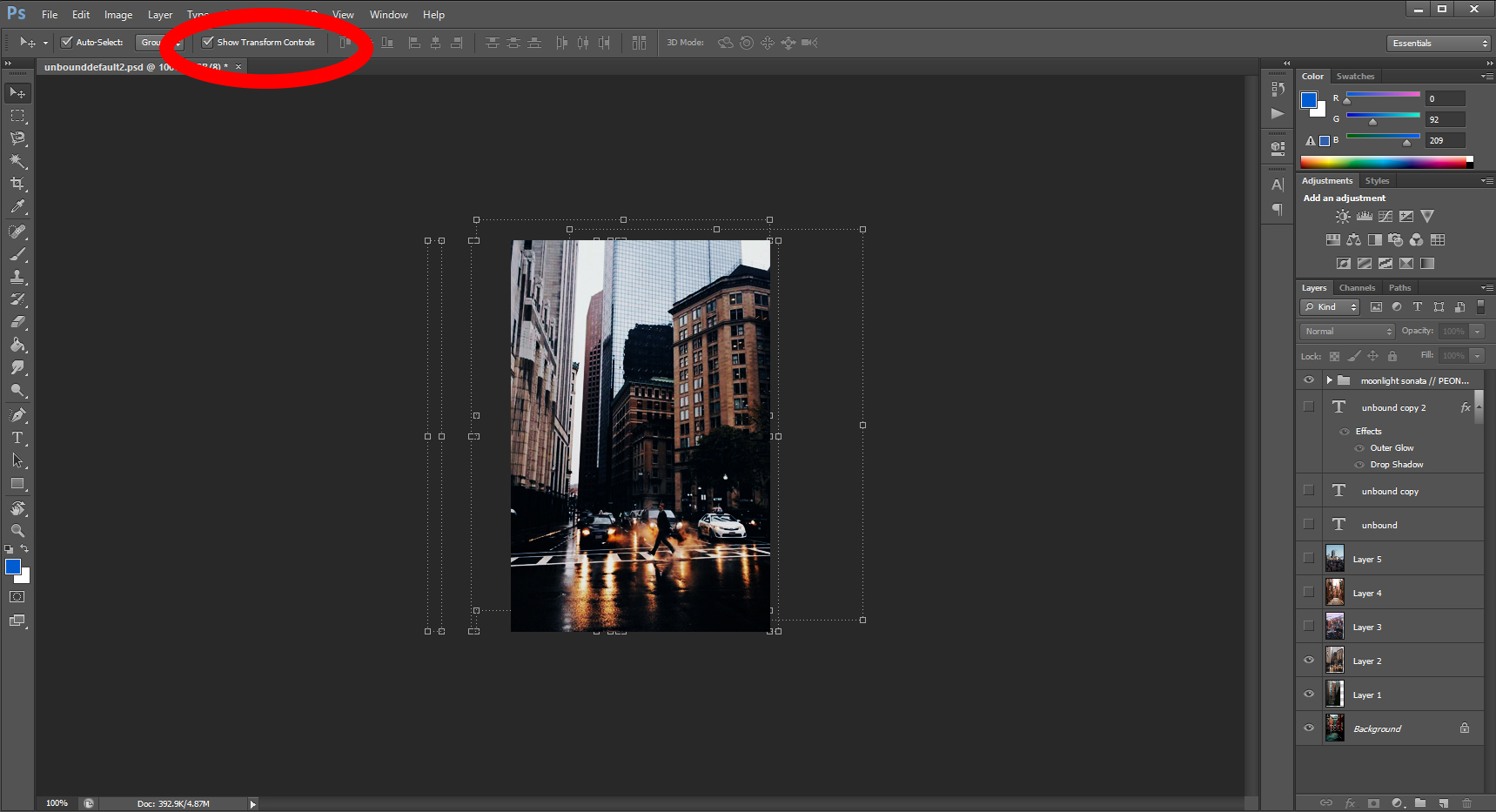
I think if you un-check that box, you should be good
Copy link to clipboard
Copied
That makes all of the transform controls go away though. I used to be able to move the image around without the dotted grey border duplicating with each movement. That's what I'm trying to fix.

Copy link to clipboard
Copied
What version of photoshop cc are you running?
In photoshop Help>System Info and the top line says the photoshop version.
I seem to remember that bug in an earlier version of cc like 2014 maybe and an update fixed it.
Copy link to clipboard
Copied
I have cs6, not cc.

Copy link to clipboard
Copied
That was the solution for me! THANK YOU! I have been searching for this for months lol
Copy link to clipboard
Copied
UPDATE: I got help on Reddit! Toggling the "use graphics processor" on fixed it.

Copy link to clipboard
Copied
check auto select


 AdChoices