
Known Participant
April 15, 2021
Question

How do I make a custom template to snap pictures into?

  • April 15, 2021
  • 2 replies
  • 3438 views

Hello, 


I  have tried to look this up to no avail. What i am trying to do is make a template of a certain PSD file i have so when i drop a picture into it, the picture snaps to the frame. For example; the picture below is the file i want to make a template that when i drop the new picture (I have around 300 of them) they automatically rezize, distort to fit the sideway canvas. 
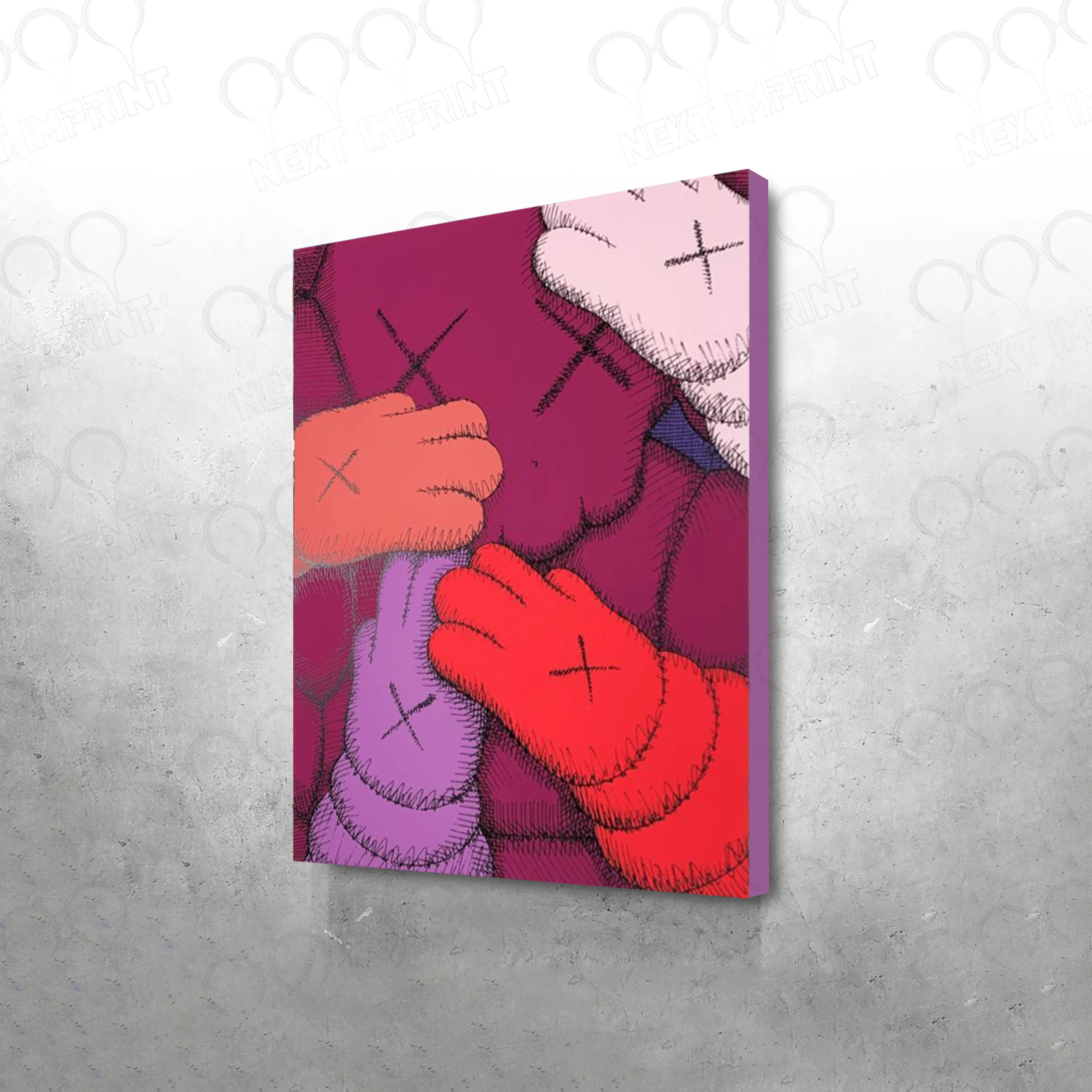


One example of another picture i want to drop so it replaces the purple version is this:



Any help or suggestions that are close to what i am trying to achieve will be greatly appreciated. I want to make it that i can save time and labor since i have so many pictures to do.


Thank you

This topic has been closed for replies.

2 replies

Nancy OShea
Community Expert
Community Expert
April 15, 2021
quote

[I want it so that] when I drop the new picture (I have around 300 of them) they automatically rezize, distort to fit the sideway canvas. 


=========

Hi @default871swyusdiqq,

Are you using File > Place Embedded to snap it to the frame?


Nancy O'Shea— Product User & Community Expert
Known Participant
April 16, 2021

I can not use a frame because it does not let me make it sideways the way the canvas looks on the purple picture.  I want to replace the content of the pictute on the frame and the frame is set sideways to show the edge of the canvas.


Thanks 


Glenn 8675309
Legend
April 15, 2021
JJMack
Community Expert
Community Expert
April 15, 2021

I would not use Adoeb's Photoshop Frame tool to make the template.  I would just use a smart object layer that I  add the perspective distortion to its object transform.  You would not drop the replacement images on the template, You will replace the smart obj content with replacement images via  Layer>Smart Objects>Replace Content or Opening the Smart object and editing the replacement into the original object without changing the object size.  You can do this manually or use a Photoshop script that automates the population process.


Free Photoshop Photo Collage and Mockup Toolkit 

JJMack
Known Participant
April 18, 2021

A video is not needed you simply fill out a Script Dialog then Click the create the output button at the bottom of the dialog.  You point the Script to the folder containing the Mockup templates to Populate,  Point the Script the Folder that contains the Collections of replacements images for each smart object layer in the Templates. Point the script to the folder you want to output populated  mockup save into. And you set  the script option for how you want the script to operate.  The process is completely automated. All you need do is set thing up properly for the automated process. Here I did not have the correct size images for your mockup so I used the script Edit option to have the script edit the replacement images into the existing objects instead of using the default operation the uses Replace Content.


Thank you so much, Is it possible to provide me the script you used? I will give it a shot.


Thank you