lesley_hilton
Known Participant
June 23, 2019
Answered

How do I make part of a line transparent?

  • June 23, 2019
  • 5 replies
  • 4347 views

Dear Forum,

Windows user, Photoshop CC 19.1.5.

I am trying to make a transparent background, and make part of the border invisible, and insert my watermark into that part of the line. But BEHIND MY WATERMARK needs to be transparent as well. Ged Traynor​ and c.pfaffenbichler​ advised me to group the layers and create a mask, but I don't understand how to do it. I can group them, but when I press Alt and move one layer on top of the other, it makes a copy instead of a clipping mask.  Please help.

    This topic has been closed for replies.
    Correct answer barbara_a7746676

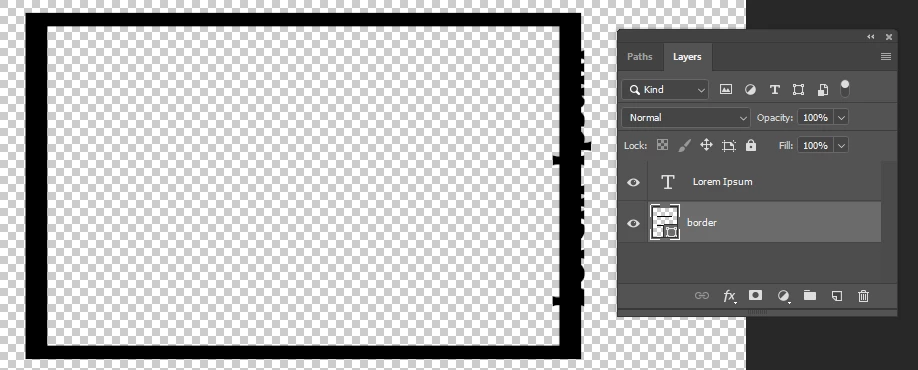
    You've got the border with a transparent background around the border, and the text, each on separate layers.

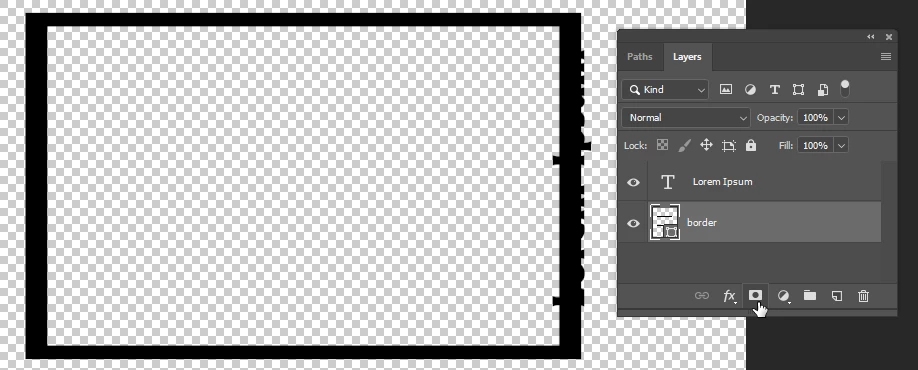
    Make the border layer your active layer and click the Layer Mask icon at the bottom of the Layers panel.

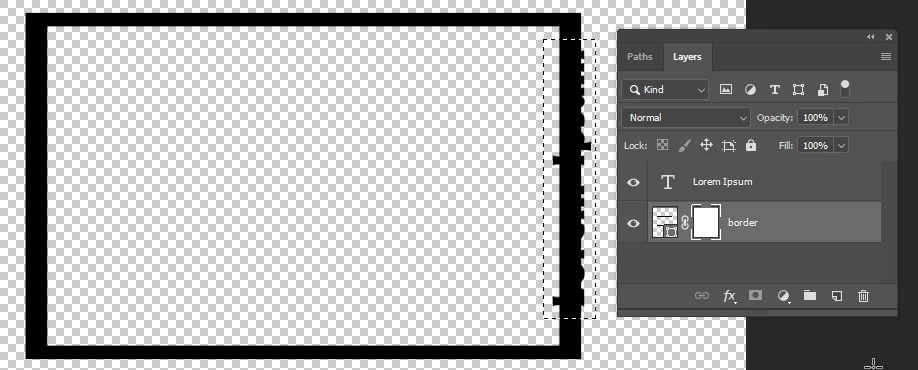
    With the mask active (it should have a double line around it when active), select the area that you want to make transparent.

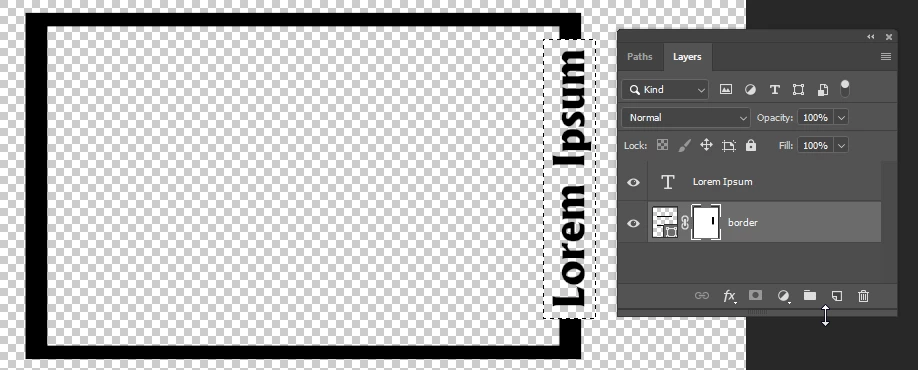
    Then fill the selection with black.

    When you have a layer mask you can paint in it with black to hide areas of the layer and with white to show areas of the layer.

    5 replies

    c.pfaffenbichler
    Community Expert
    Community Expert
    June 23, 2019
    advised me to group the layers and create a mask, but I don't understand how to do it. I can group them, but when I press Alt and move one layer on top of the other, it makes a copy instead of a clipping mask.

    To create a Clipping Mask one can alt-click the line between the two Layers in the Layers Panel or  select the top one and hit cmd-alt-G or invoke Layer > Create Clipping Mask from the menu.

    In this case I don’t see what good it’s supposed to do, though.

    lesley_hilton
    Known Participant
    June 23, 2019

    You're right c.pfaffenbichler​ the clipping mask was for something else.

    Thanks for your responses!

    barbara_a7746676
    Community Expert
    Community Expert
    June 23, 2019

    Deleting will work, as lambiloon said.

    I suggested the layer mask because it is very flexible and non-destructive. You can paint in it to show and hide portions of the layer, and if you change your mind later, you can re-paint.

    lambiloon
    Community Expert
    Community Expert
    June 23, 2019

    yes dear madam layer mask is also good option..... i only shared my input all methods are good ..... be happy.

    Regards

    Ali Sajjad / Graphic Design Trainer / Freelancer / Adobe Certified Professional
    lambiloon
    Community Expert
    Community Expert
    June 23, 2019

    Hi anyone of easy method is if frame file in png just select that area with marquee selection and delete that portion all will be good to go... all other methods shown above also works.

    Regards

    Ali Sajjad / Graphic Design Trainer / Freelancer / Adobe Certified Professional
    JJMack
    Community Expert
    Community Expert
    June 23, 2019

    JJMack
    barbara_a7746676
    Community Expert
    barbara_a7746676Community ExpertCorrect answer
    Community Expert
    June 23, 2019

    You've got the border with a transparent background around the border, and the text, each on separate layers.

    Make the border layer your active layer and click the Layer Mask icon at the bottom of the Layers panel.

    With the mask active (it should have a double line around it when active), select the area that you want to make transparent.

    Then fill the selection with black.

    When you have a layer mask you can paint in it with black to hide areas of the layer and with white to show areas of the layer.

    lesley_hilton
    Known Participant
    June 23, 2019

    Barbara Ash​ Thank you for posting the solution step-by-step!

    It worked!

    Sometimes people assume I have Photoshop knowledge, so they skip a step or two in the solution. Thank you for including each step!
    Lesley

    barbara_a7746676
    Community Expert
    Community Expert
    June 23, 2019

    You're welcome! Layer masks are very useful, and now that you know about them they can be leveraged for other projects.