
j0hnymyb0y
Participant
April 8, 2017
Question

How do I make this complicated image background transparent?

  • April 8, 2017
  • 5 replies
  • 4037 views

Hello,

I'm new to Photoshop and I made this image very recently following a tutorial I learned from. My only issue is that now I want to make the image background transparent. I want to print this image without the white background, but there are smoke effects I added that make this image hard to make transparent. Here it is:
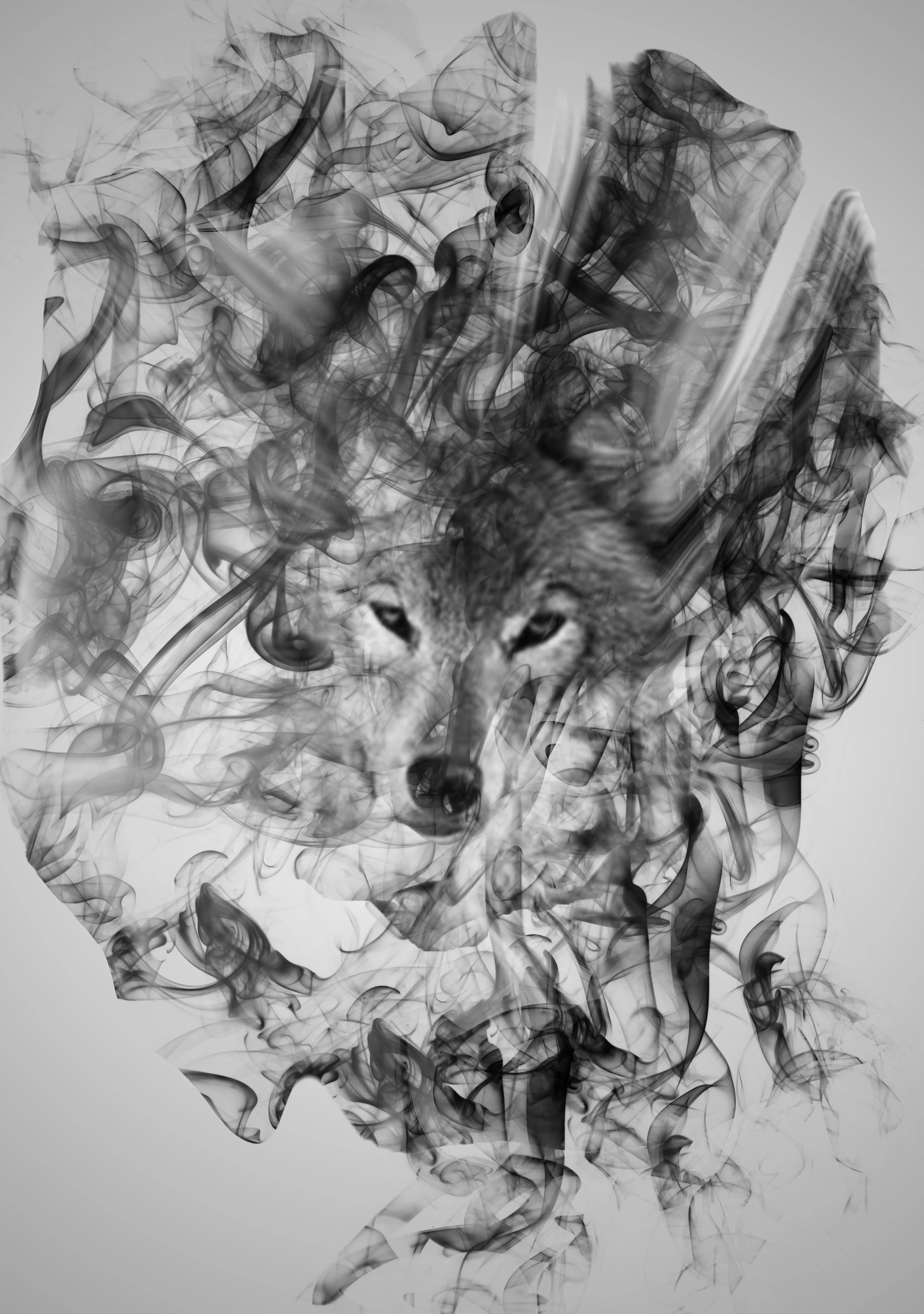
I would really appreciate the help! And if you need the Photoshop file then I can email it to you. Thanks!

This topic has been closed for replies.

5 replies

Norman Sanders
Legend
April 9, 2017

The Blend If approach didn't work because the background varied in tone. As a possible solution, I broke the image into about a 16 squares with each square on a separate layer and applied a discrete Blend If to each square. In doing so I was able to to adjust the slider to remove the background gray without it affecting other areas in the image. It allows for final tweaking of the separate layers.

This is the result -- with and without the grid showing. It needs minor peripheral brush work. I wanted to display what Blend I did alone.

D Fosse
Community Expert
Community Expert
April 9, 2017

Hey, Norman, haven't seen you in a while! You have to tell us when you go on extended vacations

Norman Sanders
Legend
April 9, 2017

Dag, I have been busy growing old. 90 is full time job.

D Fosse
Community Expert
Community Expert
April 9, 2017

Turning the white transparent works perfectly with the "peel-off-white" action described here: https://forums.adobe.com/thread/1395311

The problem, of course, is that the background itself is gray. There's no way to separate those two, because they are obviously the same.

davescm
Community Expert
Community Expert
April 9, 2017

https://forums.adobe.com/people/D+Fosse  wrote

Turning the white transparent works perfectly with the "peel-off-white" action described here: Perfectly removing a white background

Hi Dag

Useful link thanks, even if I did have to read it three times to see what was going on

Dave

D Fosse
Community Expert
Community Expert
April 9, 2017

Yeah, it's a bit counter-intuitive, I struggled myself. But it really works, and this is a much requested (and useful) feature.

K´mo
Participating Frequently
April 9, 2017

I would try to regenerate the gradient which is the background here on a new layer above this picture. Then change that layer's blending mode to Difference. The background should now look black and the smoke and wolf white. Then go to channels and duplicate any of the color channels (it's ok here since it is grayscale image). After that make another new layer and fill it with black and make mask with recently duplicated channel.

If you managed to make the gradient good enough, you should now have just the image when you hide other layers. Maybe some tweaking with levels is needed on the mask.

Trevor.Dennis
Community Expert
Community Expert
April 9, 2017

K´mo  wrote

I would try to regenerate the gradient which is the background here on a new layer above this picture. Then change that layer's blending mode to Difference. The background should now look black and the smoke and wolf white. Then go to channels and duplicate any of the color channels (it's ok here since it is grayscale image). After that make another new layer and fill it with black and make mask with recently duplicated channel.

You need to demonstrate your suggestion with screenshots. 

K´mo
Participating Frequently
April 9, 2017

Why not. First shot is where there is background gradient in Difference mode.

Second picture with black layer with new mask made with duplicating red channel and with very little levels. There is white background under.

Third image is on a random photo.

davescm
Community Expert
Community Expert
April 8, 2017

Try the following:

Add a curves adjustment layer and drag white arrow to the left so it just touches the histogram

Go to Image Calculations and set up the dialogue as shown below.

Click OK then with Layer 0 highlighted in the layers panel go to Layer -Layer Mask - Reveal Selection. This will add a layer mask varying transparency based on the image itself

Delete the curves layer.

I have added a solid white layer and blue layer  at the bottom to show the effect against a white /blue  background

Dave

Trevor.Dennis
Community Expert
Community Expert
April 8, 2017

Dave I'd still start again, just out of principle.  He says he is a new user and did this from a tutorial, so he made it, and somehow managed to end up with an apparently flattened grey mess.  I didn't try very hard to fix it, because the tonal values of the background, overlap the tonal values of the artwork, so any fix is going to compromise the artwork.   He should start again using different layers for the component elements with a white background layer.  That's my two cents worth. 

davescm
Community Expert
Community Expert
April 8, 2017

Hi Trevor,

I agree that starting again and using separate layers would produce the best result. But I couldn't resist a masking challenge like that and calculations did produce a useable mask, particularly for using against paper white.

Dave

Trevor.Dennis
Community Expert
Community Expert
April 8, 2017

Goodness.  You have really made it hard for yourself, and you just won't ever get a result to do your artwork justice.  If you made it, do it again, but keep the black blacks on their own layer(s), and the background layer white.

Out of interest, how did the background get so dark?

We (I) can show you how to make some nice curtain brushes to make the swirly background.  Perhaps a link to the tutorial would be useful.