Participant
April 8, 2021
Answered

How do I organize the Brush Tip Shape section?

  • April 8, 2021
  • 1 reply
  • 1433 views


I bought some Grut Brushes awhile ago, and now I have hundreds of brush tip shapes in my Brush Settings; is there any way to organize them? I don't know how they are currently organized, doesn't appear to be alphabetical or any other way I've noticed, and there will be multiples of the same brush tip with just different sizes dozens of spots away from each other. IE: "Grut - PT Pebbles 03" is 30 spots away from "Grut - PT Pebbles 02".


I wanted to play around with these and create my own brushes but they are extremely diffcult to navigate, or am I completely mistaken and that's not what these are there for? 


Correct answer Trevor.Dennis

Hello,
I'm not really having a problem with saving new presets or grouping, my issue is I'm trying to figure out how to organize the Brush Tip Shape section so it's not a seemingly random and unorganized mess so it's way easier to navigate when I want to edit/create brushes.


The big issue is that there are multiples of the same Brush Tip Shape in there, but the settings (like size) are different.  As I mentioned,  a Brush Tip Shape (not an actual Brush preset) called "Grut - PT Pebbles 03" is 30 spots away from "Grut - PT Pebbles 02", and if they were organized alphabetically, they'd at least be beside each other so I could navigate my options better. 
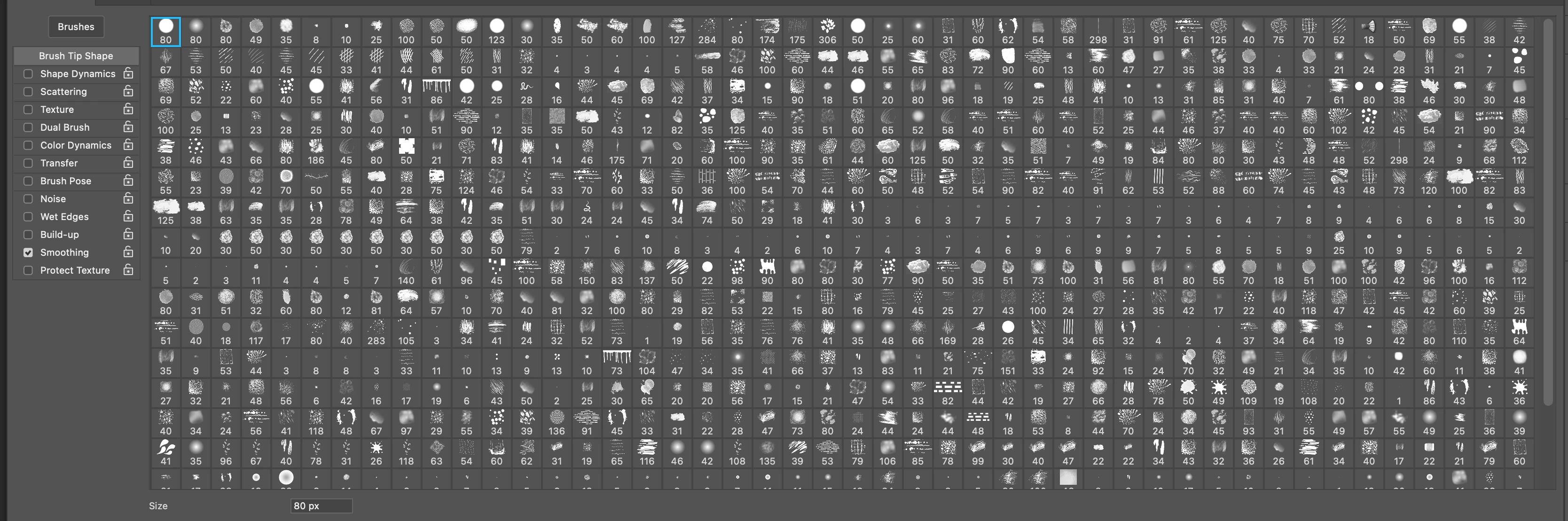
You can see from this picture here, the scroll bar still has more! There are multiple Brush Tip Shapes called "rec strip" and they are not beside each other. It just makes browsing them almost impossible.


I'm guessing that you put that huge group together?  

You are not exactly making life easy foryourself having so many presets in the same group, and you don't have all available labling information enabled.   You know that you can rename presets, and drag them to change the order they appear in the groups?
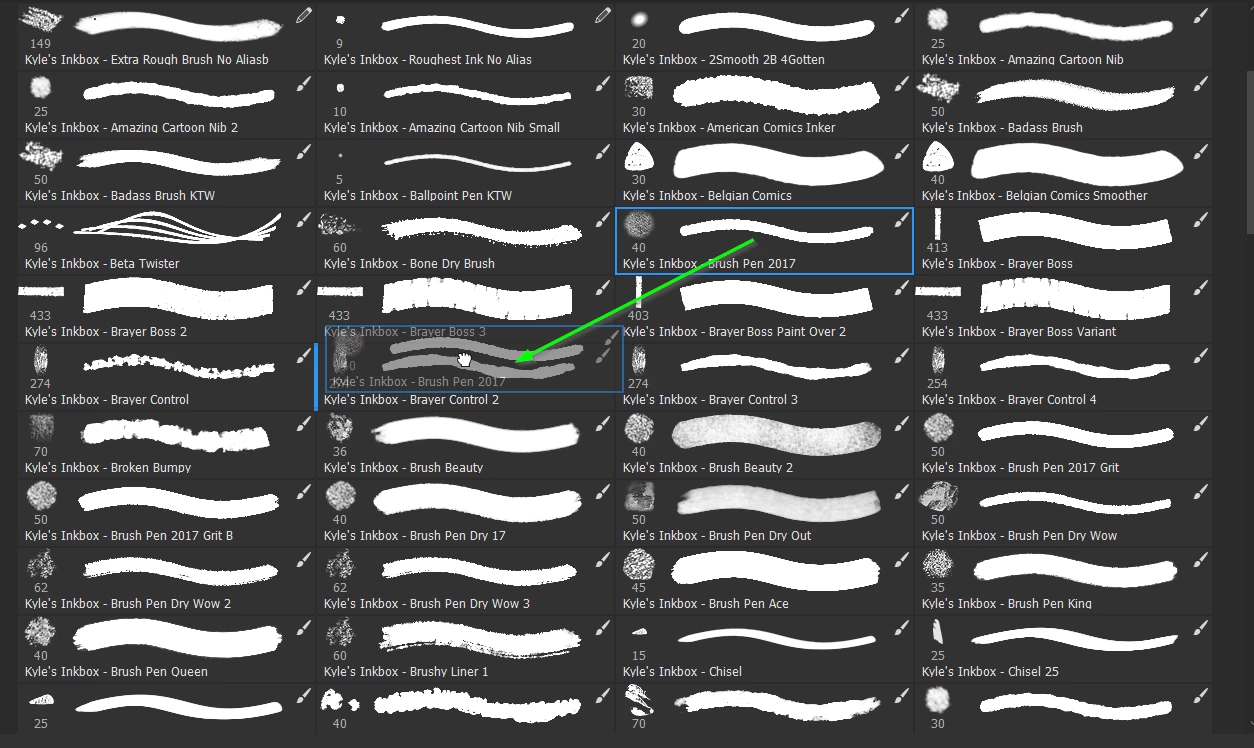
The problem with something like Kyles Megapac is that it contains something like 700 presets.  There are some excellent, and useful, presets among them, but it can be a case of not finding  the wood for the trees.  So it makes sense to create your own favourites groups.  Dragging a preset from its original to a new group makes it disappear from the original group, but if you delete and reopen that group, all of its presets will be there.  The only way to change that is to export out the .abr file again.


I'd like to help, so if you can be very specific then someone might have an idea or two, but my first thought is that you might want to create some favourite groups.  Arrange the presets to suit, and (re)name them.  You can then use the right click search tool.  
1 reply

Trevor.Dennis
Community Expert
Community Expert
April 9, 2021

Brush preset organisation is not particulary intuitive IMO and takes some thinking about.  You are probably making life more difficult forself using the Brush Settings panel.  Work with the Brush Panel and open the options in the top right corner and turn on all the options (red highlight).  Also turn on the Search Bar because it is incredibly useful

With those options turned on you can see what tool each preset will switch to, and that its tip looks like. Note you can select a preset without switching tools by holding down the Ctrl (Cmd) key.


When you select a preset in a group, the presets in that group will be reflected in the Brush Settings panel.

I have the gigantic Kyle Megapack selected in my screen shot.  You can get those presets by clicking on Get More Brushes.


You can create your own groups and drag favourit presets into that group. To save such a group as an .abr file select the Group, and Export it giving it a meaningful name.  This will save it as an .abr file


Deleting a group actually closes it PROVIDING IT EXISTS AS AN .ABR FILE and it can be reopened from the right click menu.  If you have not exported the group then deleting it will lose it.  I reccomend practiicing this with some dummy presets. Delete group and see if it is there in the right click panel.


If you like a preset but it uses a different tool, Ctrl select it and use New Brush Preset making sure Include Tool Settings is ticked.  Place all such new / custom presets into a new group (or existing favourites group) and export each time you add to that group. If you use the same name it will over write it.


Does that help?  It is absolutely worth creating your own collection of favourite presets by dragging from existing groups.  I mentioned the Search tool earlier, and that is also incredibly useful, so remember to use meaningful names that you can search by.  That will save you time and frustration.  Ask if you get stuck and one of us will help.

Nick5DB6Author
Participant
April 9, 2021

Hello! Thank you for the very indepth answer. I think this is just another case of me not using Photoshop correctly. 

I was working on a splatter pattern, and was using a Kyle's Spatter- Supreme Spatter brush on Clear to erase some of the pattern in a nice random way. I found though that by going in the Brush Settings and playing around with the Brush Tip Shape and Spacing setting for the Spatter Brush, I was able to get more of an effect I was looking for. Unfortunately as I mentioned, in Brush Settings I now have hundreds of seemingly random options, making it very difficult to at least browse my options.


I think I might just end up buying more splatter themed brushes and use those instead, because someone else already did all that work for me and a much better job of it. 


Thanks again for your help though, it definitely helped me better understand what I was working with!

Trevor.Dennis
Community Expert
Community Expert
May 26, 2022

is there any answer to the question above? I have the same question.


Are you asking about organising your brush groups?  If so, you can drag presets into the order you want them.  In the example below, I am rearranging Flat 60px to appear between Flat 10px and Flat 15px


You can also manage preset names with the Brush Panel search bar in mind. You can see that I only have four groups open, but one is the Kyle Megapack and other the Legacy, so that's a LOT of presets.

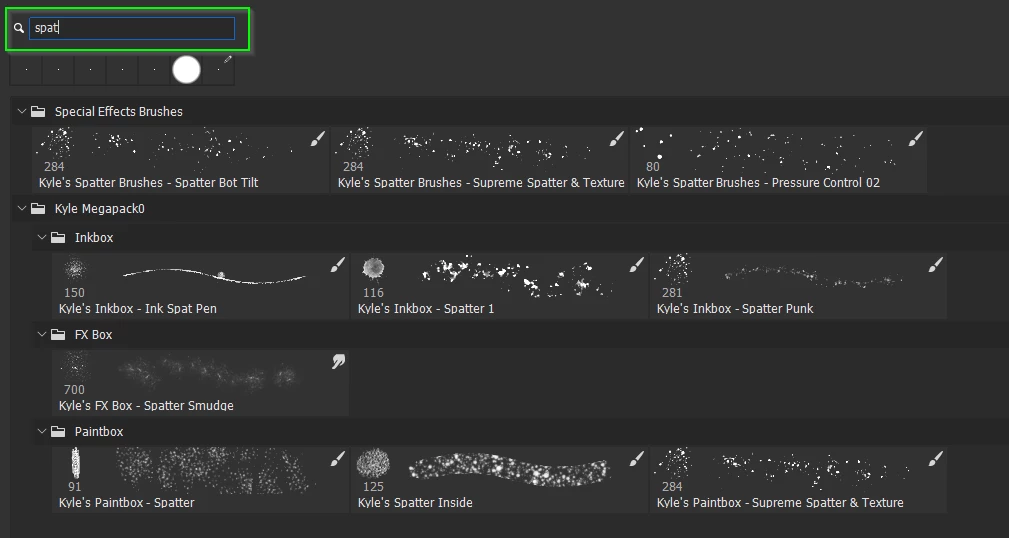
Entering Flat 2 in the search bar finds the following presets.  The search bar is a powerful tool for finding the preset you need, but it only looks in groups that are open in the main panel.


Does that cover it?  Please ask if you need more help.