Inspiring
February 4, 2023
Answered

How do I Overlay a transparency over all layers?

  • February 4, 2023
  • 2 replies
  • 7724 views

How do I overlay a shape that has a transparent background, over all below layers, so that the below layers have the area of that shape replaced with a transparency.

I am looking to have multiple layers in an image.

1.) Top Layer with a Square Transparency
2.) Background image

I want any transparency layers I created in layer 1 to also appear in all of the below layers.
I DO NOT want to have to switch to layer 2 and edit it in any way.

For example, if I create a transparent square in layer 1, I want that same transparent square to appear in after I add a background image.

This way if I switch between different backgrounds that same transparent square will appear in the same spot, in the final image, regardless of which background I use in layer 2.

I need to create large numbers of backgrounds with aeas of transparency and was hoping there an easy way of doing so.

Transparent Square on Layer 1



Layer 2 (black background) - example 1



Layer 2 (blue background) - example 2



Outcome I am looking for when using a black background



Outcome I am looking for when using a blue background



This topic has been closed for replies.
Correct answer AV_Editor9000

Ah, I understood that you wanted the transparency of one layer to be applied to others, but in this last message, you show the opposite, where the opacity of one layer creates transparency on others.

will it always be black?

If you have some time and want to learn a lot, check this series of videos: 

https://creativecloud.adobe.com/cc/discover/video/Crash-Course-Masks-Modes-More-Photoshop-Basics-with-Tim-Moebest/19093?locale=fr

https://creativecloud.adobe.com/discover/video/Photoshop-Crash-Course-Top-Tips-for-Masks-with-Tim-Moebest/19099

and https://m.youtube.com/watch?v=_LAdBwf5TVk


I believe part 3 might get you covered, but seeing all parts will let you know everything about the different masking methods.


Thank you for the videos. They were extremely helpfull!

The third video had a section on a feature called "KnockOut".
This solved my problems!

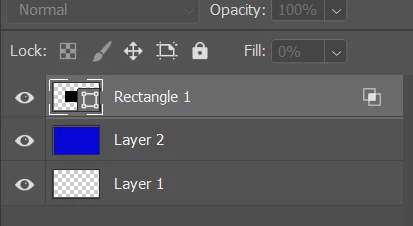
I created 3 layers.

1.) The top layer has the shape.
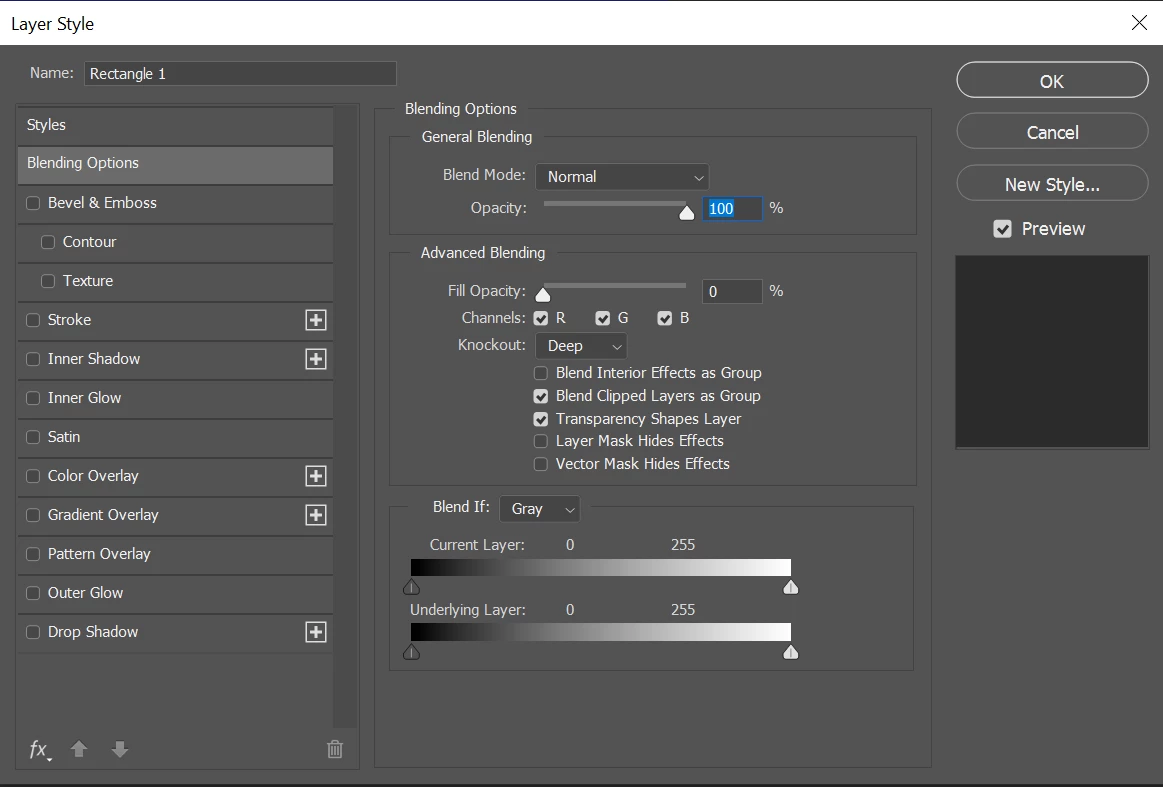
I then went into Blending options.
Turned on"Knockout".
Set it to "Deep"
And then set the fill Opacity to 0%.


2.) The second layer is now my "background" layer.
I can quickly swap out different images.

3.) The third layer I kept as 100% transparent.


Whenever I add any shapes to Layer 1, they automatically are removed from the 2nd layer and only the 3rd layers transparency displays in-place of that shape.

2 replies

Known Participant
February 4, 2023

I'm not sure what you need is a transparency... at least the way you've described it.


You can create 2 different layers with Edit > Fill. One a black layer. One a blue (or whatever color desired) layer. Then put a mask in the shape you want on each of those layers. See my attached, layers-labelled snip.


Save that as a .PSD for regular use (if you want to re-use).


You can open whatever images you want below those layers then just turn on/off the eye icon visibility to display the color mat you want to show.


(If you want to get "tricky" about it you could even write an "Action" to perform those steps of applying the black or blue mats for you in an automated way. Google "How to create Photoshop Action"). Good luck!


Inspiring
February 4, 2023

Thank you to everyone who is trying to help.

Apologies, I believe the description of what I need was not very clear.

I would like to create a custom shape on layer 1 and have that shape "cut out" of layer 2 so that it appears transparent.
The article that "PECourtejoie" linked was almost what I wanted.

Here is a quick moc up, using the above article to better describe what I am looking to do.


Inspiring
February 5, 2023

Super!!! Yes, sorry for the length, but they are so packed with info, it would be sad to miss them... you wanted a 101 on masking, and almost got a doctorate 😉 play with what you learned, revisit the videos in a week to memorize the information.


Yes, I thought that knockout might be the answer, but I couldn't test, as I was sharing my computer. Glad to hear you are all set. 


Will you use an action and batch processing or Image processor/image processor pro, launched from Bridge to automate the process? 


More information is always better then less, in my book 🙂

I have never used the Image Processor, but believe I should have access to it, since it is part of the Adobe CC package I have.
I may look into this, as it would most certainly expedite this process. 🙂

D Fosse
Community Expert
Community Expert
February 4, 2023

Group the layers and put a mask on the group.

PECourtejoie
Community Expert
Community Expert
February 4, 2023

Hello, you can do it if you put the layer whose transparency you want to apply to others below them, then Alt-click between them, it is called a Clipping Mask: https://helpx.adobe.com/photoshop-elements/using/clipping-masks.html (the process is similar for Photoshop)