

Answered

This topic has been closed for replies.
Chuck/s method works well, but I'll offer up a different approach, but it has the disadvantage that you can't use Smart Objects so it is not possible to edit the text.
Make your white rectangle and type layers and merge them.
Drag out a couple of guides to divide the rectangle into three.
Use the rectangle mmarquee tool to select each segment in turn, and copy to a new layer. I have named them left, right, and centre for convenience.
Group those three layers as below.
Make the three new layers Smart Objects. THIS STEP IS CRUCIAL.
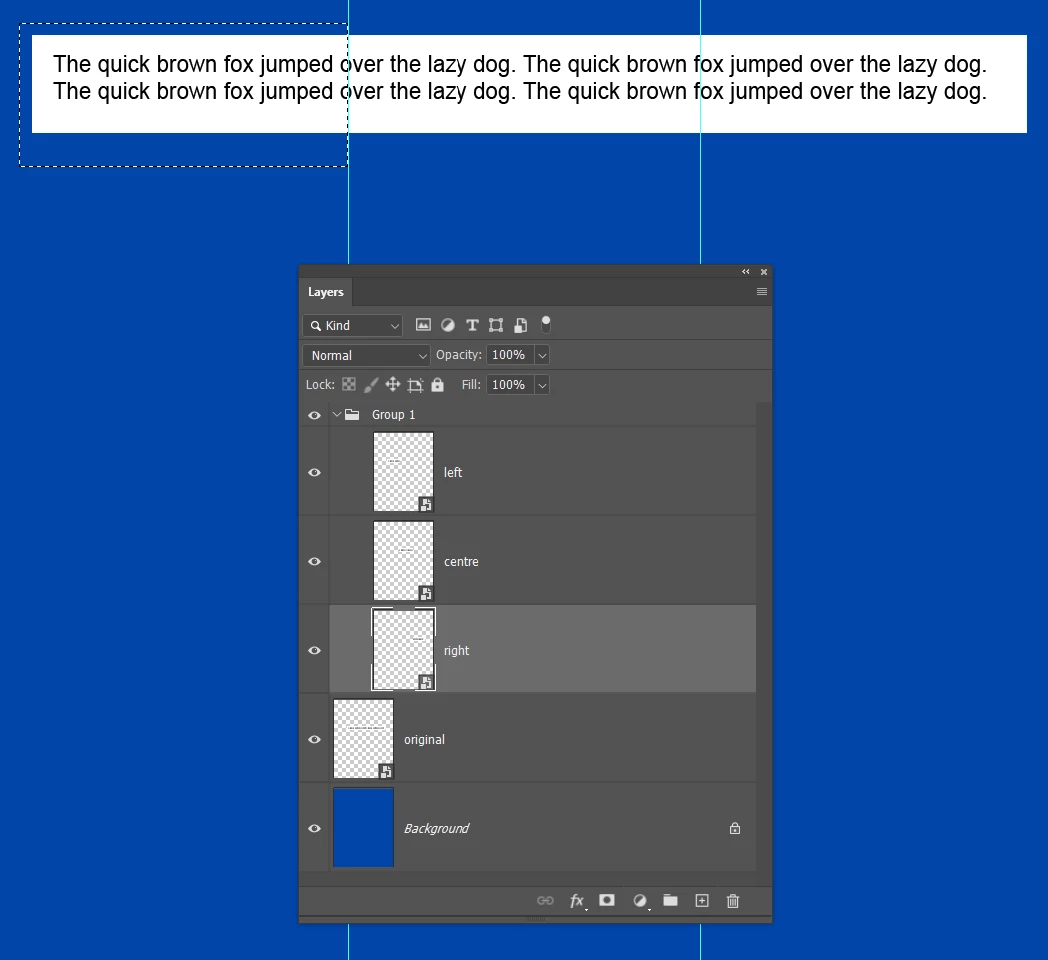
Select the group and use free transform to rotate all three layers.
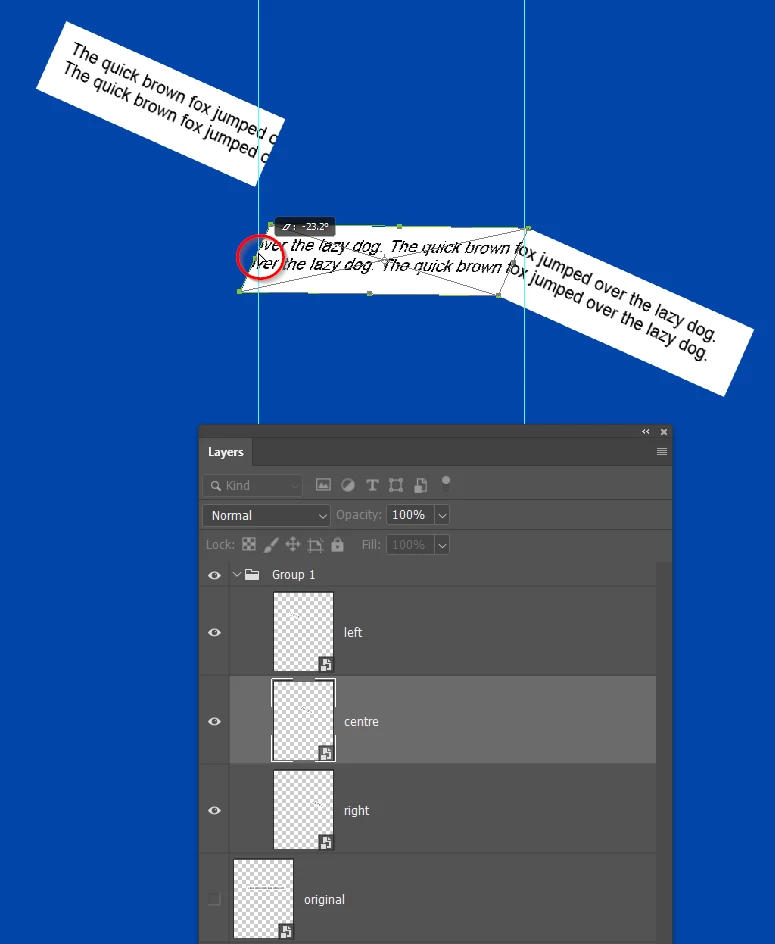
Open the group and select the Centre layer, and use the Ctrl T shortcut to start Free Transform. Because you made the layers Smart Objects, the bound box will have remained tight to the object, so hold down Ctrl (Cmd) and drag the centre left handle to drag down that side of the centre rectangle as below.
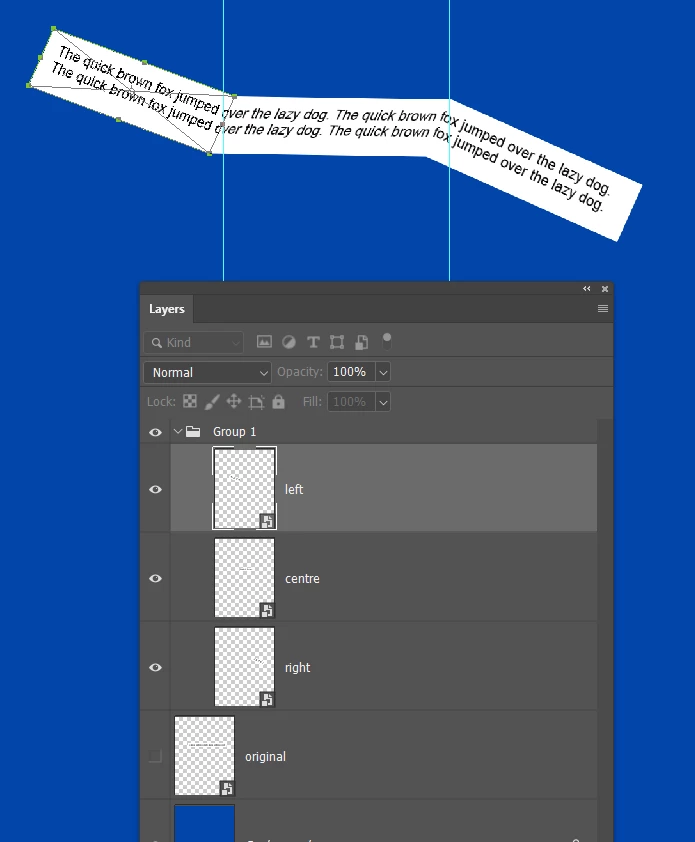
Select the left layer. Use the Move tool to align the right side with the centre layer, and use Free Transform and drag the left centre handle into position.
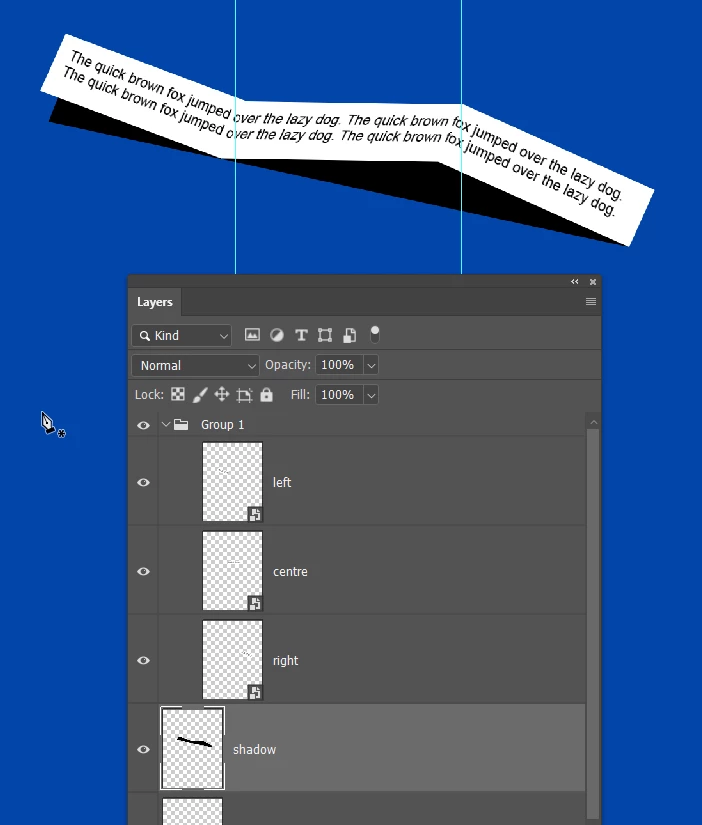
Add the shadow and you are done
Sign up
Already have an account? Login
To post, reply, or follow discussions, please sign in with your Adobe ID.
Sign inSign in to Adobe Community
To post, reply, or follow discussions, please sign in with your Adobe ID.
Sign inEnter your E-mail address. We'll send you an e-mail with instructions to reset your password.
 AdChoices