Participating Frequently
August 21, 2022
Question

How do I reduce panel size?

  • August 21, 2022
  • 2 replies
  • 1029 views

How do I reduce panel size?

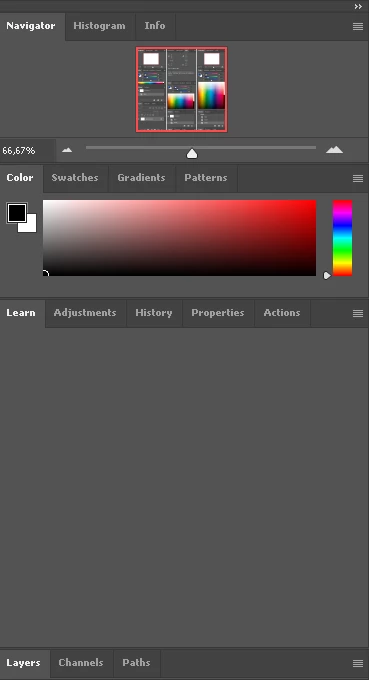
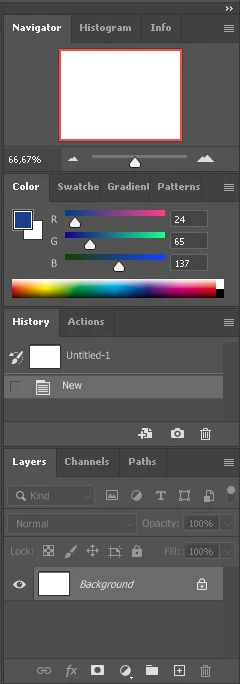
See "The Left" and "The Right".

The Left is much narrower than The Right, but now it doesn't allow to resize  it.

One time it worked and allowed me to resize it narrower than it is, but after reinstall, I can't resize it.

Screenshots made from same version of photoshop.

I'm using small screen, and it's too big.


This topic has been closed for replies.

2 replies

J E L
Community Expert
Community Expert
August 21, 2022

Hi @newbiehere, have you updated to the newest release, 23.5? You should be able to resize any panel by putting your cursor on the side until it turns into a horizontal double arrow, and then dragging left or right with your mouse. If this isn't working, fully quit all Adobe apps. Launch the Task Manager (Ctrl+Shift+Esc) and end all Adobe background processes. Now, launch Creative Cloud desktop, and Open Photoshop from there. Does the problem still happen? If so, try resetting your Preferences. The instructions are here. Let us know how it goes!


ETA: You might also try resetting or selecting another Workspace (Window > Workspace) to see if the panels go back to normal size.

Participating Frequently
August 21, 2022

I can't reduce panel size


Semaphoric
Community Expert
Community Expert
August 22, 2022

If you drag your panels out of the groups, can you downsize them individually? Some panels have a minimum width, which can affect the whole group. I don't see any obvious candidates, though. Are there any other panels below the ones you show?

Mohammad.Harb
Community Expert
Community Expert
August 21, 2022

Go to preferences settings - > Interface -> set  UI scale to Large then restart Photoshop 

Participating Frequently
August 21, 2022

Large? I want to reduce panel size and you advise to set scale to Large?