
Participant
March 25, 2020
Answered

How do I remove checkered background

  • March 25, 2020
  • 2 replies
  • 62279 views

How do I remove checkered background which is removing my background


This topic has been closed for replies.
Correct answer JJMack

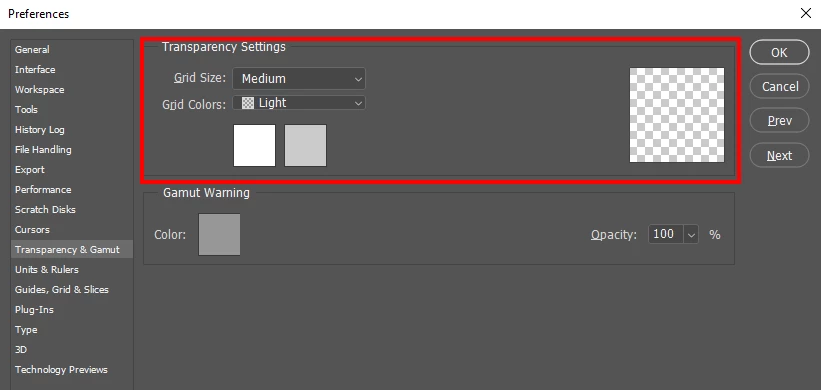
There is nothing to be removed. The checkerboard is not actually in your document. Its how Photoshop represent transparent area to you in Photoshop. If you do not like that checkerboard you can change how Photoshop displays transparency in you Photoshop's preferences.


If you add a visible Background layer  to your document there will be no transparency in you document.  Photoshop's background layer does not support transparency.  Its canvas will have some color.
2 replies

JJMack
Community Expert
JJMackCommunity ExpertCorrect answer
Community Expert
March 25, 2020

There is nothing to be removed. The checkerboard is not actually in your document. Its how Photoshop represent transparent area to you in Photoshop. If you do not like that checkerboard you can change how Photoshop displays transparency in you Photoshop's preferences.


If you add a visible Background layer  to your document there will be no transparency in you document.  Photoshop's background layer does not support transparency.  Its canvas will have some color.

JJMack
Participant
April 1, 2020

Thanks Jmack

Participant
March 25, 2020

Hi Guys please find attached... I've realised this is a layer mask which is creating the background. My aim is to have the satellite image as a light grey but it is showing up with this checkered pattern and when I export to image it completely removes the background.

Participant
November 4, 2023

RATS:
Stupid comments section DOES NOT ALLOW EDITING, when one needs to edit a comment, so I will>>>

DO IT AGAIN.
Re:
https://community.adobe.com/t5/photoshop-ecosystem-discussions/how-do-i-remove-checkered-background/m-p/14209980#M763518 
(deliberately UNLINKED to allow you to read the next bit):

EDITED:

Try this to revert your NEW paint (3D app), back to your OLD (Win 7 ype) original no frills "paint program"

I found a simple way. (searching for the way to stop video editor opening chimpanzee app (clipchamp)
SETTINGS > Apps > Advanced App Settings > App execution aliases

[ - ] Microsoft ClipChamp (clipchamp.exe) .................................................... (toggle it "off") ....... [ON / OFF]
Bingo - problem solved, Clipchamp will NOT auto turn on, instead you can now "re-see" the older "video editor/s" you used to see..

I found this method, when searching for the OLD (original 40 yr old) MS Paint, without the NEW 3D checkerboard crap.

SETTINGS > Apps > Advanced App Settings > App execution aliases
Right there, under the new MS CHIMPANZEE APP (clipchamp.exe)

Paint (mspaint.exe) & Paint (pbrush.exe) BOTH OF THE TWO NEW PAINT EXE's need to be toggled OFF
When re-installing the original OLD (pre latest "downdates / updates") MS Paint program.
Toggling OFF both new exe's - allows the original win 7 MS Paint program to run, when PAINT is opened.
Without any checkerboard, and without any 3D apps either.

If it works with PAINT to turn the auto-start exe OFF, then Chimpanzees can take a backseat too - by being toggled OFF.

ALSO (someone asked / somewhere in here)
How to NOT SEE the taskbar when taking a full screen screenshot?

When taking a fullscreen screenshot, without the taskbar.
... USE ALT  and the PRNT SCRN button.
ie:
Press Alt + PrtScn. This copies the active window to the clipboard, which you can paste into another program.
It also auto removes the taskbar - as it isn't part of the "current active screen".

Anything else, use the old way of:
Trial and (OMG - I DELETED EVERYTHING) = Error?
If anything is done wrong, it can (generally) be found to still exist somewhere... ?
(& if not, then buying another PC - works for me)