
Participating Frequently
March 14, 2022
Answered

How do I remove watercolor paper texture from my work?

  • March 14, 2022
  • 3 replies
  • 7633 views

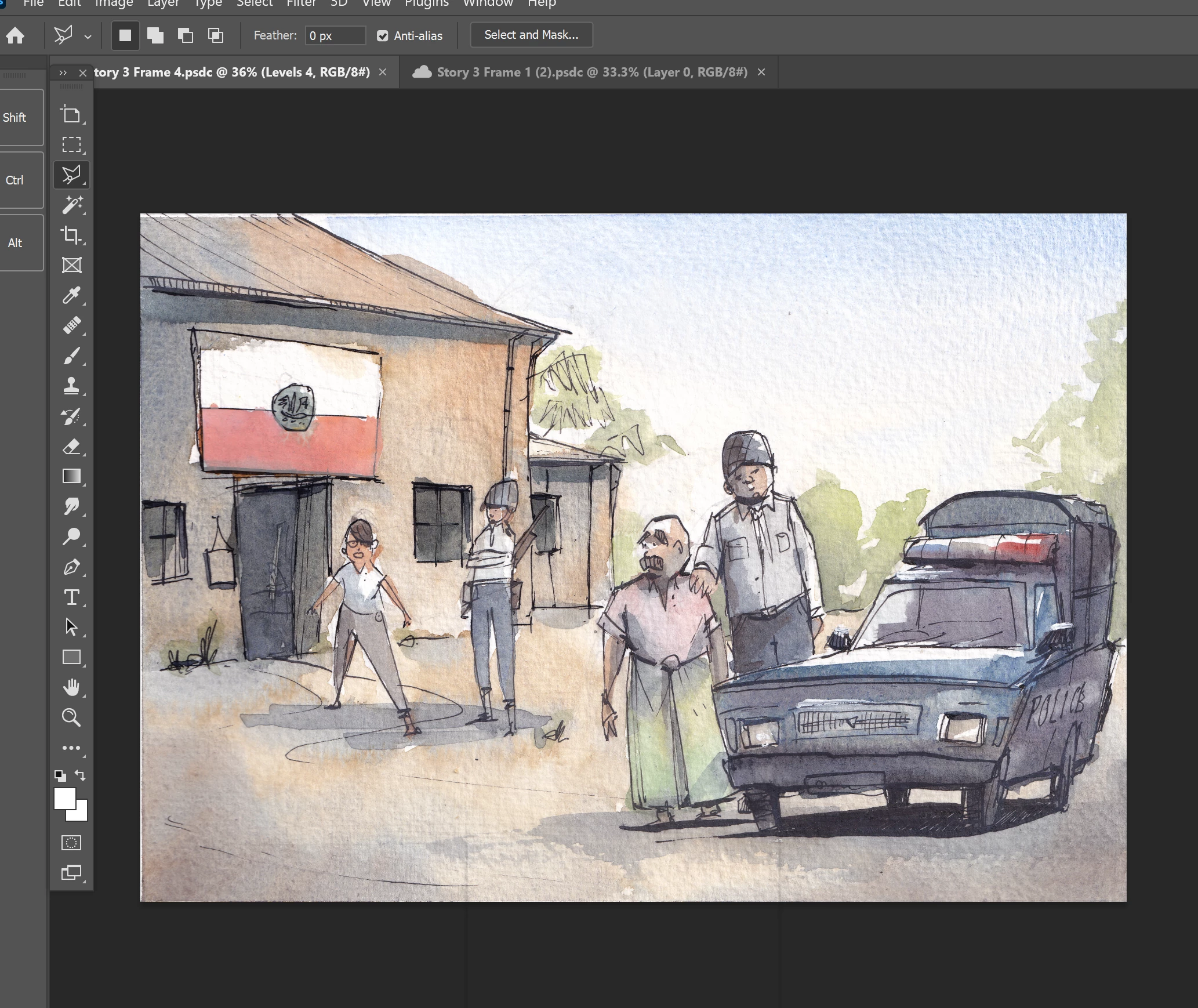
I'm trying to remove the watercolor paper texture from a hand-drawn watercolor piece that's been scanned.


There are quite a few videos online for this, but most of them cover quite simple pictures, with a clear white background. A few things I've tried, with varying degrees of success:


1. Scanning and rotating the image, then overlaying: works for simple pictures, but doesn't seem good for more complex images. There's always part of the image that becomes 'out of focus' or blurry.

2. Surface blur: Works to a degree, but tends to make the paper look very processed and blurs out a lot of the ink lines as well as the paper texture. Maybe I'm not using it right?


Basically, I'm trying to keep the feel of watercolor painting but limit the extent to which the rough paper texture appears.
 

Correct answer Ryan Whisler

The light on the scanner is only lighting from one direction, so it causes a shadow from the watercolor "cold press" texture in the paper. So, light it from both directions with 2 scans then blend them together. Here are a few steps that work well


1- Scan Original on scanbed

2- Rotate 180 degrees and scan again without changing any settings (same exposure)

3- open scan 1 and 2

4- on scan 1 copy layer then delete the background layer leaving scan 1 on layer 1

5- rotate scan 2 180 degrees

6- copy scan 2 layer into the scan 1 file so you have both scans (one on each layer in one file)

7- select both layers (shift click)  then go to Edit/Auto align layers

8- select layer 1 then change the blending mode to lighten

9- If you toggle the "eye" view on & off you will see most of the shadows dissapear. Done......

3 replies

Nancy OShea
Community Expert
Community Expert
March 14, 2022

I'm not saying this will be easy.  But I'd make several layer copies with Ctrl+J and use Frequency Separation to see where that takes you.  This video explains more.


Nancy O'Shea— Product User & Community Expert
Ryan Whisler
Ryan WhislerCorrect answer
Participating Frequently
March 14, 2022

The light on the scanner is only lighting from one direction, so it causes a shadow from the watercolor "cold press" texture in the paper. So, light it from both directions with 2 scans then blend them together. Here are a few steps that work well


1- Scan Original on scanbed

2- Rotate 180 degrees and scan again without changing any settings (same exposure)

3- open scan 1 and 2

4- on scan 1 copy layer then delete the background layer leaving scan 1 on layer 1

5- rotate scan 2 180 degrees

6- copy scan 2 layer into the scan 1 file so you have both scans (one on each layer in one file)

7- select both layers (shift click)  then go to Edit/Auto align layers

8- select layer 1 then change the blending mode to lighten

9- If you toggle the "eye" view on & off you will see most of the shadows dissapear. Done......

M_GibbAuthor
Participating Frequently
March 15, 2022

Thanks. This seems to have helped a lot. I've done all of these steps except for the auto align layers feature (which I wasnt aware of). I might add a tiny bit of surface blur as well just to smooth it out a bit more but this is a step in the right direction.


c.pfaffenbichler
Community Expert
Community Expert
March 14, 2022

Please elaborate on what exactly you did in the rotate-scan approach. 

How many scans, which angles, which Smart Object Stack Mode, …? 

Ryan Whisler
Participating Frequently
March 15, 2022

_Scan the art on the scan bed

_then rotate the art 180 degrees and scan again

_open scan 1 & 2

_In Photoshop rotate scan 2 180 degrees so that both scans are orented correctly

_ copy scan 2 layer into the scan 1 file so you have both scans (one on each layer in one file) no smart object needed

_select both layers (shift click)  ("stack") then go to Edit/Auto align layers

_ select layer 1 then change the blending mode to lighten 

_Flaten final file

c.pfaffenbichler
Community Expert
Community Expert
March 15, 2022

180˚ seems a bit much for me, I would recommend at least 4 scans at 90˚ repeated.