Known Participant
September 14, 2017
Answered

how do I reset count tool?

  • September 14, 2017
  • 1 reply
  • 2845 views

Green user!

Tried Image > Analysis > Count Tool...

I clicked on an image and a cyan number appears where I clicked. The number increments. How do I start over?

This topic has been closed for replies.
Correct answer Barb Binder

With the Count tool active, click Clear in the Options bar to start the count over. If you need multiple counts on a single image, use the folder icon to save the current count, and then it starts over automatically.
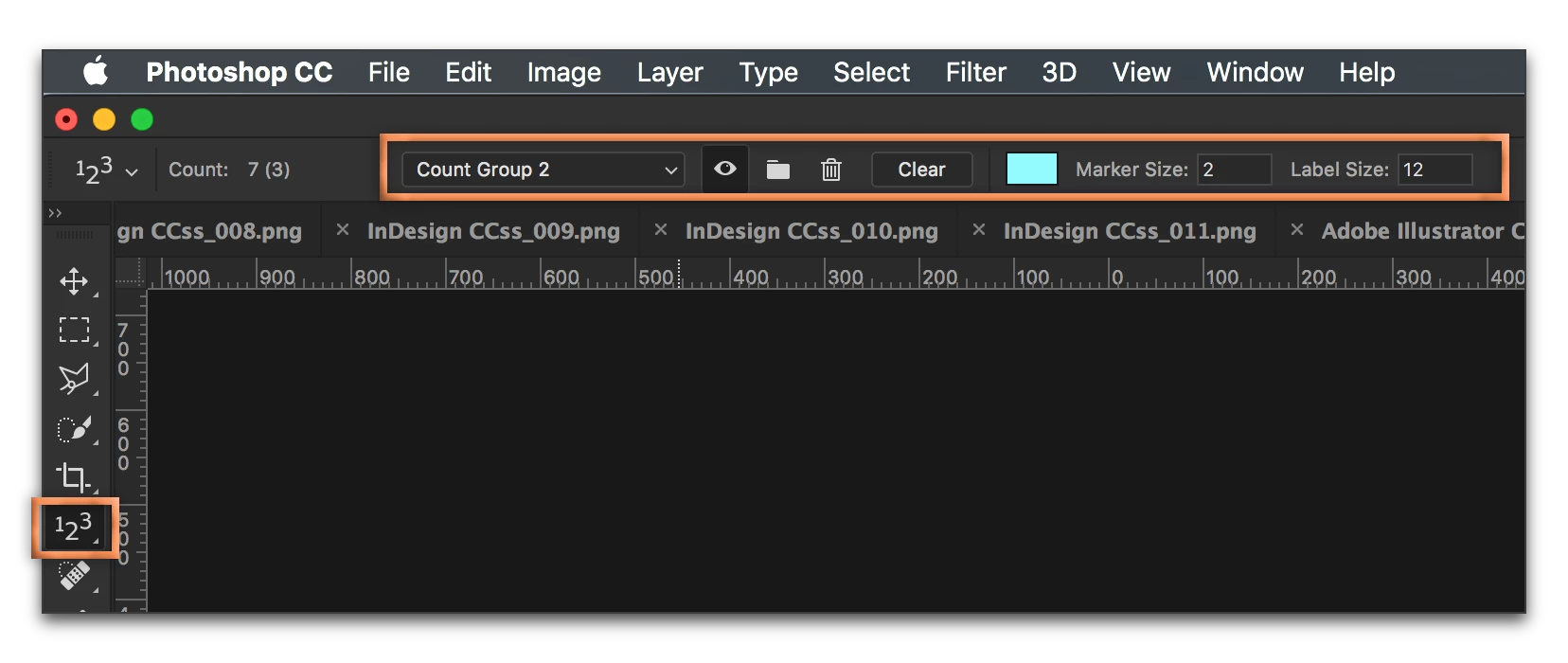
Everything you want to know about the Count tool here:

Count objects in an image in Adobe Photoshop

1 reply

Barb Binder
Community Expert
Barb BinderCommunity ExpertCorrect answer
Community Expert
September 14, 2017

With the Count tool active, click Clear in the Options bar to start the count over. If you need multiple counts on a single image, use the folder icon to save the current count, and then it starts over automatically.

Everything you want to know about the Count tool here:

Count objects in an image in Adobe Photoshop

~Barb at Rocky Mountain Training
Known Participant
September 15, 2017

Thank you. Easy to follow your suggestions. The link was good also.

Known Participant
September 16, 2017

LOL. Not much better... I had three typos on my response.

I was on my phone last night, but had a chance to review the page this morning and you are correct. You can use this link to communicate this directly with Adobe. https://feedback.photoshop.com/photoshop_family?topic-list[settings][type]=problem


Those typos must be small; I didn't notice them. Typos are normal today with thumb typists.

I'll use that link. One of my pet peeves is instructions that leave stuff out.