christophery76280259
Inspiring
September 3, 2018
Question

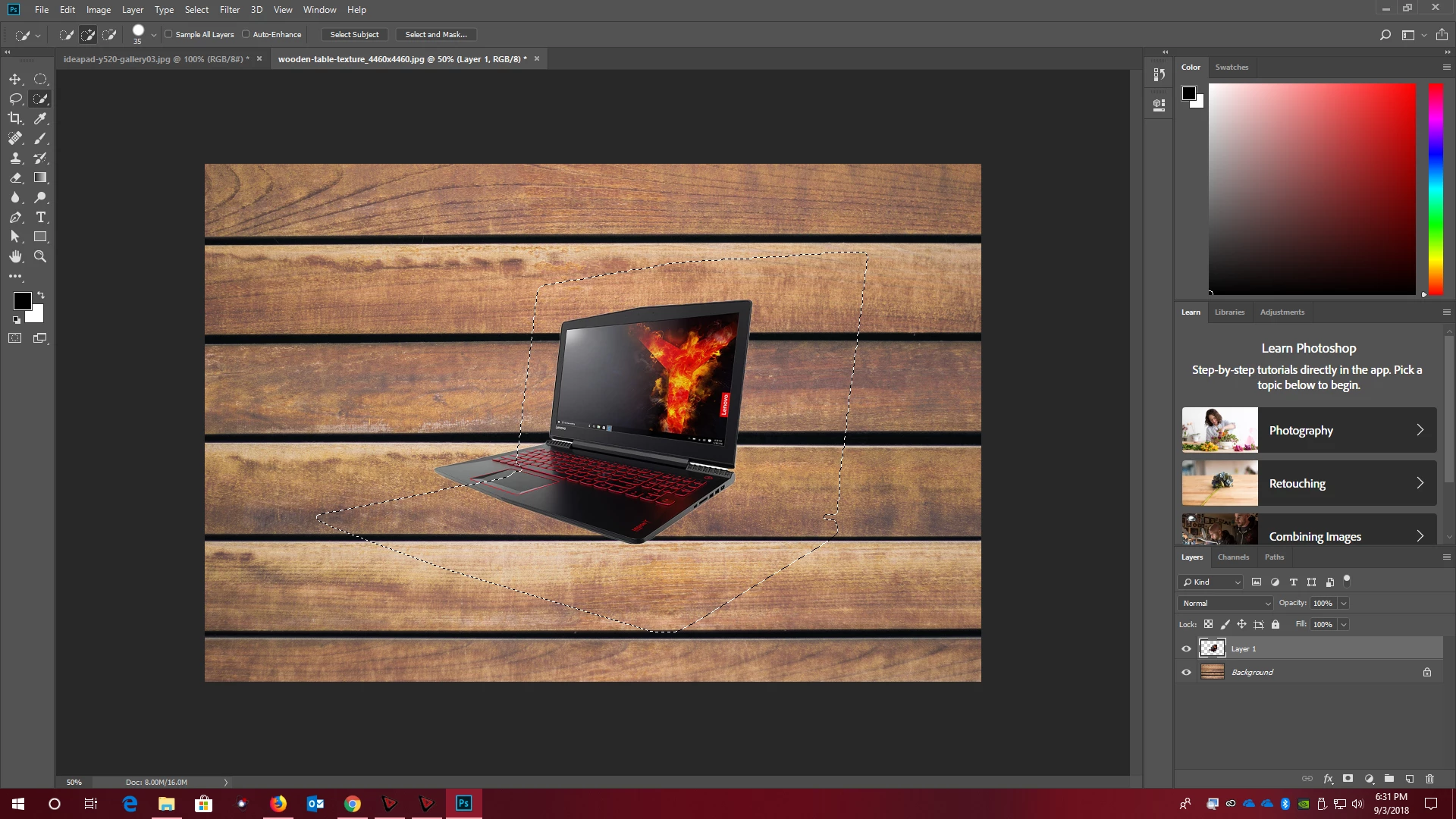
How do I resize the image to fit the squiggles?
  • September 3, 2018
  • 5 replies
  • 1681 views

I made it that far, been sitting for a minute now trying to figure how to fit that image into that outline. Thanks.

    This topic has been closed for replies.

    5 replies

    christophery76280259
    Inspiring
    September 4, 2018

    None of this worked. Two days of work and now I have to scrap everything and start all over. A simple copy and paste and adobe has failed me. Program is useless.

    davescm
    Community Expert
    Community Expert
    September 4, 2018

    Hi

    Your GPU is not being enabled (and is not on the list of supported cards) but whilst that would restrict certain functions it would not lead to inconsistencies when carrying out processing steps.

    You say to Mark that "There is no consistency. I have no idea why or how you can say that".  We say that it is consistent because we use this software daily.

    Please show us step by step exactly what you are doing. That means every step including for example - clicking on a layer in a panel, any key presses. Don't just say paste in image - tell us exactly what you are clicking /pressing/ typing.

    Then repeat the exact steps and see if it works differently

    Dave

    christophery76280259
    Inspiring
    September 4, 2018

    File and then open image
    select my 4k background

    click resize image and resize to 2048 (i only type in 2048 and the other field auto fills to 1600)

    File and then open image

    Select my product pic

    Click quick selection tool, the dot says 35

    Draw around the inside edges of my product pic, once done i hit control C

    I select the window with my resized background and hit control V

    That is all i am doing. I repeated this 5 times. Time 1 normal. Time 2 paste was a micro thumbnail. Time 3 the paste was same-size as background. Time 5 when I typed into the resize image 2048, this time it auto filled to 1352px. Time 5 there was no second layer.

    My product pic is 1024 by 500 something px.

    Wow. That surprise me about the GPU but it is a low end card so go figure, did not thinks photoshop needed a balls to the wall GPU. Okay so what if I uninstall from machine 1 and reinstall onto machine 2, would i retain my stuff and/or will adobe yell at me? Machine 2 has an radeon 580 rx and that is like the world's third best card of 2017.

    Thanks chief.

    sharp_hands16B8
    Community Expert
    Community Expert
    September 4, 2018

    Hi Chris,

    I also think this article might be helpful for your project. Photoshop has an ability to paste into an active selection, sizing for that selected area. Check out this link for more info. But the consistency you have in the project means that this might be helpful for your workflow.http://blogs.adobe.com/jkost/2016/04/paste-into-a-selection-in-photoshop.html

    Paste Into a Selection in Photoshop « Julieanne Kost's Blog

    christophery76280259
    Inspiring
    September 4, 2018

    Okay read that, seems like that is exactly I need. Went to redo the whole thing again. Imported my background. Background is a 4000 something px picture, I was able to resize this 4x to 2048x1600. 5th time resizing this pic it resizes to 2048x1352(something like that).

    I was able to hit the chain button to make it how i wanted it but i did not need to do so the first 4 or 5 times. I am now going to try that paste thing, thank you very much.

    sharp_hands16B8
    Community Expert
    Community Expert
    September 4, 2018

    The "squiggles" are a selected area, it affects any pixels that are contained within that area. It's often referred to as "marching ants" but in fact it's a temporary mask. So the reason it cut a piece of the image off when you first try to use Free Transform and scale up, was because you already had a selection and it was trying to transform any pixels within that selected area. When you shut down and restarted, then chose Free Transform, you didn't have a selection, "marching ants". When you choose free transform on a layer with no marching ants or selection, it will create a boundary for any pixels that exist on that layer. Thus, you get to transform the item you want to transform.

    Photoshop can do things very consistently, and very well. Unfortunately it has a huge learning curve, and can be problematic for users diving into PS today after all these techniques and features were developed over the last 26+ years. Stick with it, you'll do fine.

    christophery76280259
    Inspiring
    September 4, 2018

    There is no consistency. I have no idea why or how you can say that. I have several of the same backgrounds, same everything. I open one, paste a pic, repeat, the next one is different, then I repeat again, repeat the same steps and I get some different. After doing this 7 times, i Have 7 different looking pics. That is not consistent. What is consistent is me being able to paste all 7 without having to alter anything. But i have to alter. Between the photoshop app not working at all and now that guy before said hit layer 2 and control T, well now I dont have that, which goes against consistency. I do not understand why when i transformed I got squiggles and the outline but the picture did not move. Now I have to do this again and there is no layer 2 and no control T but the other 6 I did have a layer 2. I have less than a dozen to do but what if I had thousands? This is why I am about to declare that adobe photoshop can not do what i am trying to do. You can very easily do this in MS paint, very easily, why can't i in adobe?

    christophery76280259
    Inspiring
    September 4, 2018

    I am not trying to argue with anyone. I am not bashing adobe. Yes I went in with no training. No i would not build an ikea desk without reading the instructions. I am trying to what I think is a simple task. I have a deadline, the 13th and it has been two days and i am spending most of my time dicking around with adobe.

    All I am trying to do is take several 1024px pics and place then onto several 2048px backgrounds. I want them centered and I want them same size. My OP pic shows a laptop, next pic is a camera, next pic is another camera, then next pic is a hand holding a camera. All different sized objects, some have white background, some have transparent background.

    When I paste my pics: A: it is normal B: or it is a micro thumbnail C:or it is pastes same size as background D: I made a transform box but did not transform the object: E: Transform took a corner chunk out of my object F: There is no layer two on one out of 5 pics G: it crashes

    No I did not save transform before i control z and tried to close.

    michaelp798
    Participating Frequently
    September 4, 2018
    davescm
    Community Expert
    Community Expert
    September 3, 2018

    Hi

    Select the layer with the computer - Press Ctrl+T then drag the handles that appear

    Dave

    christophery76280259
    Inspiring
    September 3, 2018

    It did not work and to be honest I think my adobe is broken. It broke off a piece of the corner and my control z does not work nor does closing the window, i have to literally end task it. this has happened a few times now.