


- Home
- Photoshop ecosystem
- Discussions
- How do i rotate text in Adobe Photoshop?
- How do i rotate text in Adobe Photoshop?

Copy link to clipboard
Copied
Hi, I am Samyak Veera from U.S.
I have a picture that I'm editing and i wanted to include some text on it. I used the Horizontal Type Tool to enter the text but now i want to rotate it a little so that it is on an angle but i can't seem to find the option to do that. How do i go about doing that in Photoshop? Suggest me the solution.
Thanks
Samyak Veera


 1 Correct answer




Explore related tutorials & articles
 10
Replies
10
10
Replies
10


Copy link to clipboard
Copied
Hi Samyak Veera,
After typing your text click the check-mark to commit and then select the move tool from the top of the tools pallet. You should see a bounding box appear around your words with four corner handles. Hover your mouse around one of the corners until the cursor changes to double rotation arrows. You can then change the angle to your liking and re-commit. You can also click in the middle of the box to drag it around if you need to re-position.

Copy link to clipboard
Copied
For those who don't see the bounding box click Show Transform Controls.

Copy link to clipboard
Copied
Doesn't work.

Copy link to clipboard
Copied
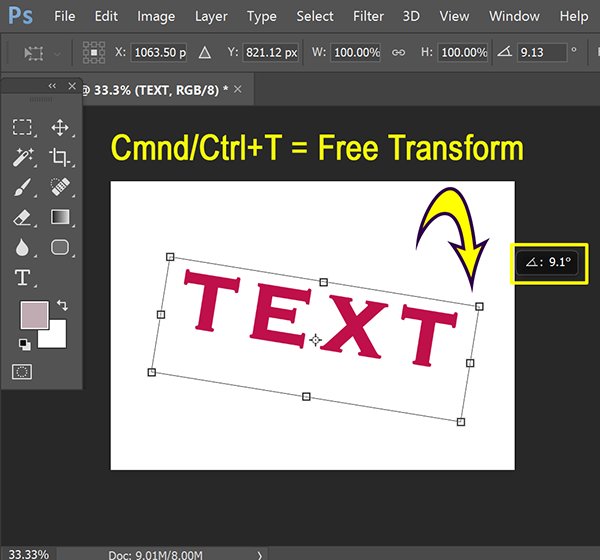
With your text layer selected press Command/Control + T and a free transform bounding box will appear around your text. Move your cursor anywhere outside of the box then click & drag to rotate. Press Enter or Return to apply the rotation.
Note: If you move your cursor inside the bounding box you can reposition the text. If you click & drag any of the nodes on the box you can scale your text. This is an extremely handy keyboard shortcut to learn.

Copy link to clipboard
Copied
you genius - thank you

Copy link to clipboard
Copied
Quick brilliant solution...thanks!
Copy link to clipboard
Copied
Hi everyone,
Thanks for your suggestions. Your replies help me and i got the solution.
Cheers
Thanks
Samyak Veera
Copy link to clipboard
Copied


Copy link to clipboard
Copied
The correct answer must be out of date. When I attempt to rotate text in Photoshop, it wants me first to rasterize the layer. I want to keep it in an editable format without rasterizing and still rotate text. I was once able to rotate it with CTRL + T without rasterizing, but the new version of Photoshop seems to have gotten rid of that feature...
Copy link to clipboard
Copied
Ah. I see what happened. I applied a stroke layer style to my text which then made Photoshop want me to rasterize before any additional changes with free transform could be made.... Still tedious, though. CTRL + T still works as long as nothing else is applied to the text layer.


Find more inspiration, events, and resources on the new Adobe Community
Explore Now
 AdChoices