
Participating Frequently
January 30, 2024
Answered

How do I turn off Libraries function in Photoshop?

  • January 30, 2024
  • 3 replies
  • 3535 views

I'd really like to permanently turn this feature off, as I don't use it as it slows everything down.  And yes, I've turned off the Libraries panel already.  That makes no difference.  Every time I make a new style or swatch, etc. it reopens the library.  Any suggestions?
Correct answer Kevin Stohlmeyer

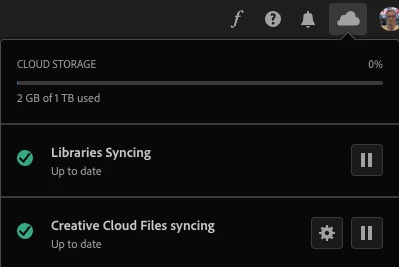
@PonytailsDesigns Go to your CC Desktop app and click the Cloud icon.

You can pause Libraries Syncing there.


3 replies

Participant
January 31, 2024

Unfortunately, it's not possible to completely turn off the Libraries function in Photoshop. However, there are a few ways to minimize its presence and impact:

1. Hide the Libraries panel:

  • Go to the Window menu.
  • Uncheck the box next to Libraries.

This will remove the dedicated Libraries panel from your workspace.

2. Prevent automatic syncing:

  • Open the Creative Cloud desktop app.
  • Click on the gear icon in the top right corner (Preferences).
  • Select Creative Cloud Libraries.
  • Under Cloud Documents Settings, choose Pause or Resume Syncing.

This will stop Photoshop from automatically synchronizing your libraries to the cloud and other devices.

3. Avoid saving assets to libraries:

  • When creating or importing assets, pay attention to the options presented.
  • Don't check the box to "Add to Library" unless you specifically want to save it there.

4. Consider alternative methods:

  • If you primarily use Libraries for storing brushes, patterns, or styles, you can save them locally in folders within Photoshop's presets directory.
  • For sharing assets across projects, explore using folders and project files instead of relying on Libraries.

Remember, while you can't completely disable Libraries, these methods can help you reduce its visibility and potential impact on your workflow.

for more 

Inspiring
October 14, 2024
quote

Unfortunately, it's not possible to completely turn off the Libraries function in Photoshop. However, there are a few ways to minimize its presence and impact:

1. Hide the Libraries panel:

  • Go to the Window menu.
  • Uncheck the box next to Libraries.

This will remove the dedicated Libraries panel from your workspace.

2. Prevent automatic syncing:

  • Open the Creative Cloud desktop app.
  • Click on the gear icon in the top right corner (Preferences).
  • Select Creative Cloud Libraries.
  • Under Cloud Documents Settings, choose Pause or Resume Syncing.

This will stop Photoshop from automatically synchronizing your libraries to the cloud and other devices.

3. Avoid saving assets to libraries:

  • When creating or importing assets, pay attention to the options presented.
  • Don't check the box to "Add to Library" unless you specifically want to save it there.

4. Consider alternative methods:

  • If you primarily use Libraries for storing brushes, patterns, or styles, you can save them locally in folders within Photoshop's presets directory.
  • For sharing assets across projects, explore using folders and project files instead of relying on Libraries.

Remember, while you can't completely disable Libraries, these methods can help you reduce its visibility and potential impact on your workflow.

for more 


By @panda35150389cw8b


Thanks. In the add color swatch dialogue, there was a box checked to add it to the library and that was giving me the "Library is read-only" dialogue. I wish there was just a button you can click to make Adobe apps not access the Internet at all and be totally local. My apps in 2024 are slower than they were 10 years ago.

Kevin Stohlmeyer
Community Expert
Kevin StohlmeyerCommunity ExpertCorrect answer
Community Expert
January 30, 2024

@PonytailsDesigns Go to your CC Desktop app and click the Cloud icon.

You can pause Libraries Syncing there.


Participating Frequently
January 31, 2024

That was surprisingly easy... I wish I'd asked sooner!  Thanks so much!!

Ares Hovhannesyan
Community Expert
Community Expert
January 30, 2024

Try to reset preferences and also  turn off sync fro CC Manager Preferences

Participating Frequently
January 31, 2024

Thank you!