
AntDX316
Inspiring
July 9, 2025
Answered

How do you get 2 measurements with ruler?

  • July 9, 2025
  • 5 replies
  • 567 views

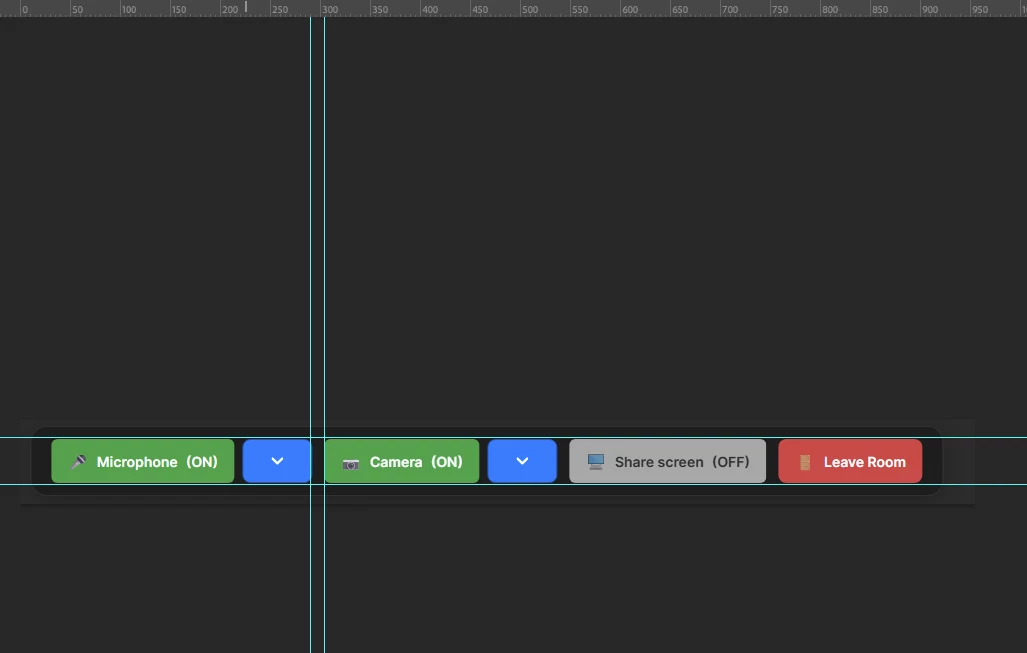
See the 2 vertical lines, I want the exact px of that distance.
How do you do it?


Correct answer Trevor.Dennis

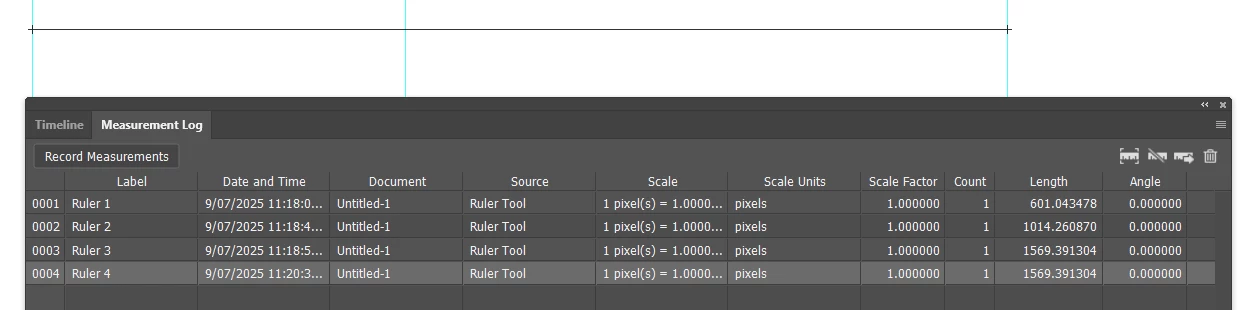
No one has mentioned the Measurments Log panel.  Measure with the Ruler tool and click on Record Measurements.

The ruler will snap to guides, and stay perpendicular to the document window with shift as already mentioned.  

I measured between the outermost guides twice to demonstrate how accurate the Snap function is. 

You can also snap the grid origin to a guide, or better still, a guide intersection, but note the Measurement log always records pixels regardless of what the Document Rulers are set to.
 

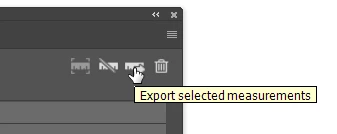
You can export the log to a text file using the right most ruler icon.
...and import into Excel.  Note: this is exactly how it was formated when I imported the text file.  I bet there is a creepy Ai creature lurking in the computer making it do that.  I wonder what it likes to eat?

5 replies

Trevor.Dennis
Community Expert
Trevor.DennisCommunity ExpertCorrect answer
Community Expert
July 9, 2025

No one has mentioned the Measurments Log panel.  Measure with the Ruler tool and click on Record Measurements.

The ruler will snap to guides, and stay perpendicular to the document window with shift as already mentioned.  

I measured between the outermost guides twice to demonstrate how accurate the Snap function is. 

You can also snap the grid origin to a guide, or better still, a guide intersection, but note the Measurement log always records pixels regardless of what the Document Rulers are set to.


You can export the log to a text file using the right most ruler icon.

...and import into Excel.  Note: this is exactly how it was formated when I imported the text file.  I bet there is a creepy Ai creature lurking in the computer making it do that.  I wonder what it likes to eat?

Trevor.Dennis
Community Expert
Community Expert
July 9, 2025

Woah!  I just looked inside my system box with the 1000 X magnifying setting on the new Adobe Indigo app, (It's in one of the sub menus) and this is what it saw:

Stephen Marsh
Community Expert
Community Expert
July 9, 2025

In addion to the previous comments, also use Smart Guides, which will help you layout these elements with consistent spacing, without having to make manual measurements.


https://www.adobe.com/au/learn/photoshop/web/align-space-objects?learnIn=1


Legend
July 9, 2025

To make it easier to draw a straight line with a ruler tool, hold down the SHIFT key.


You can also use the hint about the transformation values ​​​​(I don't know why many people turn off this option in the settings, it is a fairly convenient tool for measuring distances)


Legend
July 9, 2025

First, set up your ruler: Photoshop 2025>Settings>Units & Rulers>Rulers, change to Pixels.

Next, hover over the Eyedropper; in the resulting dropbox, select the Ruler Tool.

To measure, while holding the shift key (to keep the ruler line level), click on one line, stretch the ruler to the other line. Click. Zoom in for accuracy.

The distance between the lines is 15 pixels, as seen in L1 on the toolbar.


Larry
Conrad_C
Community Expert
Community Expert
July 9, 2025

Have you tried dragging the Ruler tool while watching the Info panel?
