
Jim Mooney
Participating Frequently
March 11, 2016
Answered

How do you set Fill Screen as default view mode?

  • March 11, 2016
  • 1 reply
  • 4846 views

Does anyone have a way to set the Fill Screen view mode as the default view?

This would work if there was a hotkey for it, or if it could be selected while recording an action.

And then run it in the Script Events Manager with the "Open Document" option.

When the zoom tool is selected and the option window is on, there are four options...

Actual Pixels, Fit Screen, Fill Screen, Print Size

But in the Menu options, Fill Screen is NOT an option (for some odd reason).

My only guess is this has to be done with a script, but I cannot find anything online that addresses this problem

and I'm not a script programmer.  Although I know how to use them (and modify them a little).

By the way, I'm using Photoshop CS5

Thanks for any help!
Correct answer JJMack

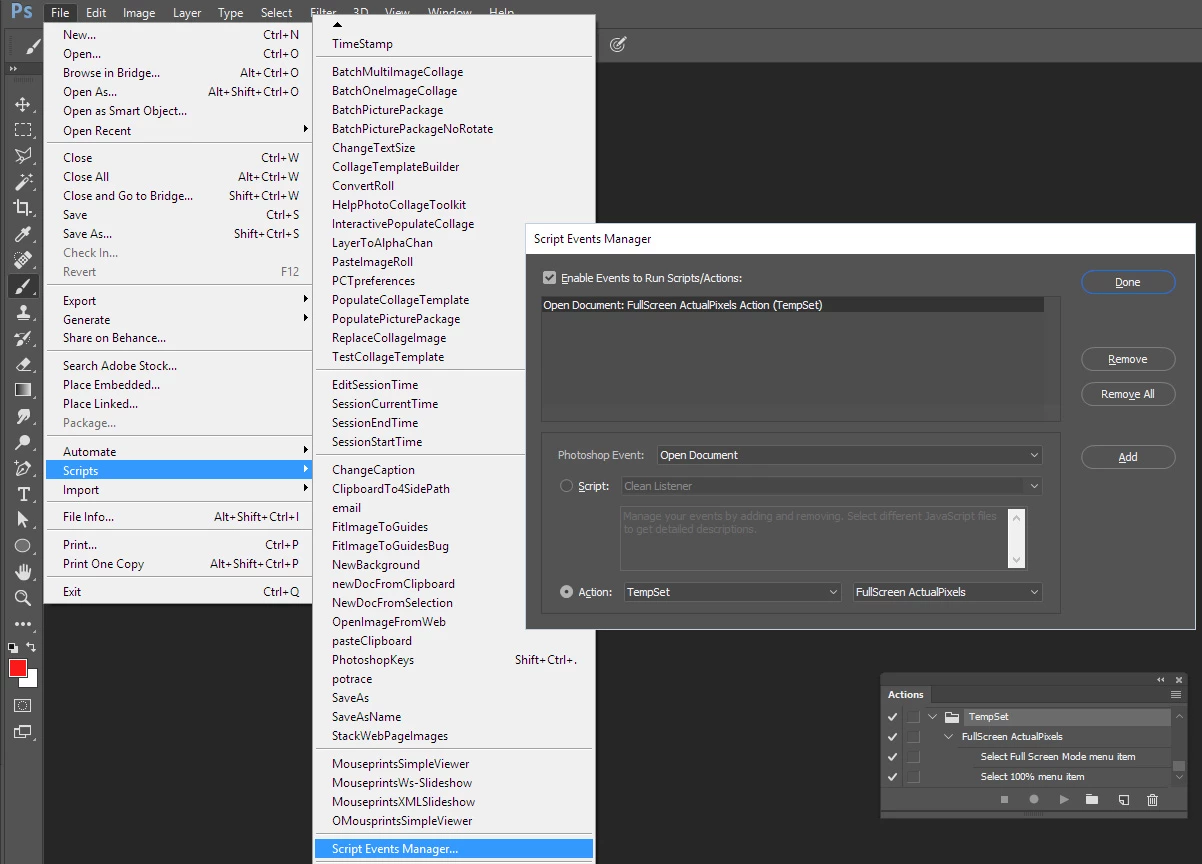
You can insert two menu item into an action in an Actions set. Then set  Script Manager a script even for an open document event to play that action.

1 reply

JJMack
Community Expert
JJMackCommunity ExpertCorrect answer
Community Expert
March 13, 2016

You can insert two menu item into an action in an Actions set. Then set  Script Manager a script even for an open document event to play that action.

JJMack
Participant
January 20, 2024

How the action has been recorded in the action panel for "Select Full Screen Mode menu item?

Conrad_C
Community Expert
Community Expert
January 20, 2024

It looks like the original question was not fully answered:


Actions don’t record some commands, such as view changes, because they don’t affect the actual document content.

If you want to add a command that is not recorded by actions, open the Actions layer menu, and choose Insert Menu Item. It will ask you which menu command you want to add, and then you choose it from the normal menus.