Participant
September 14, 2018
Answered

How i do this?

  • September 14, 2018
  • 3 replies
  • 754 views

How i edit a text like this? With the curve only on top of the text?

Thanks


    This topic has been closed for replies.
    Correct answer Sjaani

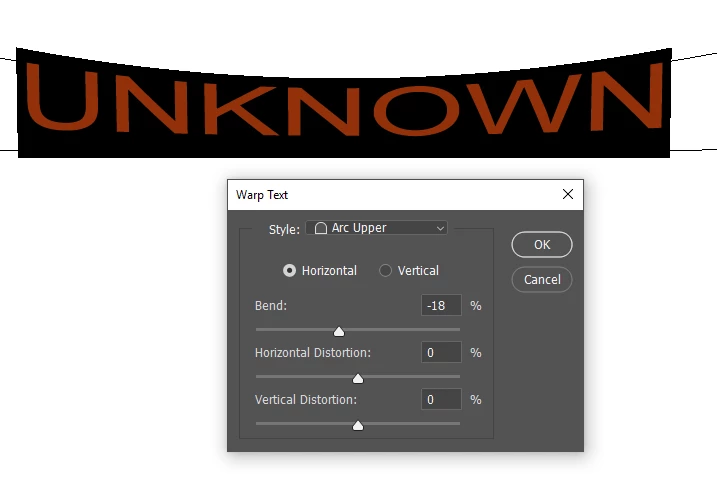
    Under the Warp Text tool choose Arc Upper as the style and move the Bend to a minus % it will give you the effect in your image.
    3 replies

    Participant
    September 18, 2018

    Thanks guys!

    macpawel
    Participating Frequently
    September 14, 2018

    Both methods are great - but you can be more…. Transform your text to Smart Object before transforming - this way second method with Transform would be great. This way you can adjust your settings after

    pawel

    Sjaani
    Community Expert
    SjaaniCommunity ExpertCorrect answer
    Community Expert
    September 14, 2018

    Under the Warp Text tool choose Arc Upper as the style and move the Bend to a minus % it will give you the effect in your image.

    Trevor.Dennis
    Community Expert
    Community Expert
    September 14, 2018

    A tiny bit more information on how to find and use Free Transform > Warp

    The icon top right makes the warp options available (after starting Free Transform with Ctrl T)

    Or you can right click and chose Warp

    It is usually a good idea to make layers into Smart Objects if you are going to apply Free Transform, and especially Warp
