Known Participant
May 10, 2017
Answered

How Make Square Corners in Rectangle Tool

  • May 10, 2017
  • 3 replies
  • 9493 views

When I use the Rectangle Tool and put a Stroke around it (with Edit > Stroke) why do the corners get clipped in the Stroke?

How can I make the corners square?

Correct answer c.pfaffenbichler

Good day!

That feature is pretty old.

I recommend you disregard it and instead use the Rectangle Tool to create a Shape Layer with Stroke.
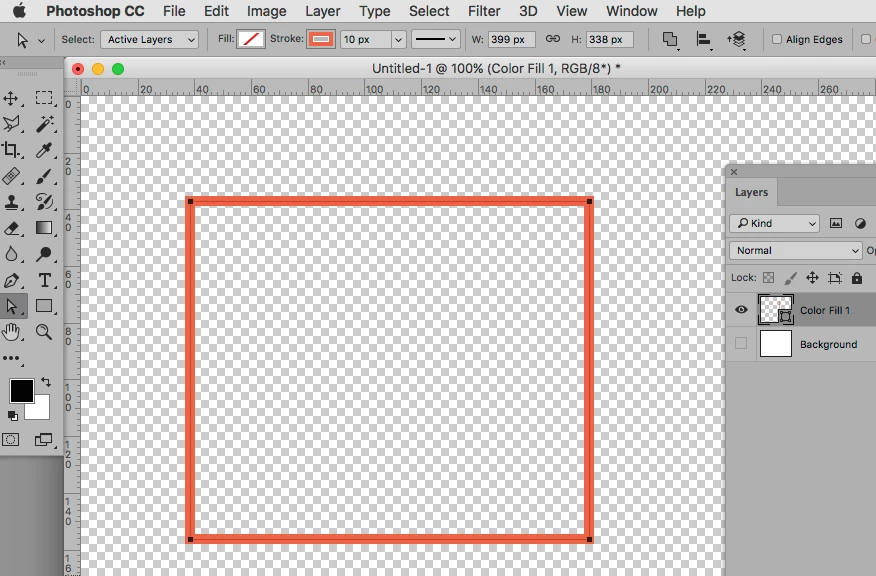
Regards,

Pfaffenbichler

3 replies

Paula5E2B
Participating Frequently
August 25, 2021

In case anyone on Adobe Creative Cloud (I'm using 22.5.0 on Windows 10):

  1. Draw the rectangle 
  2. Change to the Selection tool and click on the rectangle
  3. Open the Properties panel for the rectangle
  4. In the Appearance, there are 4 corners displayed and probably showing a number higher than zero if the corners are not square. Make sure the linked icon is selected, type 0 in one of the corner radius' and they will all change to zero and the rectangle will now be squared off. In the image, the four corner radius' show under the tooltip I highlighted to bring attention to that area.

Paula5E2B
Participating Frequently
August 25, 2021

That should say I'm using Photoshop 22.5.0 on Windows 10.

Participant
September 14, 2019

The correct answer is, after drawing a shape with the Rectangular Marquee Tool, select Edit>Stroke and then for the "Location" choose "Inside." Choosing "Inside" should produce nice, sharp corners.

c.pfaffenbichler
Community Expert
c.pfaffenbichlerCommunity ExpertCorrect answer
Community Expert
May 10, 2017

Good day!

That feature is pretty old.

I recommend you disregard it and instead use the Rectangle Tool to create a Shape Layer with Stroke.

Regards,

Pfaffenbichler

Known Participant
May 10, 2017

Hi c.pfaffenbichler ~

Must be a misunderstanding here. You say

<<That feature is pretty old. I recommend you disregard it and instead use the Rectangle Tool to create a Shape Layer with Stroke>>

. . . but it's the Rectangle Tool that I asked about.

When I create a rectangle with the Rectangle Tool > Magic Wand select the entire rectangle > Edit > Stroke, the stroke's corners are bevelled:

And similarly if I create a rectangle with the Rectangle Tool > Magic Wand select the entire rectangle > Select-Modify-Border, the border's corners are bevelled.

I need square corners, not bevelled.

I'm running CS2 in Win 10

Known Participant
May 10, 2017

And once again:

Edit > Stroke is old functionality.

One should generally avoid it as newer functionality provides better editability.

Must be a misunderstanding here. You say

<<That feature is pretty old. I recommend you disregard it and instead use the Rectangle Tool to create a Shape Layer with Stroke>>

. . . but it's the Rectangle Tool that I asked about.

So use the Rectangle Tool to create a Shape Layer and apply whatever fill and stroke you want to that instead of creating whatever (your screenshots are unclear on that) and making an unnecessary Selection.


Hi c.pfaffenbichler, I'm just a beginner with Photoshop. When I use the Rectangle Tool to drag a shape, I just get a regular Layer, not a "Shape Layer. How do I create a shape layer? I've googled "photoshop create a shape layer" and this is what it says

Create a rasterized shape

  1. Select a layer. You cannot create a rasterized shape on a vector-based layer (for example, a type layer).
  2. Select a shape tool, and click the Fill Pixels button in the options bar.
  3. Set the following options in the options bar: Mode. ...
  4. Set additional tool-specific options. ...
  5. Draw the shape.

But there is no "Fill Pixesl" button in the Options Bar.

I have to admit that I'm baffled that PS can't simply create a rectangular border whose thickness can be expanded or reduced.