
Participant
November 13, 2018
Pregunta

How to add custom extension text when saving batch automations in Photoshop?

  • November 13, 2018
  • 3 respuestas
  • 743 visualizaciones

Photoshop used to allow me to add custom text when I saved images via batch automation.

For example, Image1.jpg could be saved as Image1_resized.jpg.  This "_resized" text would get added to all of the batched photos.

However, it doesn't seem like it allow this anymore.  I've tried leaving the extension as "None" and typing in "_resized" and the example shows that it will work correctly, but this is not the case when I actually hit "OK". It removes the "_resized" as well as the extension.
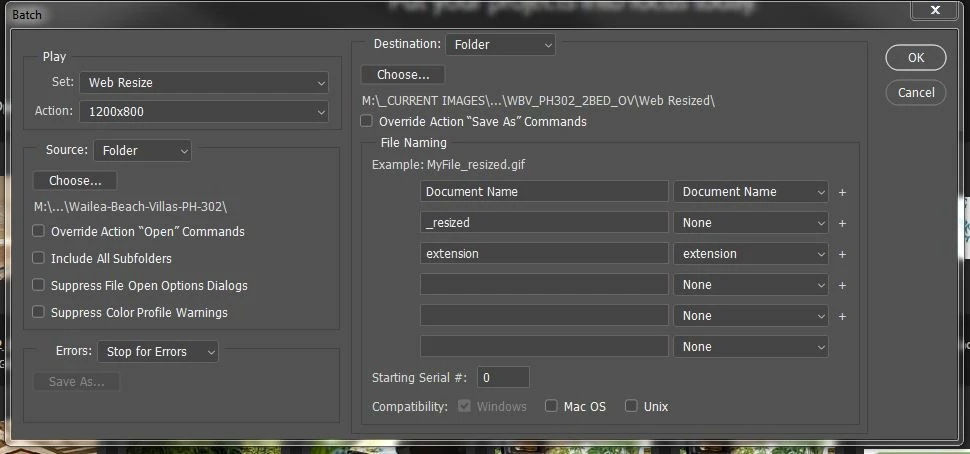
Any solutions to this?Thanks!

[Here is the list of all Adobe forums... https://forums.adobe.com/welcome]

[Moved from generic Cloud/Setup forum to the specific Program forum... Mod]

Este tema ha sido cerrado para respuestas.

3 respuestas

Bojan Živković11378569
Community Expert
Community Expert
November 14, 2018

I will provide you with links to my tutorials (in case you need them) which covers the above suggested solutions https://www.designeasy.co/2014/07/how-to-add-prefix-and-suffix-to-file.html  and https://www.designeasy.co/2012/12/batch-rename-any-kind-of-files-in-adobe.html

Stephen Marsh
Community Expert
Community Expert
November 14, 2018

If not using Image Process Pro, then the only other option that I can think of would be to use Bridge’s Batch Rename tool to insert custom text into the output filenames using a regular expression based string substitution. I’d go with IPP over Batch!

JJMack
Community Expert
Community Expert
November 14, 2018

I remember there was a custom text option at some point in time.   However in the Version of Photoshop I still have installed I do not see that option in Automate Batch.  CS6. CC 2104,CC2018 and CC 2019. IMO there is a better Batch option the File>Automate>Patch.    Search the web for Image Processor Pro.  Download the plug-in and install it.   You will then have a menu item File>Automate>Image Processor Pro... you will find it has the option you want

JJMack