
Participating Frequently
June 5, 2023
Question

How to add rounded corners to frame

  • June 5, 2023
  • 4 replies
  • 24086 views

Can someone help please?

I created a frame and I would like to add rounded corners to it so that it will fit perfectly inside youtubes new rounded thumbnails.
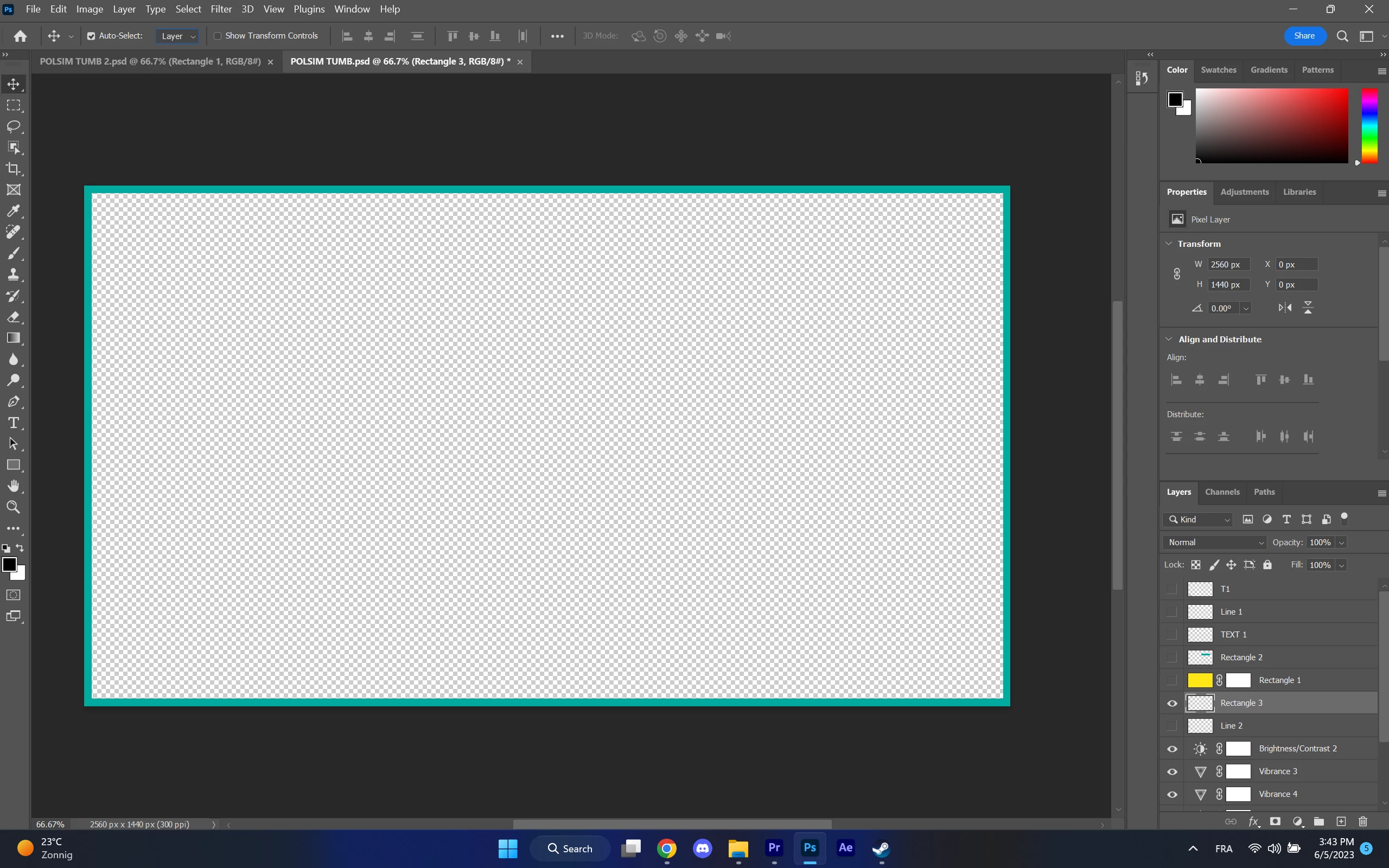
 

Usually there is an option at properties to add rounded corners to a rectangle but for some reason there isn't and I don't know how to do it.

4 replies

Known Participant
September 21, 2023

Make a rounded border with the pen or rectangle and fill everything inside of it. The outside should be transparent.

Jumpenjax
Community Expert
Community Expert
June 5, 2023

When you draw the object you should have four dots in each corner pull them in. If you need to adjust after you go to the properties panel and adjust from there.

Lee- Graphic Designer, Print Specialist, Photographer
J E L
Community Expert
Community Expert
June 5, 2023

@stan5D3E If the method @Conrad_C suggested doesn't work for you, here is a YouTube video that goes into detail about how to create rounded corners for YouTube thumbnails. https://www.youtube.com/watch?v=9o6oHkxJs4Q. Let us know if that helps.

Conrad_C
Community Expert
Community Expert
June 5, 2023

The reason you don’t see rounded corner options is that for the layer selected in your screen shot, the Properties panel says Pixel Layer. Rounded corner options are available only for vector shape layers and paths. Draw it with the Rectangle tool in Shape mode and you will get rounded corner controls in the Properties panel, along with Fill and Stroke controls.

Known Participant
June 5, 2023

Hi Conrad,


I asked myself the same some days ago. I still cry for Fireworks. There you put the shape over, Mask command, BANG done.


Anyway, there are several ways of doing it, including the instruction from Adobe site itself. Of all of them, I found this one the fastest:


https://www.websitebuilderinsider.com/how-do-i-round-corners-in-photoshop/


This is done in a few clicks. the only thing is not to release the mouse until you are sure you are satisfied. It actually reminds me on Fireworks Mask command.

Conrad_C
Community Expert
Community Expert
June 5, 2023

Yes, you can do that now. The article you linked to is a good example, but arguably it is too many steps.  In recent updates, Photoshop has added some features that might have been missed because they are kind of subtle, but several enhancements were made for rounded corners. The first method shown in the linked article uses the new option to set a default rounded corner radius, but it can be more interactive than that.


My original reply was assuming you wanted to draw a rounded corner object from scratch, but now that you mention a mask on an existing layer, here is another way that uses the latest features in a way that might be simpler than what is in the linked article.


In the demo below, the document has one pattern layer and no pixel mask, and I want to round that layer’s corners. It’s done in a few seconds, by drawing a rectangle shape path, converting it to a vector mask, then dragging the rounded corner widgets on the rectangle shape itself. Or by adjusting the rounded corner options on the Properties panel. Then you don’t have to get it right on mouse release, because you can continue to adjust both rectangle size and rounded corners later.


If you want a save a trip to the menus, a shortcut for creating a vector mask with a path selected is to Ctrl-click (Windows) or Command-click (macOS) the Add a Mask button in the Layers panel.