
Participant
May 24, 2023
Answered

How to Change Color of Text Written on Object in Photo?

  • May 24, 2023
  • 2 replies
  • 2169 views

I have the color hex code (694719), but I'm trying to figure out how to change the color of the word written on this boat to this particular color I mentioned.

This topic has been closed for replies.
Correct answer Trevor.Dennis

Thanks! This has been really helpful. 


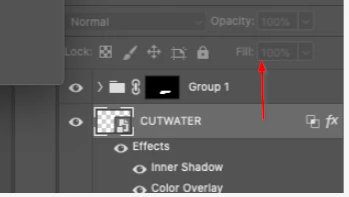
However I'm running into another issue, the color is not changing even when I chose the color I wanted in the "Color Overlay". Do you know what I might be doing wrong?


Your Layer Style settings are OK (opacity 100% and blend mode Normal)

Try moving the SO layer to the top of the layer stack (Cmd ]  that's a closed square bracket btw).  Or you can drag it with the mouse.
2 replies

Trevor.Dennis
Community Expert
Community Expert
May 24, 2023

If you are determined to use the original raster text, then use something like the Object Selection tool to select it.  Note it works better if you set it to use the cloud in the Options bar or Preferences.  I still had to make minor adjustments to the mask.  Then add a Hue/Saturation adjustment layer and check Colorize.  You can change the colour with the Hue and Saturation sliders.

However I would use a new type layer using Baskerville Old Face.

Set the type layer to a Smart Object (SO), and use Free Transform to cover the exisiting name.

I had to open the SO in a new window several times to adjust the kerning, but you can see I got a decent match.


Note: Making the Type layer a Smart Object is essential as you may have to fine adjust the Free Transform several times.  Being an SO, the handles will remain in the original corner positions.


Use Content Aware Fill or the Patch tool to remove the original name.

I gave it the tiniest bit of Gaussian blur to match the photo (0.3) and an Inner Shadow (layer style)

From here you can fine tune the colour etc.


Participant
May 25, 2023

Thanks for showing this, However I am very new to Photoshop and a lot of your explanation went over my head. Could you perhaps screen record the process you went through,


If that's a bit over the line to ask, my sincerest apologies.

Trevor.Dennis
Community Expert
Trevor.DennisCommunity ExpertCorrect answer
Community Expert
May 26, 2023

Thanks! This has been really helpful. 


However I'm running into another issue, the color is not changing even when I chose the color I wanted in the "Color Overlay". Do you know what I might be doing wrong?


Your Layer Style settings are OK (opacity 100% and blend mode Normal)

Try moving the SO layer to the top of the layer stack (Cmd ]  that's a closed square bracket btw).  Or you can drag it with the mouse.

Zesty_wanderlust15A7
Known Participant
May 24, 2023

I would erase and retype that (try fonts or ask around).

Alternatively, you could increase contrast so, for example, the Object Selection Tool finds it better, so you'll have a mask. That result will be messy though.

There may be more ingenious ways...