
Hosun
Inspiring
November 16, 2024
Answered

how to change color

  • November 16, 2024
  • 3 replies
  • 954 views

Hi,


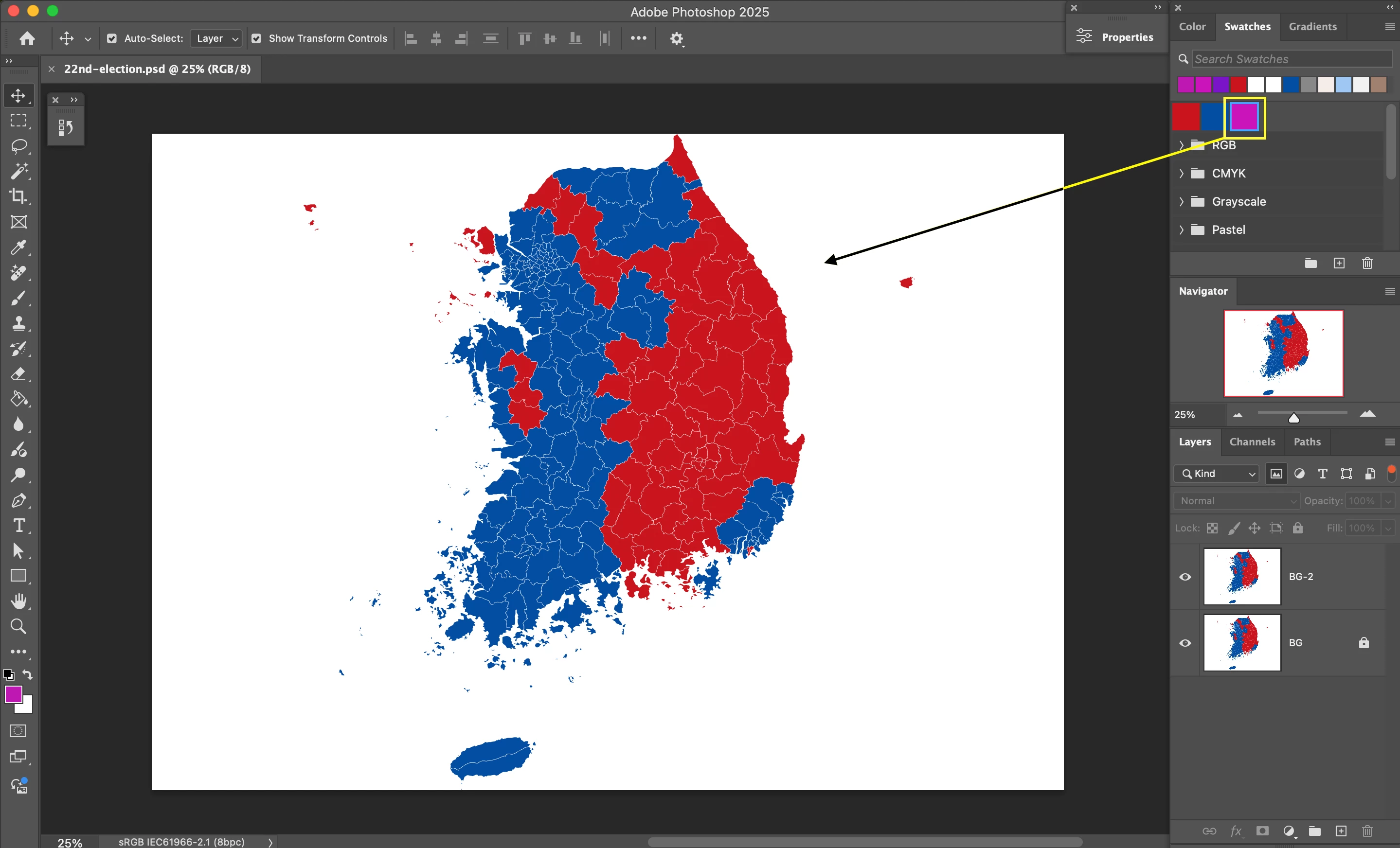
The map below is in blue and red.

Is there any way to change it into purple?


All that I can think of is to use Magic Wand and Paint Bucket.

Is there any easy way?


Hosun


This topic has been closed for replies.
Correct answer davescm

You have layer filtering on so that only image layers show in the layer stack. Click on that small red dot at the top of the layers panel to turn the filtering off. Then you will be able to click on the adjustment layer and see the controls in the properties panel.

Dave

3 replies

pixxxelschubser
Community Expert
Community Expert
November 16, 2024

You can also use a gradient map.


D Fosse
Community Expert
Community Expert
November 16, 2024

There's probably at least fifteen ways to do this. Here's the first that comes to my mind:


Add a layer with the purple color you want. Double-click the layer to open Layer Styles, and use the Blend If sliders for "underlying layer". Just drag the white slider a bit down to exclude the white in the original.


Edit - yeah, there we go. How many can we come up with? 🙂

davescm
Community Expert
Community Expert
November 16, 2024

Try a black and white adjustment layer and move the blue slider to even out the grey value of the blue and red areas. Then add a Hue and Saturation layer set to 'colorize'


Dave

Hosun
HosunAuthor
Inspiring
November 16, 2024

Thank you very much for your reply.


In Screenshot 1, I added the Black and White Adjustment Layer.

But in the Layers panel, it looks different from yours (Screenshot 2).


Hosun


Screenshot 1


Screenshot 2

pixxxelschubser
Community Expert
Community Expert
November 16, 2024

The colour sampler with two measuring points helps you to find the best values for the black and white adjustment layer (base maximum black).
