
Participant
July 14, 2025
Answered

How to Change Photoshop Shortcut for Selecting Layer Below on Mac?

  • July 14, 2025
  • 2 replies
  • 421 views

Hi, I'm trying to create an action in Photoshop. For this, I need to select the layer below the currently selected layer. The shortcut for this is Option + [. My problem is that my MacBook keyboard doesn't have a [ key. I can type [ by pressing Option + 9, but that means I can't use the Option + [ shortcut in Photoshop, because that would require pressing Option + Option + 9, which isn't possible.

I've tried changing the Photoshop shortcut from Option + [ to something else, but I can't find where to do this. Since I'm creating an action, I also can't manually click the desired layer, because that would record the layer name into the action, which makes it unusable in other files.

Does anyone know how to change the Option + [ shortcut in Photoshop so I can proceed with creating my action? Thank you!"
Correct answer Conrad_C

What language keyboard does your Mac have? It seems strange that Apple would ship a keyboard with no [ key, because that key is required for some tasks in many languages.


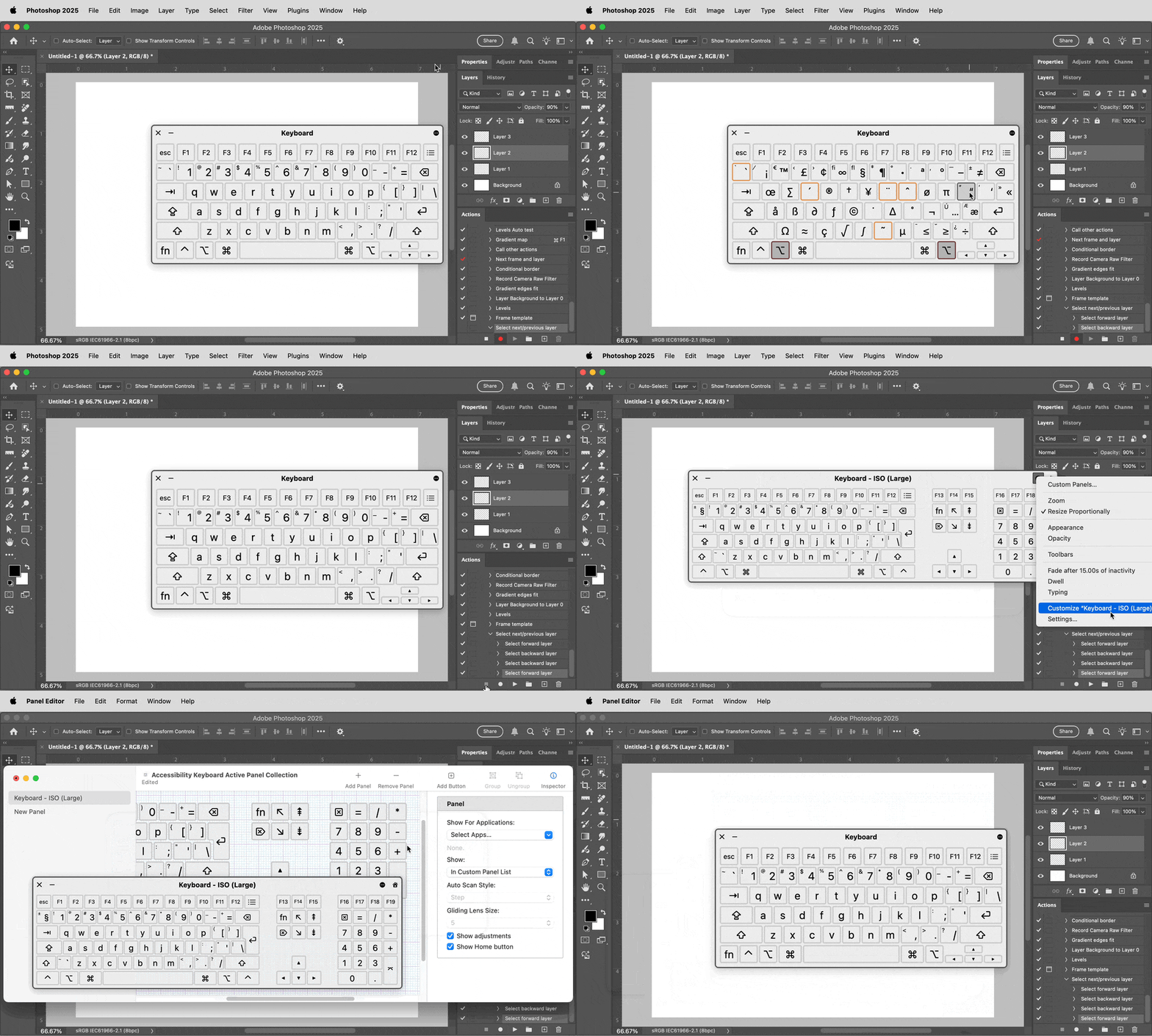
if for some reason the keyboard literally does not have a [ key, can you get to it using the Keyboard Viewer built into macOS, and therefore on any Mac. If you enable the Show Input Menu in Menu Bar option in Keyboard settings, you can open Keyboard Viewer from the menu bar. This opens a software keyboard that you can customize. For example, you could have it display an extended US English keyboard, which most definitely does have a [ key on it, and use that to enter the [ key.


In the demo below, on my MacBook Pro I open macOS Keyboard Viewer. After making sure Photoshop has focus, I keep the Option key held down on the real keyboard, and to send the [ key, I don’t press it on the real keyboard, I click it on the software keyboard while still holding down the Option key on the real keyboard. As I do this, in Photoshop you can see that the layer selection is changing in the Layers panel, and you can also see that Photoshop is recording that in the Actions panel. So Photoshop accepted that as Option + [ and ]  even though I never pressed the [ or ] key on my hardware keyboard.


After that, the demo shows changing the keyboard type to Extended, to demonstrate that you can use Keyboard Viewer to input keys that don’t even exist on your current real keyboard…my MacBook Pro certainly doesn’t have all of those extra keys like F19, but Keyboard Viewer can input them.


2 replies

Conrad_C
Community Expert
Conrad_CCommunity ExpertCorrect answer
Community Expert
July 15, 2025

What language keyboard does your Mac have? It seems strange that Apple would ship a keyboard with no [ key, because that key is required for some tasks in many languages.


if for some reason the keyboard literally does not have a [ key, can you get to it using the Keyboard Viewer built into macOS, and therefore on any Mac. If you enable the Show Input Menu in Menu Bar option in Keyboard settings, you can open Keyboard Viewer from the menu bar. This opens a software keyboard that you can customize. For example, you could have it display an extended US English keyboard, which most definitely does have a [ key on it, and use that to enter the [ key.


In the demo below, on my MacBook Pro I open macOS Keyboard Viewer. After making sure Photoshop has focus, I keep the Option key held down on the real keyboard, and to send the [ key, I don’t press it on the real keyboard, I click it on the software keyboard while still holding down the Option key on the real keyboard. As I do this, in Photoshop you can see that the layer selection is changing in the Layers panel, and you can also see that Photoshop is recording that in the Actions panel. So Photoshop accepted that as Option + [ and ]  even though I never pressed the [ or ] key on my hardware keyboard.


After that, the demo shows changing the keyboard type to Extended, to demonstrate that you can use Keyboard Viewer to input keys that don’t even exist on your current real keyboard…my MacBook Pro certainly doesn’t have all of those extra keys like F19, but Keyboard Viewer can input them.


Participant
July 15, 2025

Thank you so much for the demo and clear insturctions! I'm from finland and I'm using Macbook Air M2 (2022). The ] key is available on my keyboard when pressing option+9 but there is no just one key for ]. 

Conrad_C
Community Expert
Community Expert
July 15, 2025

Oh, I see. So the Finnish keyboard provides [ in the same way the US English keyboard provides the ª character (press Option+9). Well, then I hope the virtual keyboard provides a way, it was able to type the Option+9 character with the virtual keyboard on my Mac.

Stephen Marsh
Community Expert
Community Expert
July 14, 2025

@joonas_7982 


You can hopefully use an action recorded from a full keyboard, I believe that I have shared my "layer navigation building blocks" action before, it should still be in my DropBox. I'll find the link...


https://www.dropbox.com/s/dd9qpecqrvuon6e/Layer%20Navigation%20Building%20Blocks.atn?dl=0


Duplicate the action step in my action. Then just drag the action step out of my action into your action.


More here, particularly if the lower layer is skipped due to visibility:


https://community.adobe.com/t5/photoshop-ecosystem-discussions/automate-batch-insert-unique-text-from-a-csv-file-to-multiple-different-images-in-photoshop/m-p/13934766


https://community.adobe.com/t5/photoshop-ecosystem-discussions/select-layer-above-or-beneath-current-layer-with-a-shortcut/m-p/14737983


Otherwise you could use a "helper" script to perform this step in the action.

Participant
July 15, 2025

Thank you so much! No I can finish the action!


Stephen Marsh
Community Expert
Community Expert
July 15, 2025

You're welcome @joonas_7982