lauraj26961942
Participant
January 9, 2019
Answered

How to convert many pictures from RGB in CMYK at the same time?

  • January 9, 2019
  • 4 replies
  • 11541 views

Hi, how can I convert many Pictures from RGB in CMYK a the same time? In Photoshop 2019 it doesn't work the same way like in Photoshop 2018.

    This topic has been closed for replies.
    Correct answer Mike_Gondek10189183

    Save an action that converts to CMYK, then assigns your profile and set that here. Mine is GRACOL.
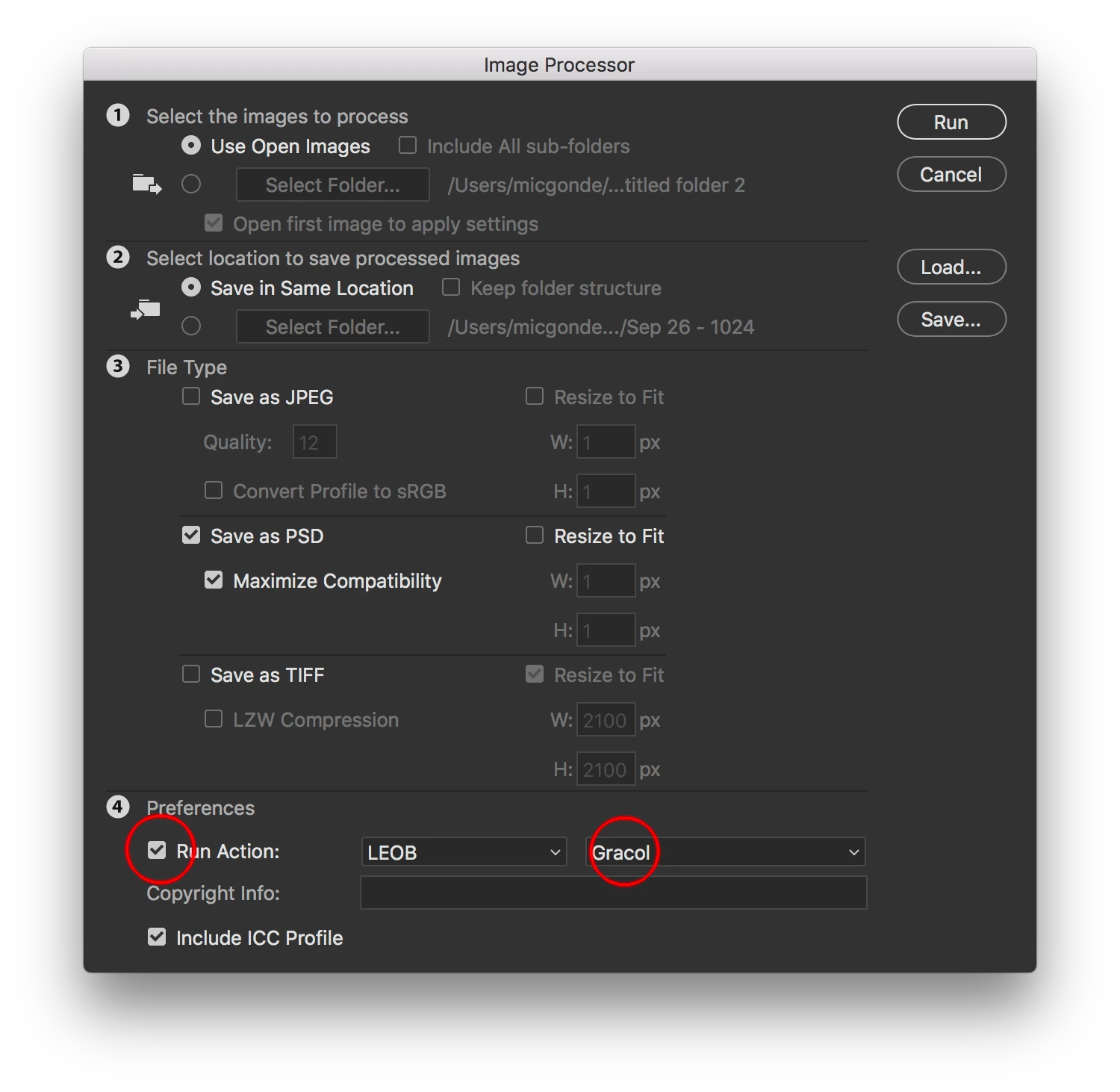
    Warning about the .tif format. The image processor does something to the file where when you place in Illustrator the transparency works, but in InDesign transparency is corrupted. Use the .psd format, .tif is so old an not updated that issues like this exist.

    4 replies

    rob day
    Community Expert
    Community Expert
    January 9, 2019

    Are the pictures getting placed in a page layout? Why not make the conversion either at the export to PDF or at output in the RIP?

    D Fosse
    Community Expert
    Community Expert
    January 9, 2019

    Actions and Batch work exactly like they always have. Make an action to convert, and run that action in a batch.

    And now for the mandatory warning. Feel free to ignore if you already know this:

    You don't really want to do that, because it ties you to a specific print process. You lose future flexibility. Unlike RGB working spaces, CMYK isn't generic. Every CMYK profile represents a particular combination of offset press, ink, and paper stock.

    CMYK to CMYK conversions is something you normally want to avoid for a whole lot of reasons. Hence the lock-in.

    With RGB master files you're free to convert as needed, when you know the actual process and can pick the appropriate CMYK profile.

    Use Convert to Profile, don't ever use Image > Mode > CMYK. That just converts to whatever CMYK profile you have as working CMYK. The default in Photoshop is US Web Coated (SWOP), which is not used anywhere outside the Americas - and may not be right within it either. This is something you always need to ask the printer about.

    c.pfaffenbichler
    Community Expert
    Community Expert
    January 9, 2019

    Also: Why do you need to separate the images and did you get the CMYK space definition from the actual print provider?

    Many people prefer to separate on pdf export from the layout application – in principle separating in Photoshop would provide an option to catch certain issues (banding, suboptimal Render Intent, …) but if one batch processes the images in one go that advantage does not seem to come into play.  

    rob day
    Community Expert
    Community Expert
    January 11, 2019

    Many people prefer to separate on pdf export from the layout application – in principle separating in Photoshop would provide an option to catch certain issues (banding, suboptimal Render Intent, …) but if one batch processes the images in one go that advantage does not seem to come into play.

    Sorry, I posted the same without reading yours.

    InDesign lets you customize the rendering intent for any image file via Object>Image Color Settings, so there would have to be another unusual reason like a post-CMYK color correction—i.e. some text that needed to be a specified CMYK build like 50% K, or getting to a CMYK color outside of the source RGB space like 100% cyan.

    rob day
    Community Expert
    Community Expert
    January 12, 2019

    InDesign lets you customize the rendering intent for any image file via Object>Image Color Settings, so there would have to be another unusual reason like a post-CMYK color correction

    Certainly, but I suspect some people may be more likely to catch issues when checking the images one by one in Photoshop than the whole of them in a pdf.

    And as for banding I am afraid that might be overlooked altogether if one does not also check the Channels in Acrobat (or whichever application one uses for pdf viewing and editing).


    Certainly, but I suspect some people may be more likely to catch issues when checking the images one by one in Photoshop than the whole of them in a pdf.

    I understand the desire for that kind of control, but if I'm that fussy, I would need to keep two copies. A copy of the original layered RGB version in case I change my mind, or the press conditions change, and the flattened CMYK conversion for the page layout. With a conversion there will be uncertainties about what happens to the CMYK version downstream. If I include a profile, would that invite an unwanted CMYK-to-CMYK conversion? Is the page layout's CMYK policy preserving numbers or preserving the link's profile?. If I don't include the profile how will I remember what destination space was used in the conversion?

    That's the advantage of not converting in PS, there can be a single, layered RGB master that gets placed in the layout without worrying about whether a duplicate CMYK conversion is correct. The flattening, profile selection, rendering intent choice, and conversion to 8-bit can happen from the layout on export.

    c.pfaffenbichler
    Community Expert
    Community Expert
    January 9, 2019
    In Photoshop 2019 it doesn't work the same way like in Photoshop 2018.

    And what way was that?

    Actions in combination with Batch, Image Processor, … should still provide options to process multiple files.

    lauraj26961942
    Participant
    January 9, 2019

    Thank you for your quick answer!! You're right, but I can't change the Color profile with the Image Prozessor. I don't find the button.

    c.pfaffenbichler
    Community Expert
    Community Expert
    January 9, 2019

    Have you created the Action?